Search and filter jobs on Simplify
Search by role, company, or location, adjust filters, and save useful searches.
Last updated About 2 hours ago
Open the Job Board, enter a role, company, or location, and narrow the results with filters. Select a job to read its details. Use Save Search to reuse a set of search criteria; use Save on a job to bookmark that individual posting.
Search and narrow the results
Open the Job Board. Enter a role, company, keyword, or location in the search bar.
Choose the most useful filters first, such as location, job type, and experience level.
Open More Filters for additional criteria. Check the result count as you narrow the search.
Select a job to read its summary and full posting. Save it, apply, or adjust the search based on what you find.
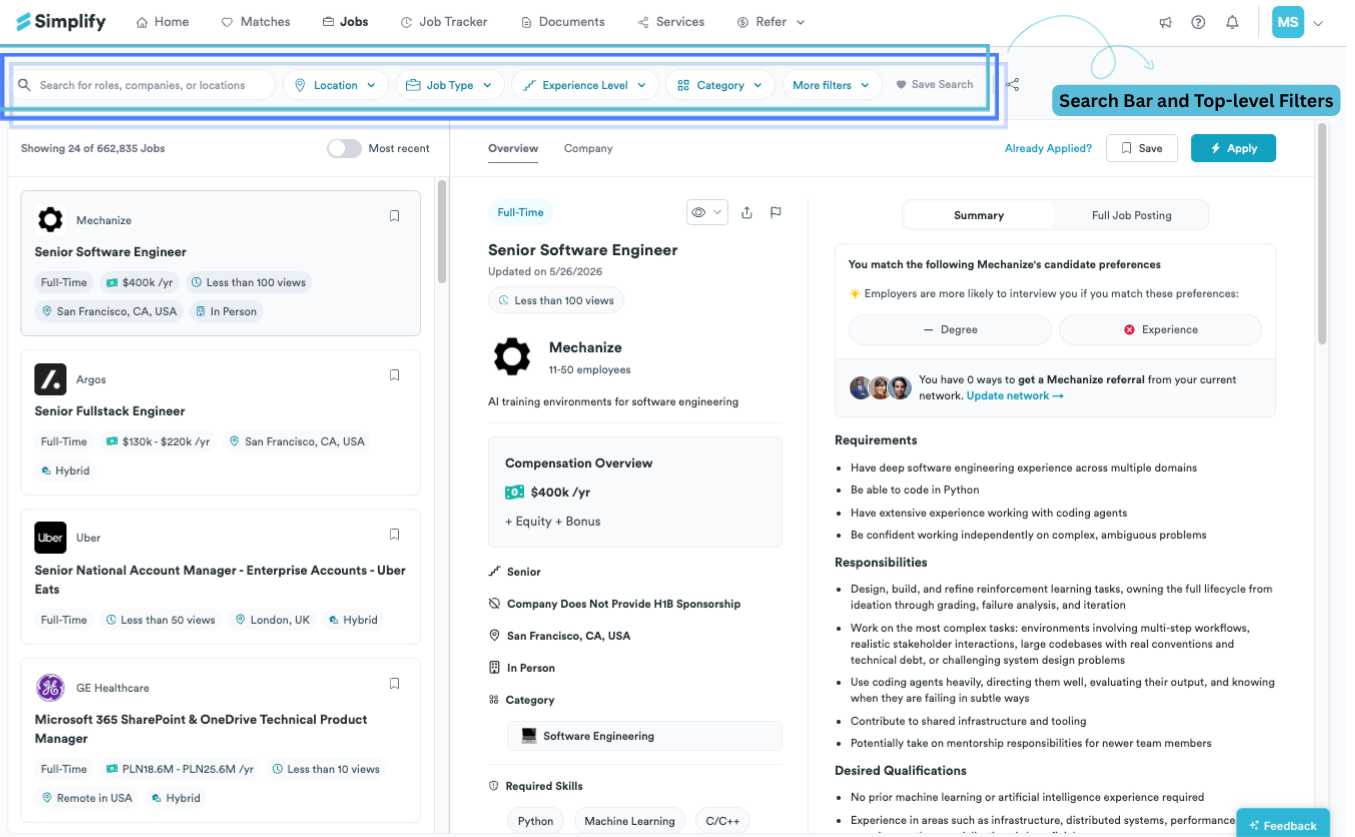
Search text works alongside the filters already selected. If a query appears to return the wrong jobs or no jobs, check the active filters as well as the words you typed.
Choose filters for your search
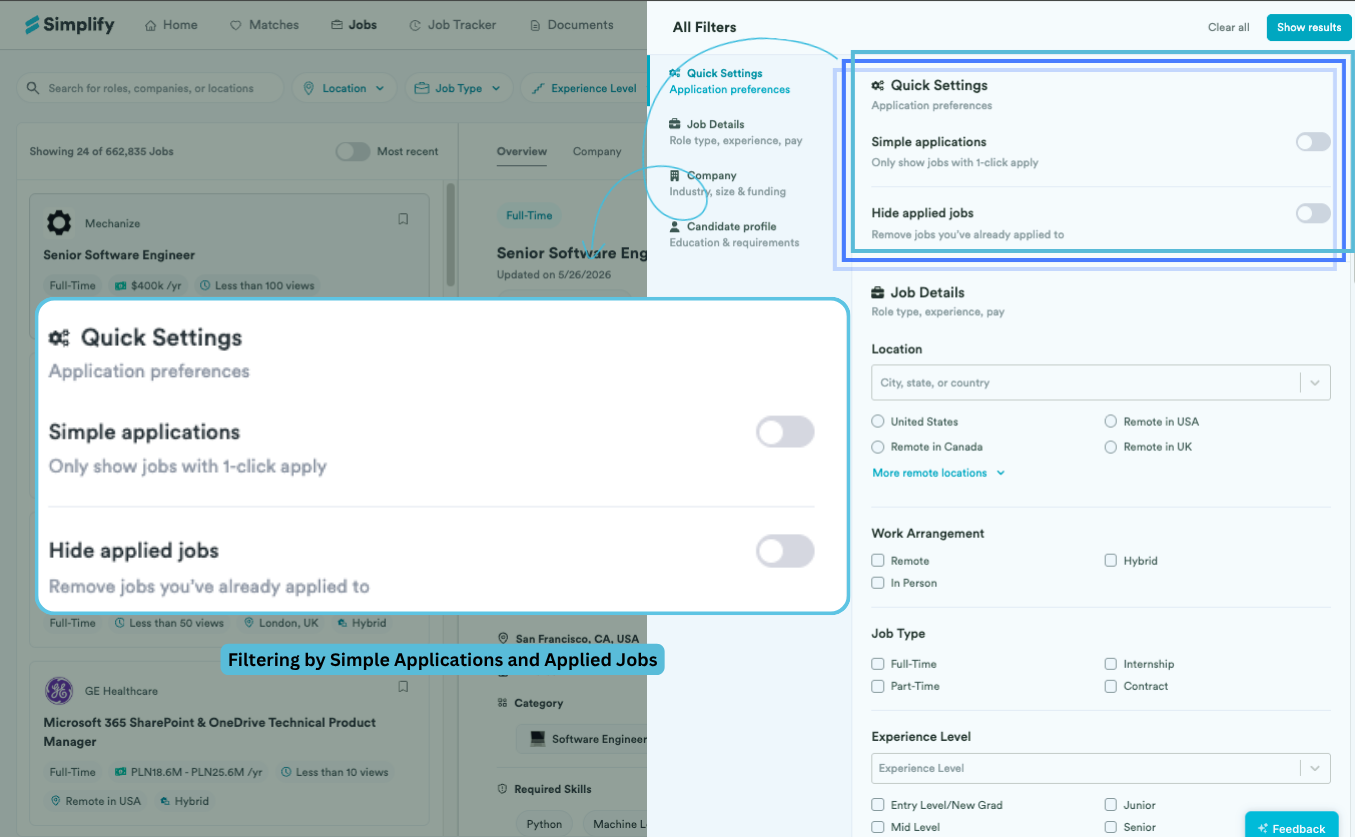
Sort and refine
Use Most recent when you want newly added postings near the top. Recency is a browsing choice, not a guarantee that the job is open or that applying earlier will produce a response. Check the employer’s page before spending time on an application.
Start with constraints you actually need, then add optional preferences. For example, search “data analyst,” choose a location and experience level, then consider salary or industry. If a narrow salary filter removes too many jobs, some employers may not have supplied salary data. A missing salary is different from a stated salary below your target.
Save and reopen searches
Set the search terms and filters you want to reuse.
Choose Save Search or the heart control and name the search.
To return, open the search bar’s saved-search list and choose that saved search. Use Manage saved searches for the available management actions.
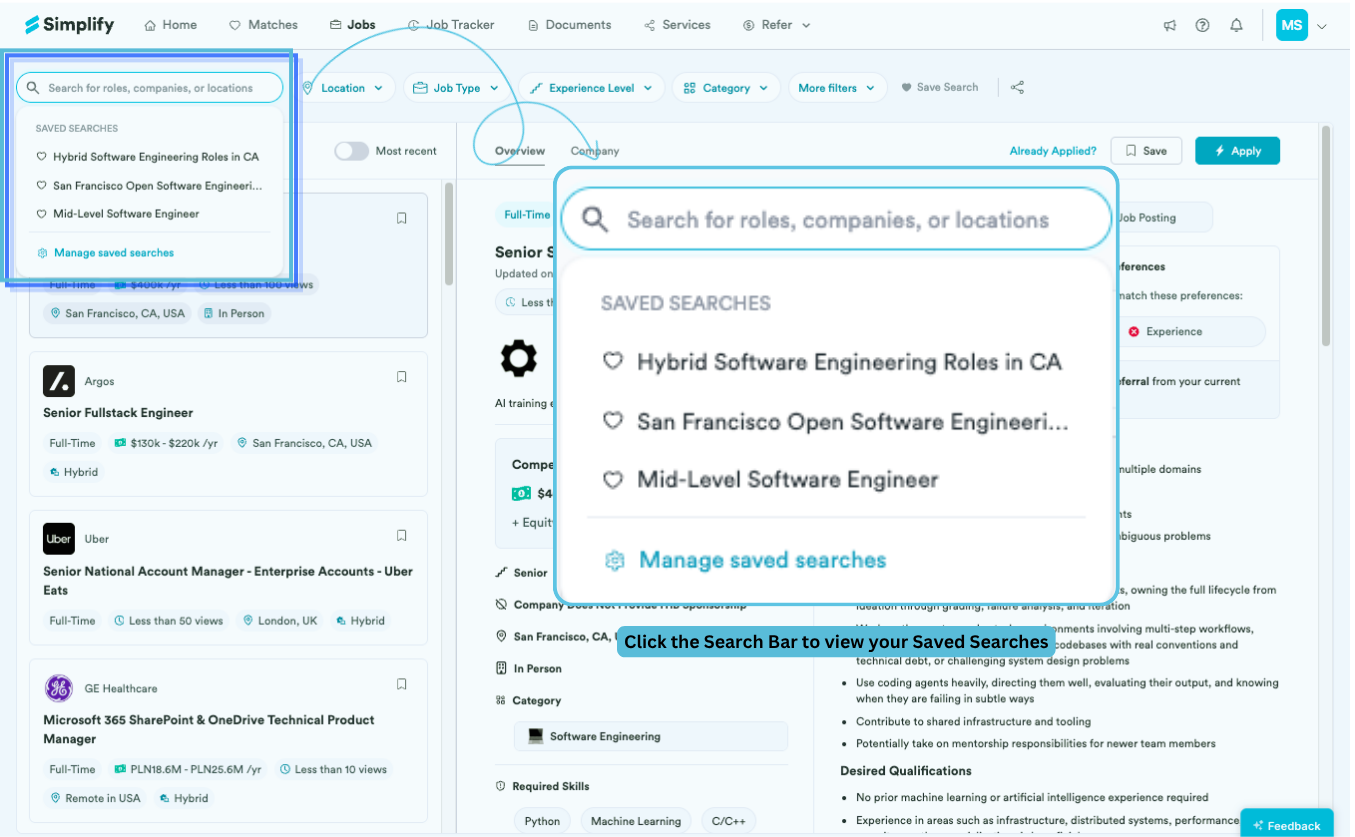
We designed saved searches for people exploring several paths at once. Keep separate searches for different locations or role types instead of repeatedly changing one set of filters. A saved search stores criteria; it is not a fixed list of jobs, so the results can change as listings change.
Share a search or save a job
Use the search’s sharing control to copy a link to the filtered view. Shared search links let another person open the current results, including without an account where supported. Review what the link contains before sharing it.
To keep an individual job, choose its Save bookmark instead. That adds a tracker record. Applying is a separate action, either through the employer’s form or Autopilot where offered.
If there are no results
Clear one filter at a time, try a related job title, or broaden a location you are willing to change. Check whether several strict requirements are being applied together. If a result has incorrect details or a broken application link, use the job’s flag icon to report it.
Related articles
Was this helpful?
Still need help? Share an idea