Save or bookmark a job
Save a job to Job Tracker and find it again later.
Last updated About 2 hours ago
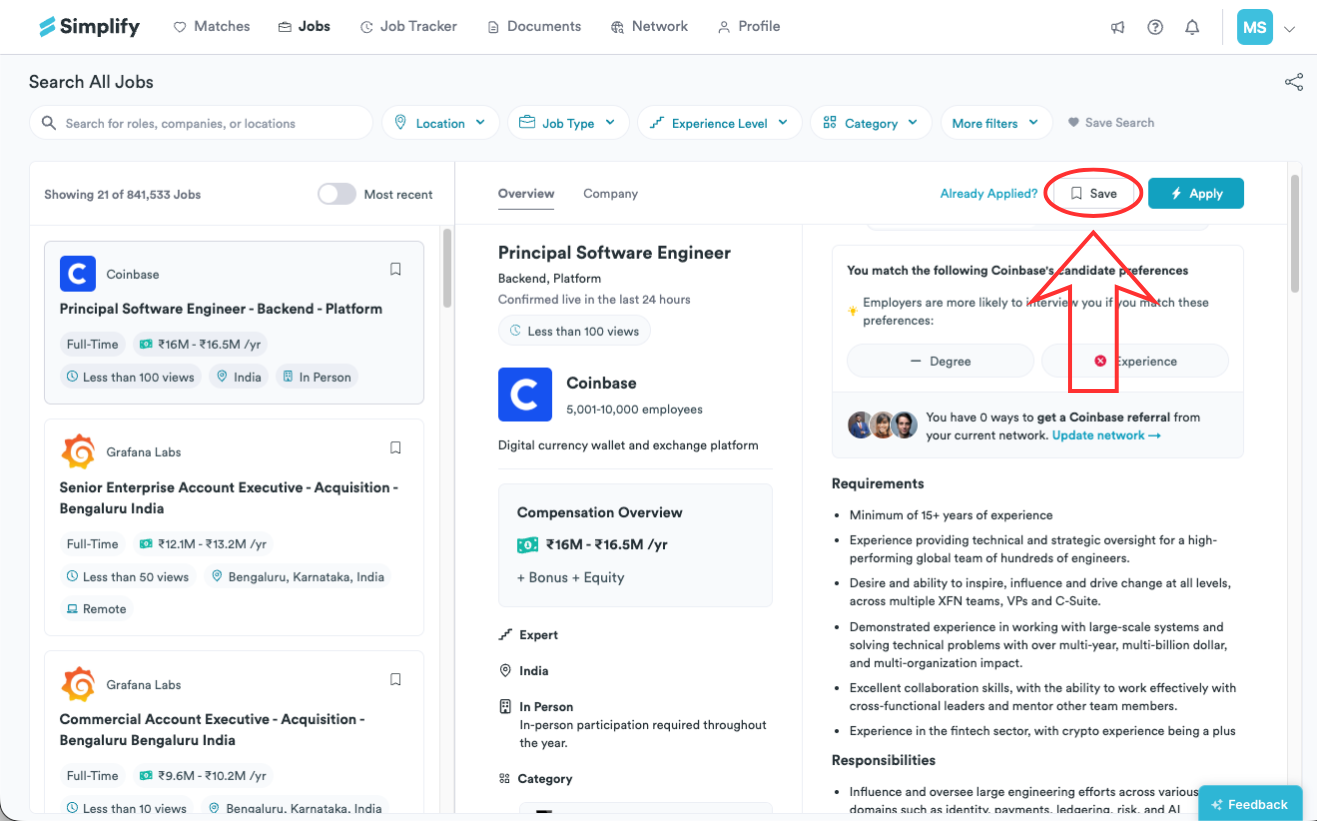
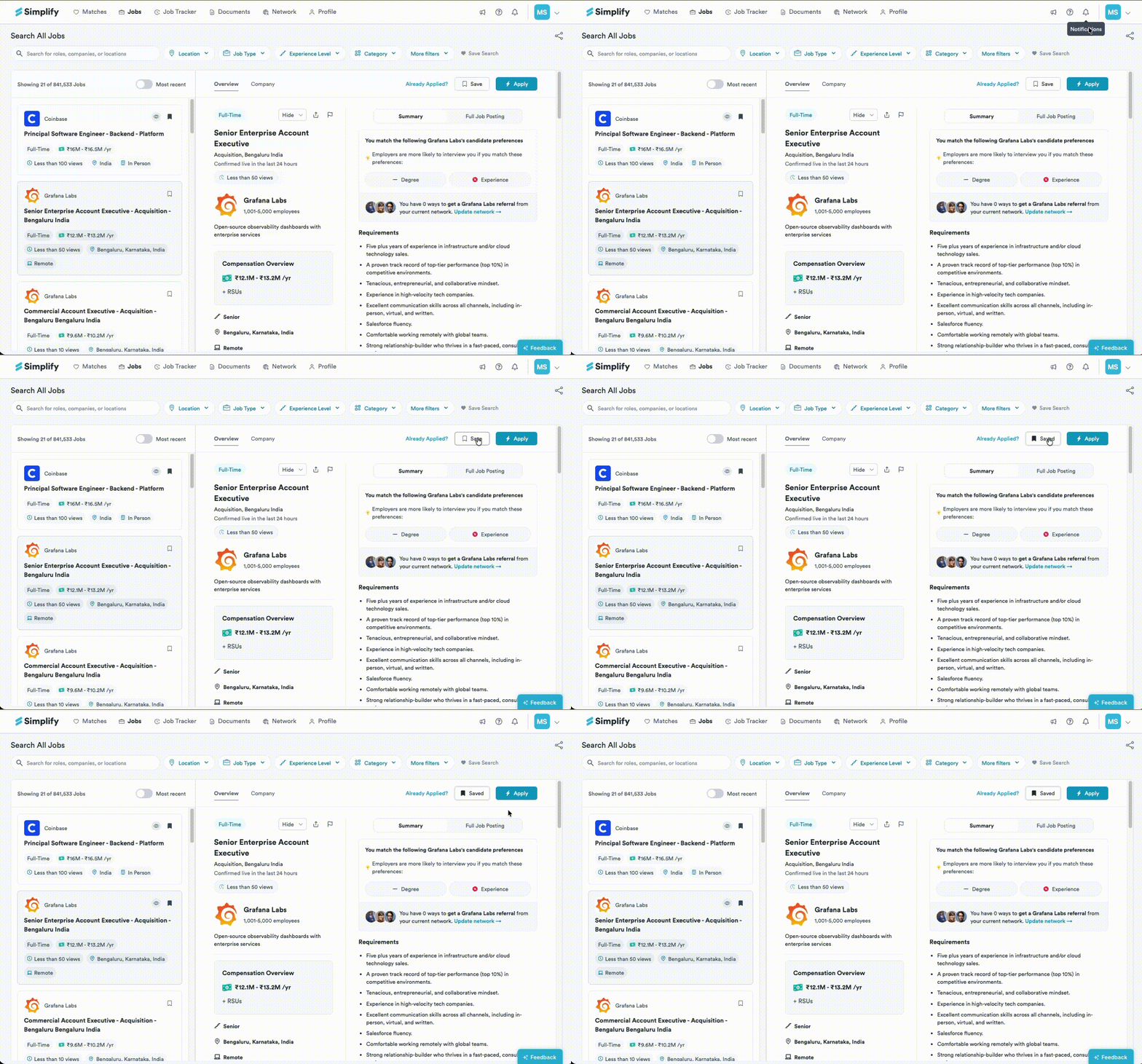
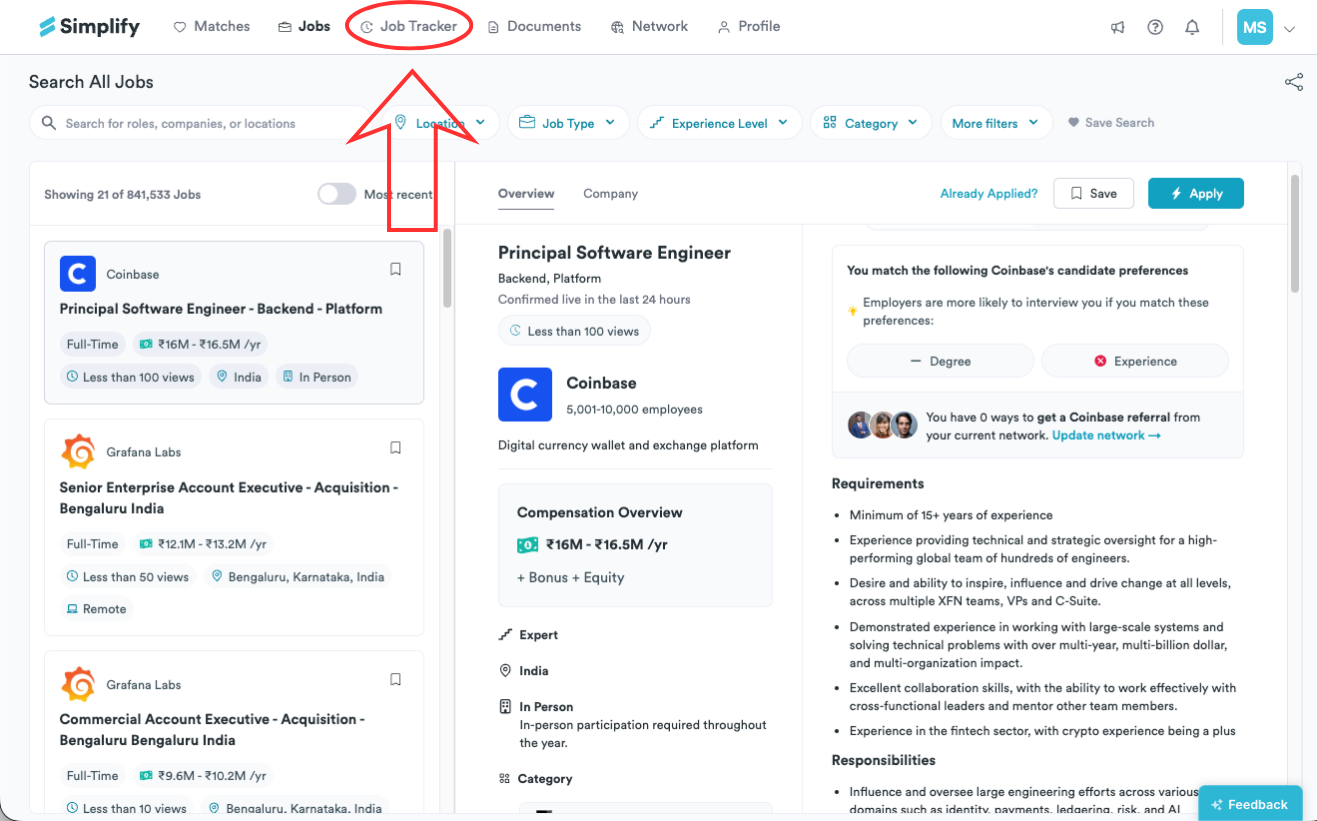
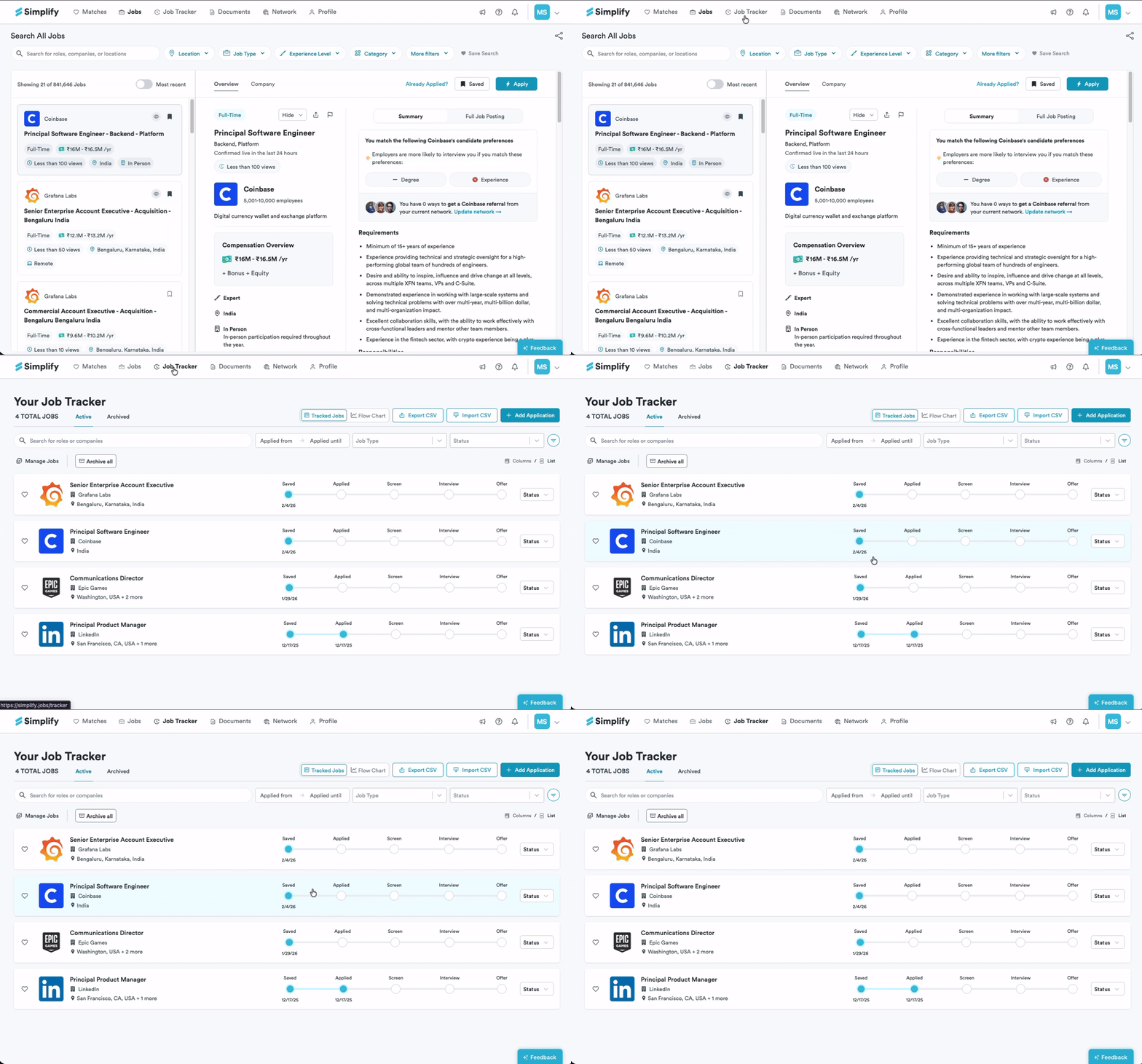
Choose Save or the bookmark icon on a job to add it to Job Tracker. Saving keeps the job for later; it does not submit an application. Open Job Tracker to return to the saved job.
Save a job
Open a job in Job Matches or on the Job Board.
Choose Save or the bookmark icon. The control changes to show the job is saved.
Find the job again
Open Job Tracker and look for the job in your saved records. Open its record to return to the posting, add notes, or start the application.
Undo a save
Choose the saved bookmark control again to undo the save. If you have already applied to the job, keep its application record and update its status as needed instead of treating it as an unsubmitted saved job.
Related articles
Was this helpful?
Still need help? Share an idea