Change your email address
Update your Simplify account email and confirm the change.
Last updated About 2 hours ago
Open Settings → Change Email, enter your new address, and choose Change Email. Check your email and follow the confirmation instructions. Keep this address current because Autopilot application mail sent through your email proxy is forwarded to your Simplify account email.
Change your email in Settings
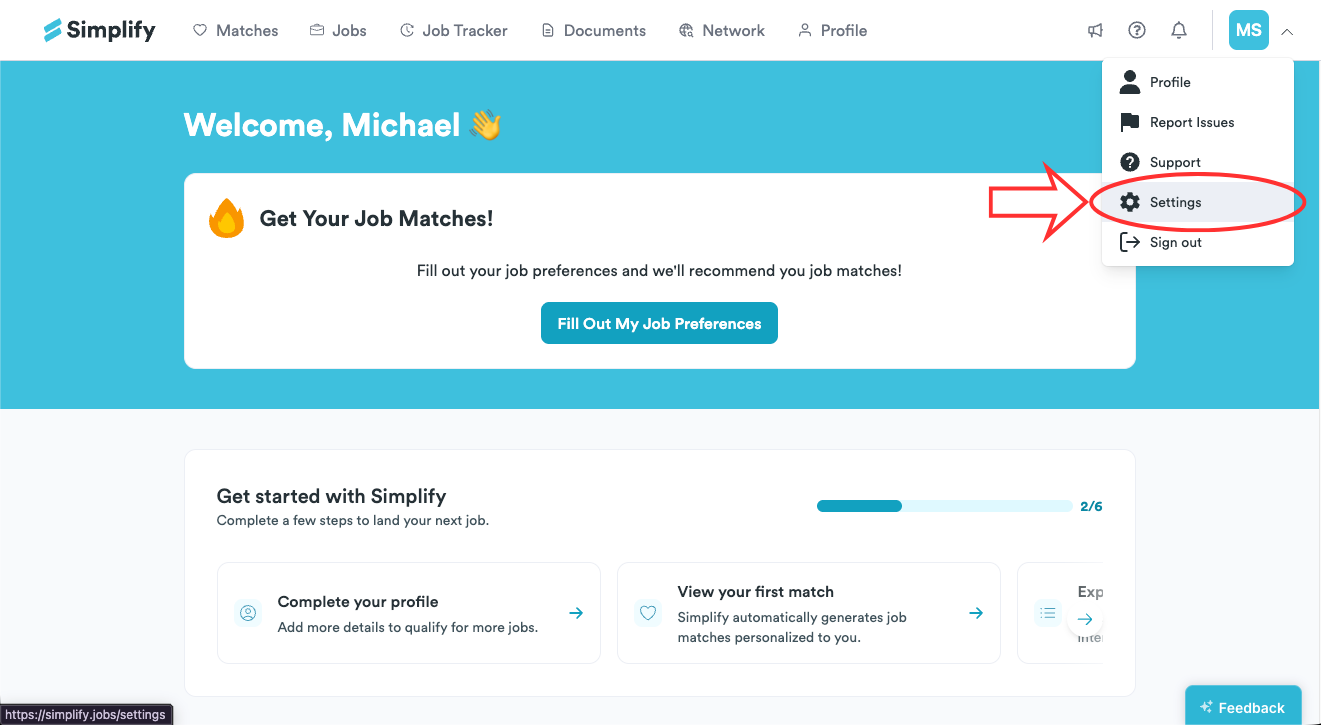
Open the account menu and choose Settings.
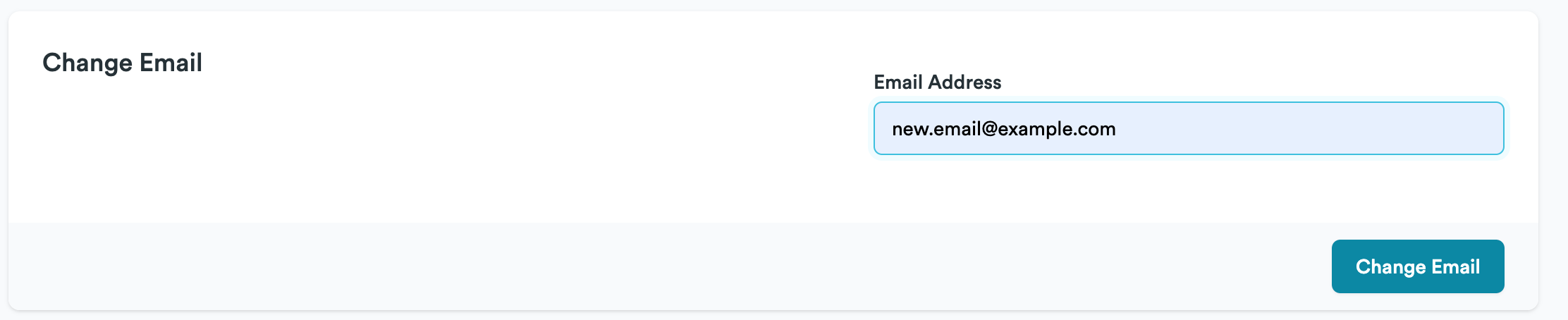
Find Change Email, enter the new address, and choose Change Email.
Alternative: change it from Profile
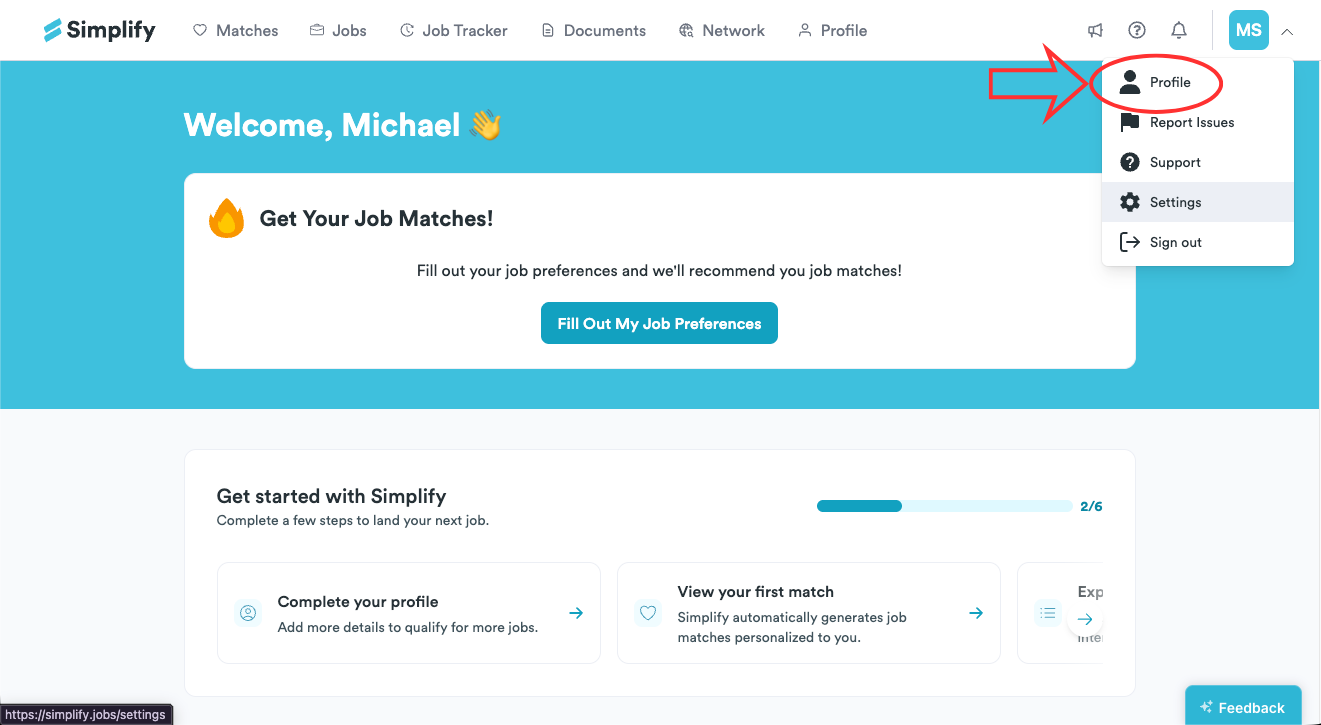
Open the account menu and choose Profile.
Select Personal Info.
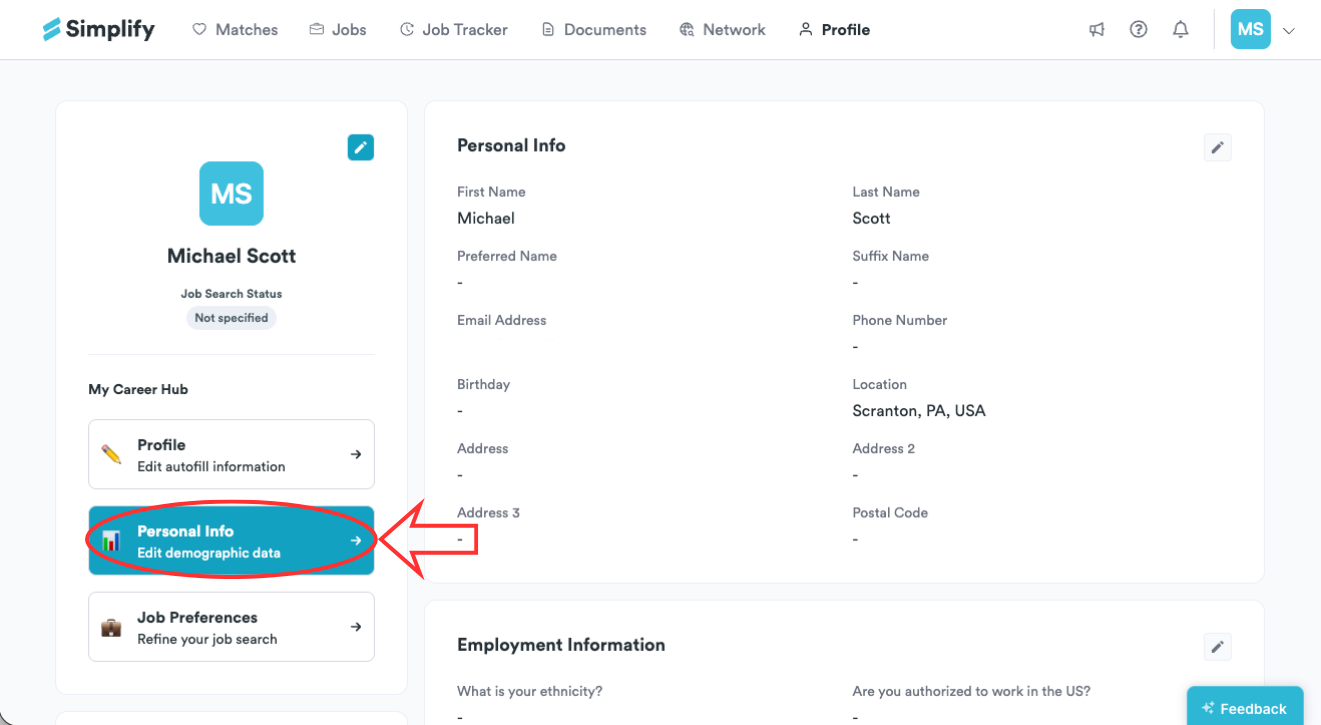
Choose the edit icon for your personal information.
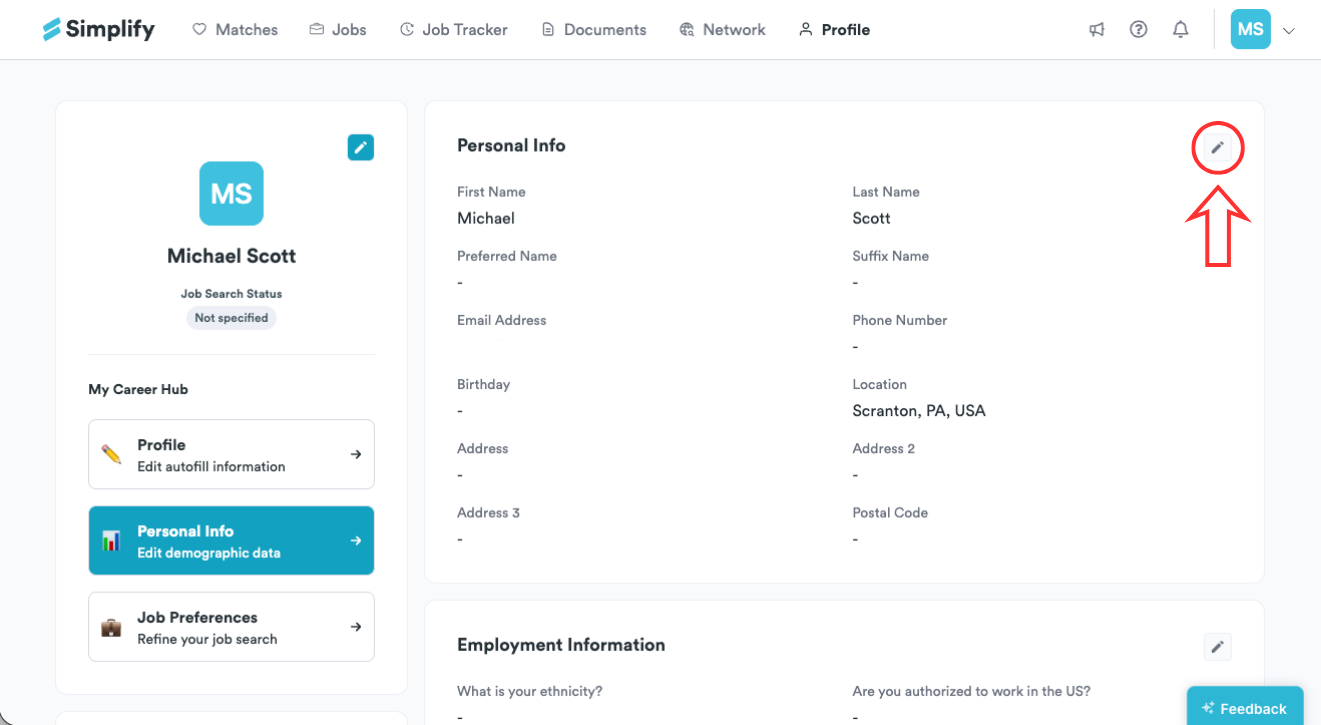
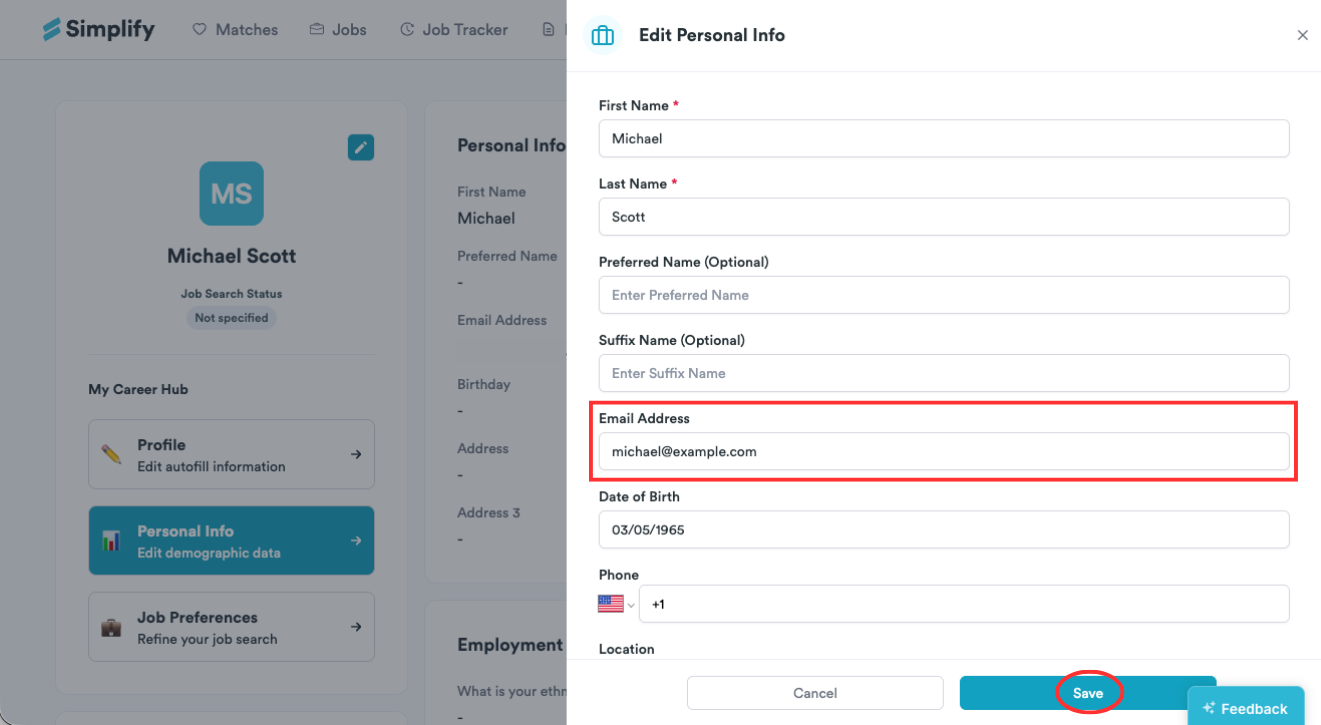
Update Email Address and choose Save.
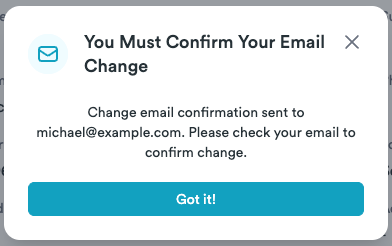
Confirm the change
Follow the instructions in the confirmation dialog and email. The change is not complete until you confirm it. If you do not see the message, check your spam or junk folder and verify that the address was entered correctly.
Gmail and application mail
Your Simplify account email and your connected Gmail inbox are separate settings. Changing your account email does not connect a different Gmail account. Autopilot’s email proxy forwards regular application mail to your current Simplify account email, so use an address you can receive mail at.
If you cannot access the address needed to confirm the change, contact support and explain the situation. Do not send email passwords or verification codes.
Related articles
Was this helpful?
Still need help? Share an idea