Build and tailor your resume on Simplify
Create editable resume versions, tailor them for jobs, understand scores, and export the result.
Last updated About 2 hours ago
Create a resume from your profile, an uploaded PDF or Word file, or an existing resume in Documents → New Resume. Add a target job, edit the content and layout, and review the result before exporting or using it. Simplify+ adds AI tailoring and feedback tools.
Choose a starting point
We designed Resume Builder around keeping different versions for different applications. A product role may need different examples from a backend role even when both draw on the same work history. Create a separate version for each emphasis so you can return to it later.
Open Documents → New Resume.
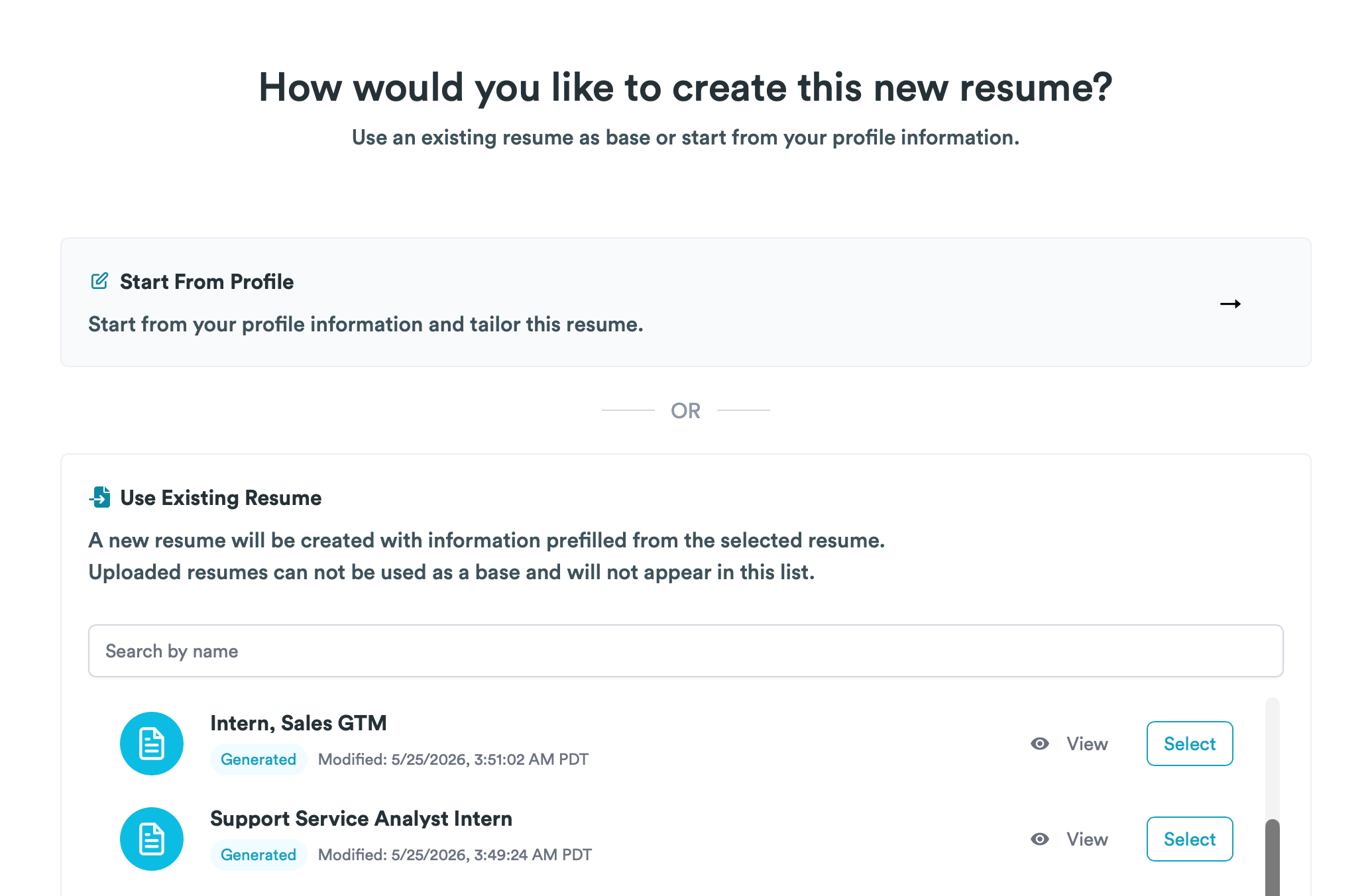
Choose Start From Profile to begin with saved profile information, Upload a Resume to import a PDF or Word file, or an existing resume to use as a base.
Give the new resume a name that helps you recognize its purpose, such as the target role or company. Review the content before you start tailoring.
The creation screenshot below shows an older version that excluded uploaded files. The current creation flow supports file import. Importing creates a separate editable resume, and the original uploaded file remains distinct.
Set the target job
Open Target Job in the builder. Select a job from your Job Tracker or enter the job title and paste the description manually. Check that the description belongs to the role you intend to apply for, especially if you arrived through a tailoring link.
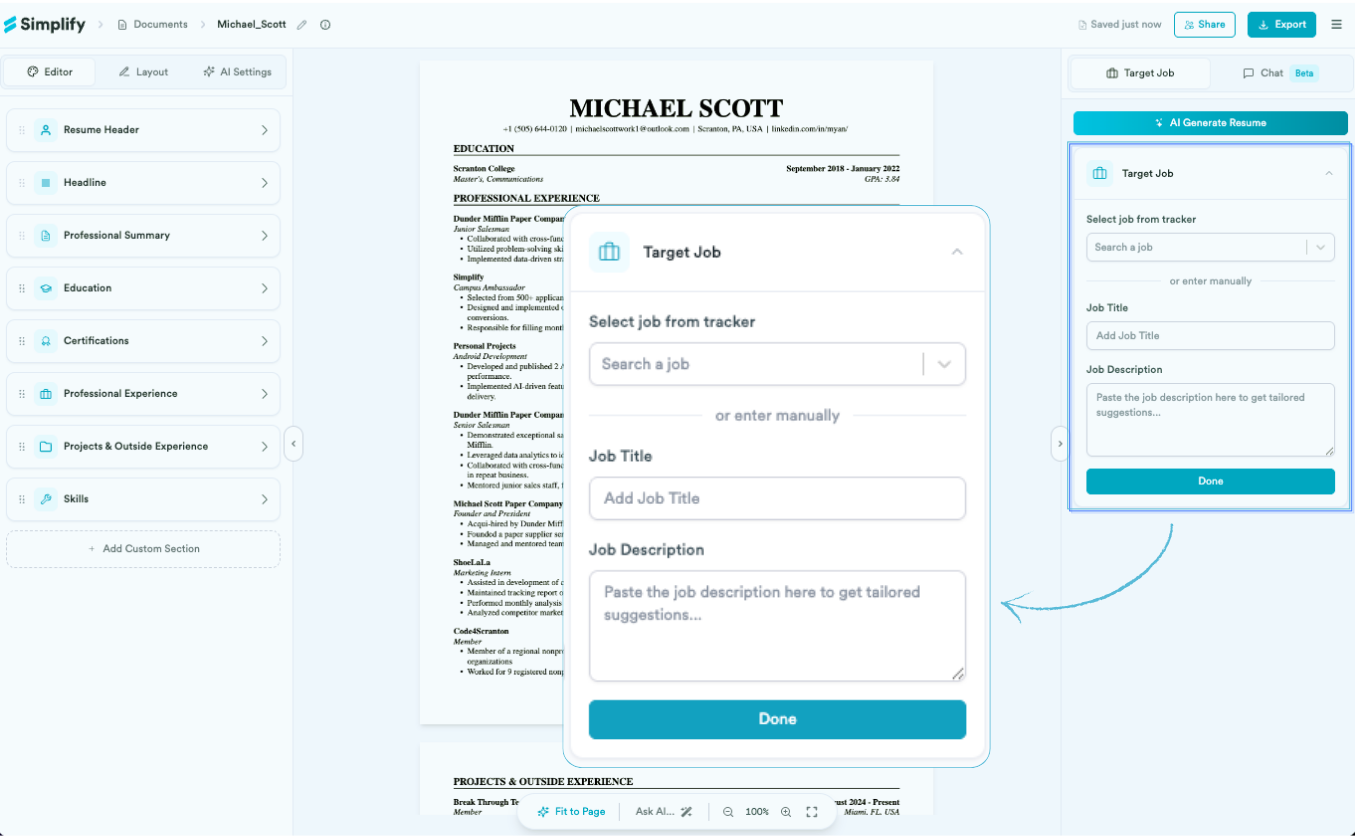
The target job provides the requirements and terminology for keyword matching and AI tailoring. Changing it can change the feedback even when you have not changed the resume. You can also edit a general resume without a target job; job-specific comparisons need job information.
Edit and organize your content
Use the editor to change the summary, experience bullets, projects, skills, and other sections. You can reorder content, hide an entry or bullet from this version, and add a custom section. Hiding information controls what appears on this resume; it does not delete your work history from Profile.
For each application, choose the examples that best demonstrate the requirements. For example, a project involving customer interviews may deserve more space for a product role, while an implementation detail may matter more for an engineering role. Keep the claims and dates accurate whichever version you use.
Understand the scores
Keyword Match shows matched and missing terms from the target job description. Resume Score combines that relevance feedback with content, structure, and formatting checks when they are available. The broader score can therefore differ from the keyword percentage.
Read the issue breakdown rather than treating the number as a hiring prediction. Simplify does not know an employer’s screening thresholds or final decision. You can export and apply with any score. Older screenshots may show keyword-only labels or a 70% suggestion; those are not employer requirements.
Use AI tailoring with Simplify+
Simplify+ can rewrite a full resume for the target job, regenerate individual bullets, rewrite a section, and provide feedback through Chat where offered. Use the job description and specific instructions to tell the tool what to emphasize, then review the proposed changes before applying them.
In AI Settings, you can adjust keyword emphasis, metrics emphasis, and title or headline alignment where available. More emphasis changes how the tool writes; it does not make an unsupported skill, number, or seniority claim true. For example, ask it to highlight a documented project result rather than inventing a percentage improvement.
After generation, compare the original and proposed versions, edit any inaccurate or unnatural wording, and apply the changes you want. If you want to inspect the application before it is sent, use this editor and Copilot. Autopilot is a different flow that submits without a review step.
How resumes relate to your profile and uploads
Your profile supplies reusable professional information. Profile titles, company names, and dates sync to builder entries linked to those profile records. Tailored bullets remain specific to the resume; they update the profile only when you explicitly apply those edits. With Simplify+, that lets you carry a useful rewrite back to your profile when you choose.
An uploaded PDF or Word file remains a separate document. Creating a builder copy from it does not make later edits flow back into the source file. Likewise, changing a resume in Simplify does not update an application you already submitted to an employer.
Adjust layout and formatting
Open Layout to change the template, typography, section arrangement, or columns. These controls change presentation rather than rewriting your experience. Use the preview to check how headings, bullets, and page breaks appear.
Fit to Page adjusts spacing and formatting to reduce page length. Review readability afterward, especially if the original contains a lot of content. You may still prefer to shorten the text or keep a longer resume instead of compressing it further.
Contact and location display options
In the editor, controls such as Show Phone Country Code and Show Full URLs change how contact details are displayed. Layout options can also show a country in locations or place an experience location above its dates. These display choices do not change the underlying profile information.
Save, export, and reuse
Wait for the saved indicator, then choose Export to download a PDF or DOCX. You can also use a shareable link or return to Documents and select the saved resume for an application. Check the exported file and selected attachment before submitting.
Keep a clear name for each version so you can find it again. When a new role needs a different emphasis, create another resume from a suitable base rather than overwriting the version you want to retain.
Related articles
Was this helpful?
Still need help? Share an idea