Resume Builder basics
Create a resume from your profile, a PDF or Word file, or an existing resume, then edit and export it.
Last updated 15 days ago
Open Documents → New Resume to create an editable resume from your profile, upload a PDF or Word file, or use an existing resume as a starting point. Edit the content and layout, wait for changes to save, then export it or select it in Copilot.
Create an editable resume
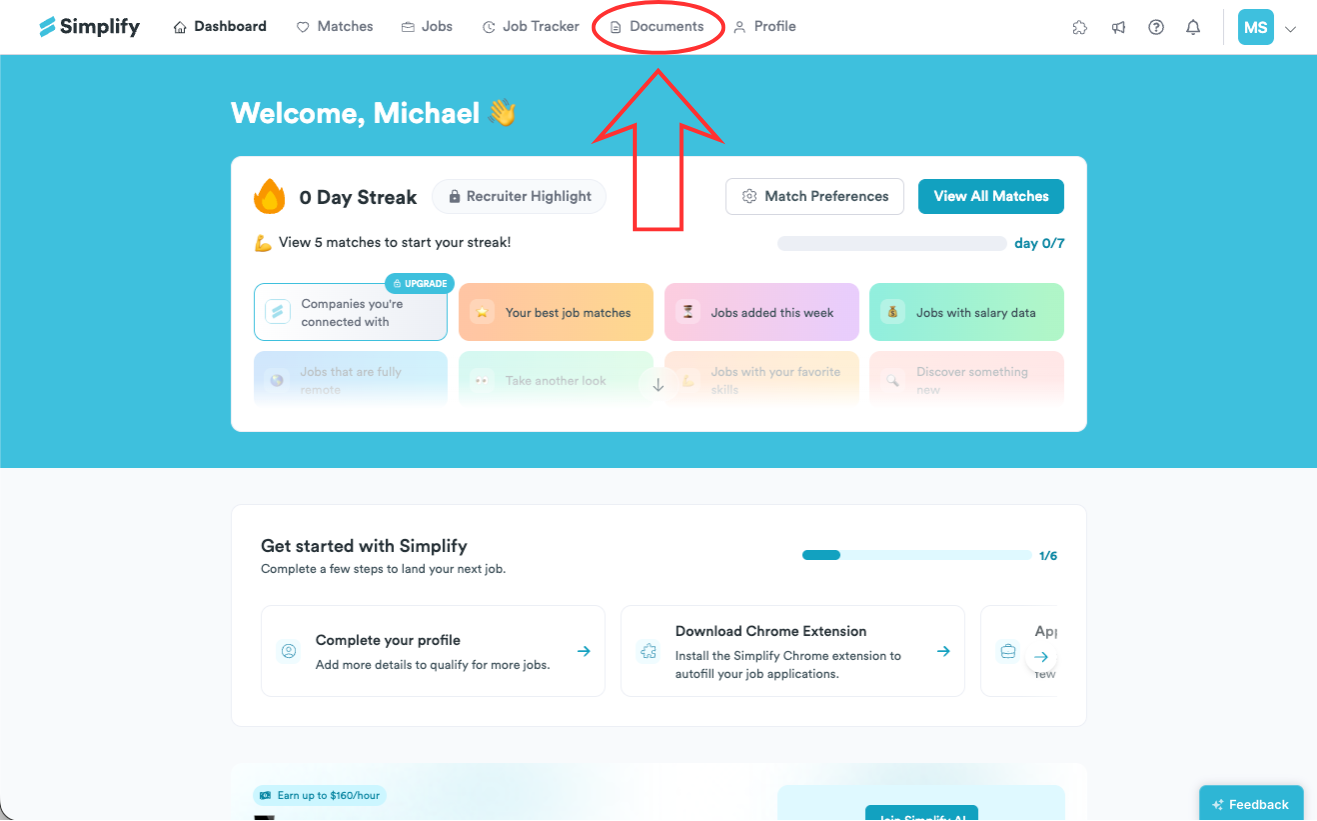
Open Documents from Simplify’s navigation.
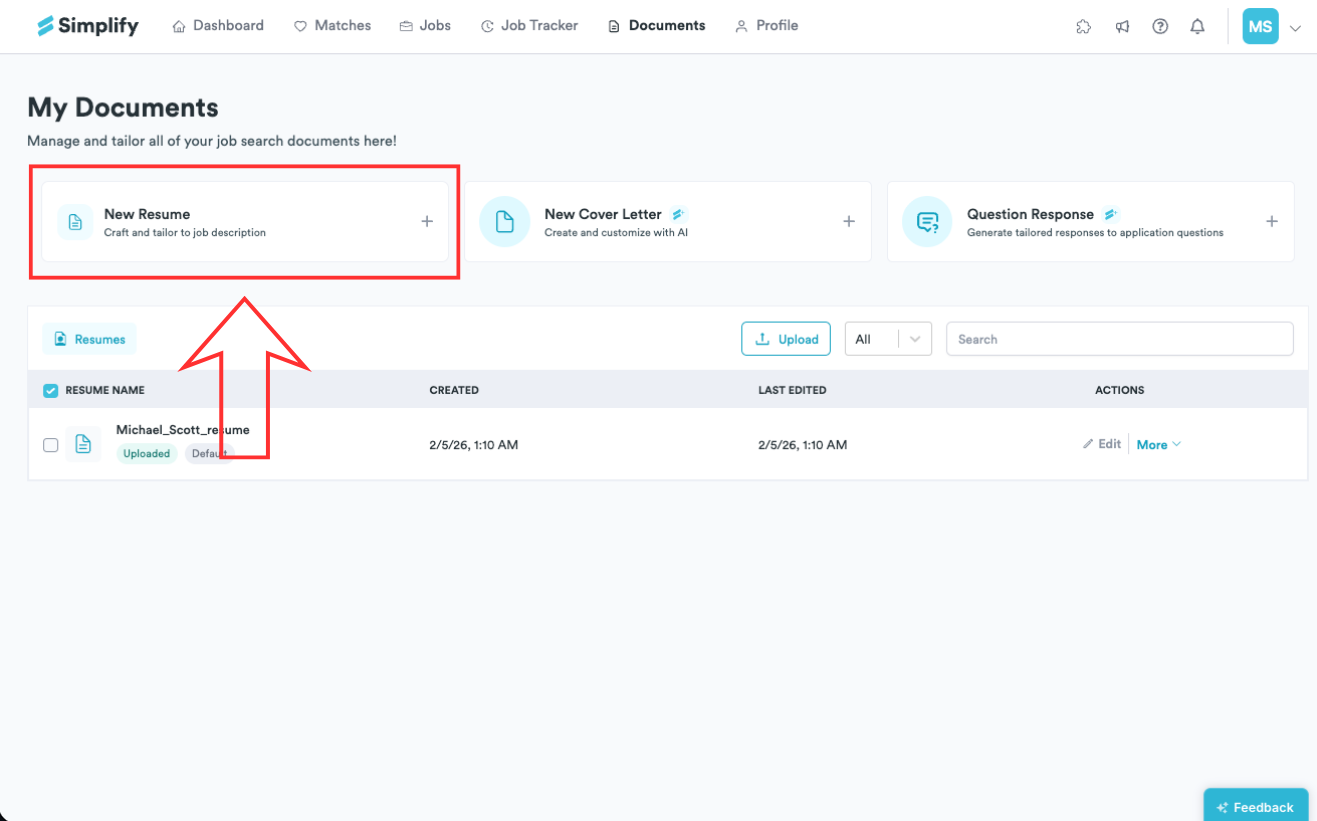
Choose New Resume.
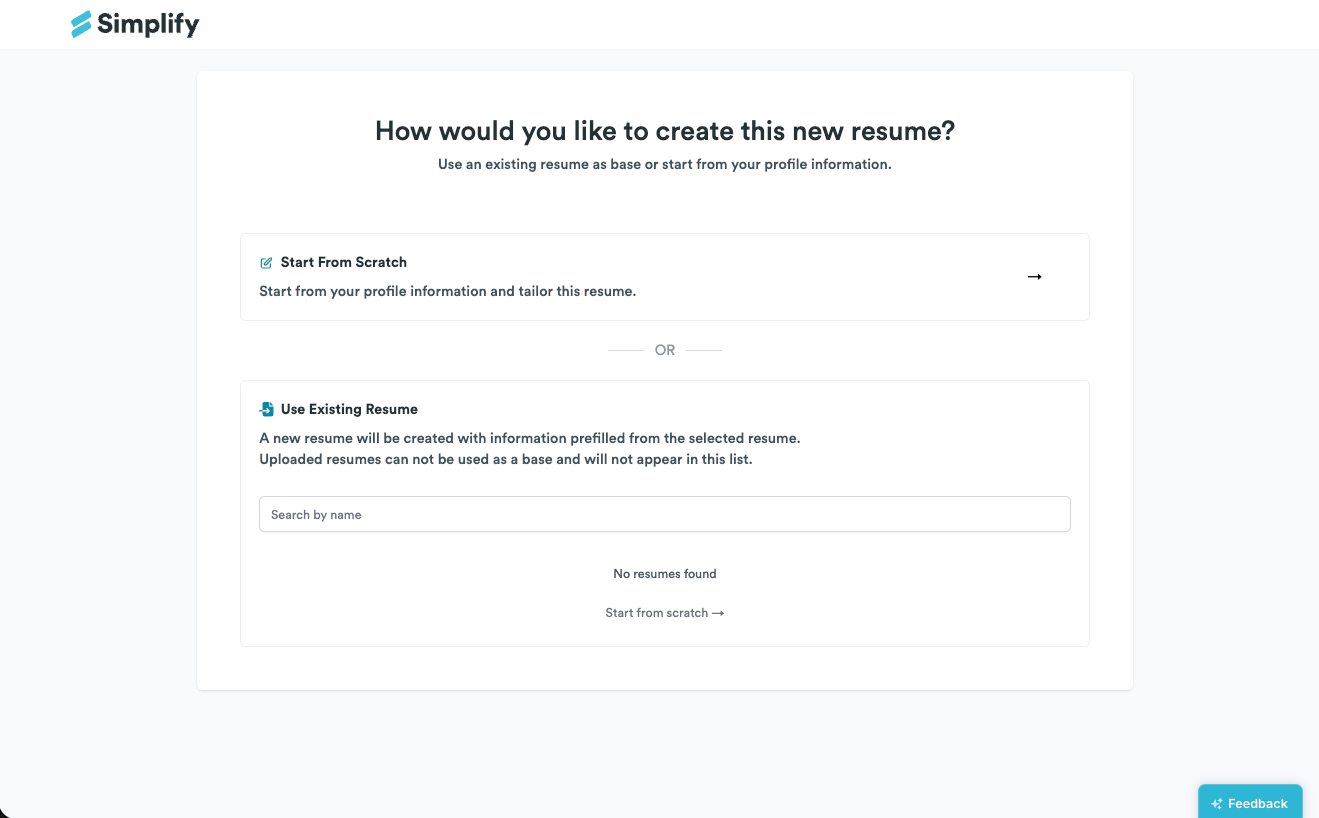
Choose your starting point: Start From Profile, Upload a Resume, or an existing resume. Upload accepts PDF, DOC, or DOCX files up to 5 MB.
Wait for the new resume to open. If you imported a file, review the extracted text and sections before tailoring it.
The screenshot below shows an earlier creation screen. Its Start From Scratch option used profile information, and its existing-resume list excluded uploads. The current screen supports uploading a file and creating a separate editable builder resume from it.
Edit sections and their order
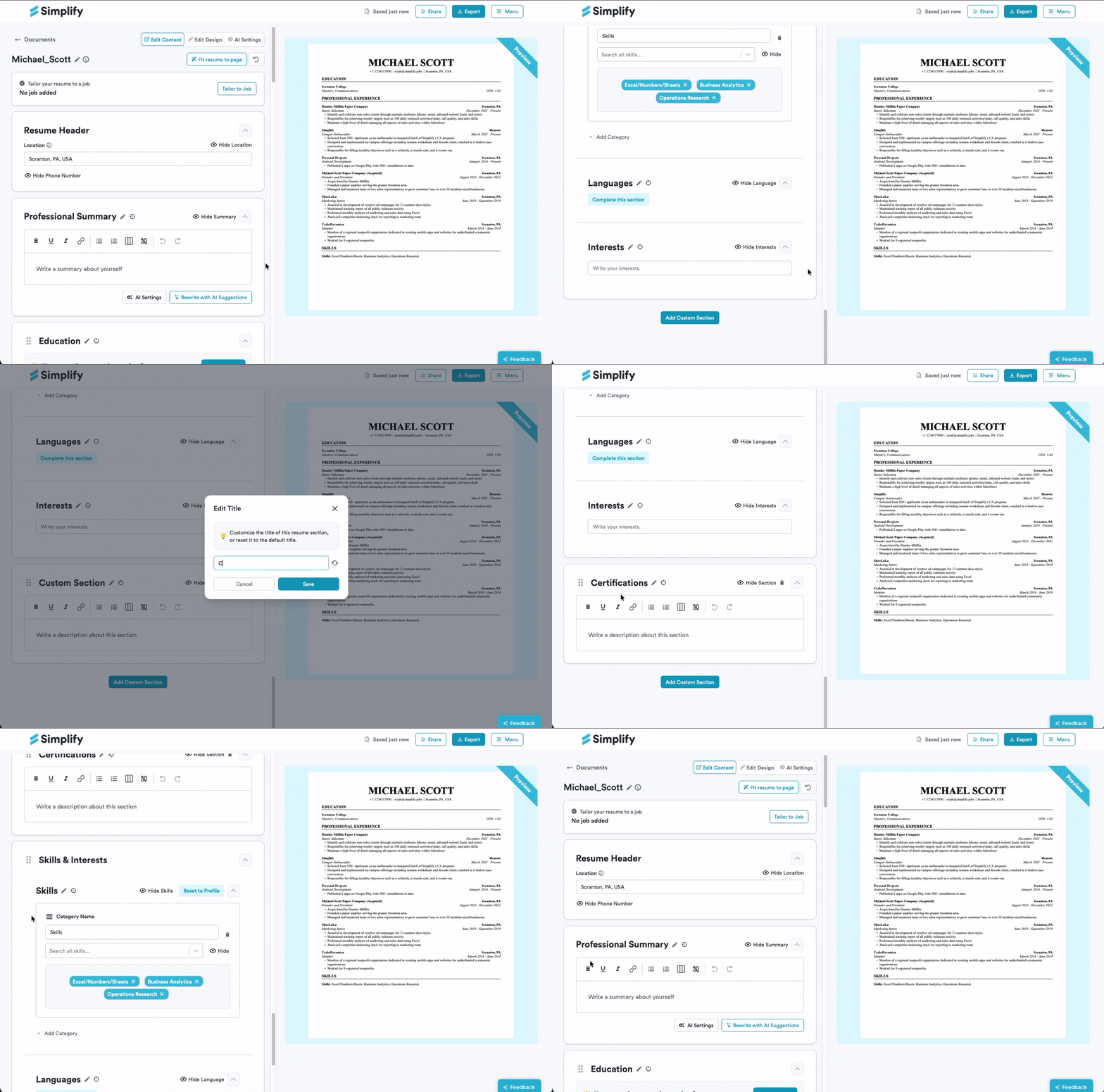
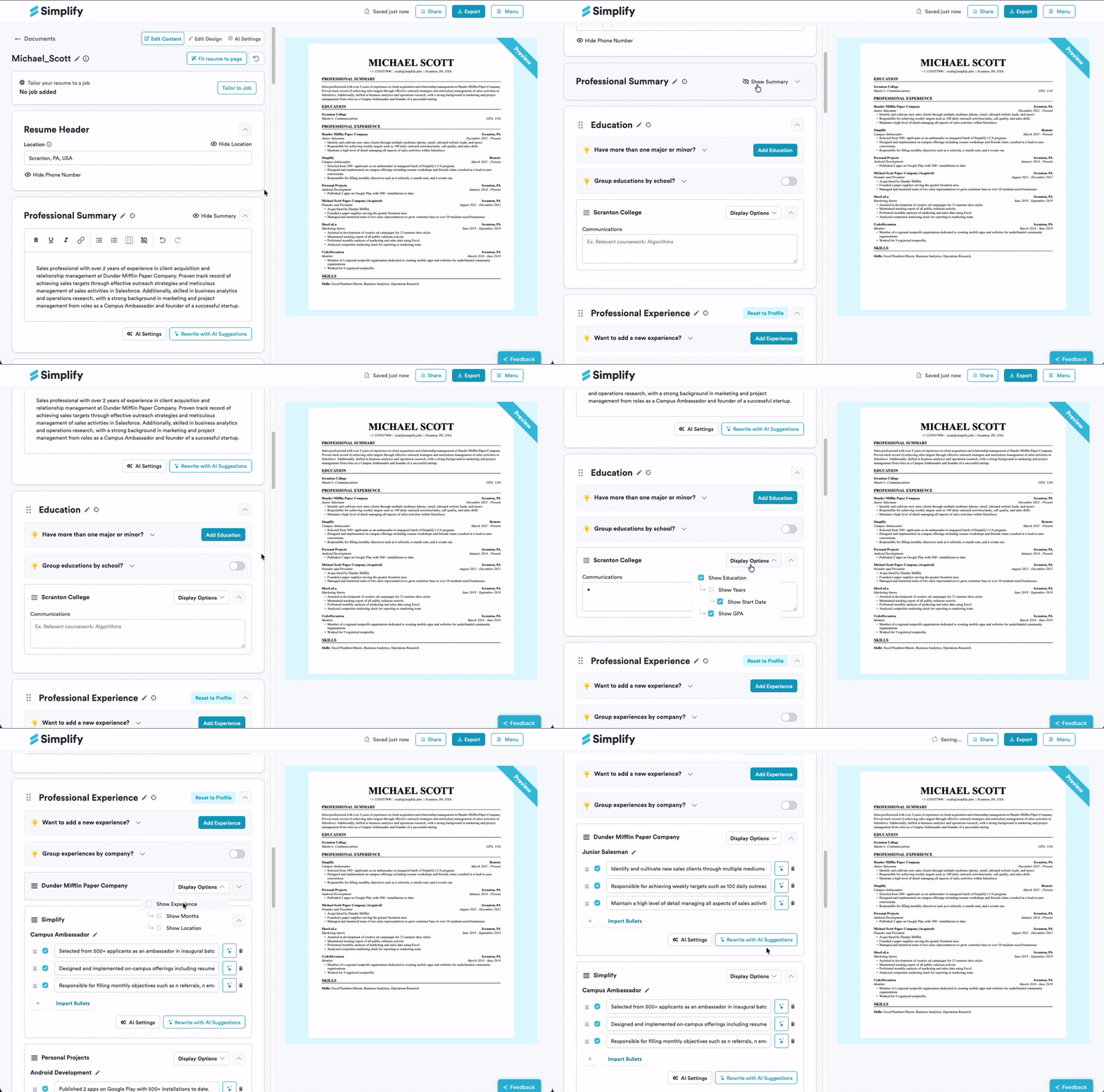
The editor groups content into sections such as your header, summary, education, certifications, professional experience, projects, skills, languages, and interests. Open the section you want to change and edit its fields or bullets. The preview shows what the exported resume will contain.
Use Add Custom Section for information that does not fit a standard section. Use the edit icon beside a section title to rename it. Drag a section’s handle to move it to another position.
Show or hide content
Use the section’s visibility control to hide it from this resume. For an individual education or experience entry, open Display Options and change the relevant visibility option. Hiding content from a resume does not delete the corresponding information from your profile.
Save and export
Changes save automatically. Wait for the saved indicator before closing the editor. Choose Export in the top-right to download the completed resume, or select the saved resume in Copilot when applying.
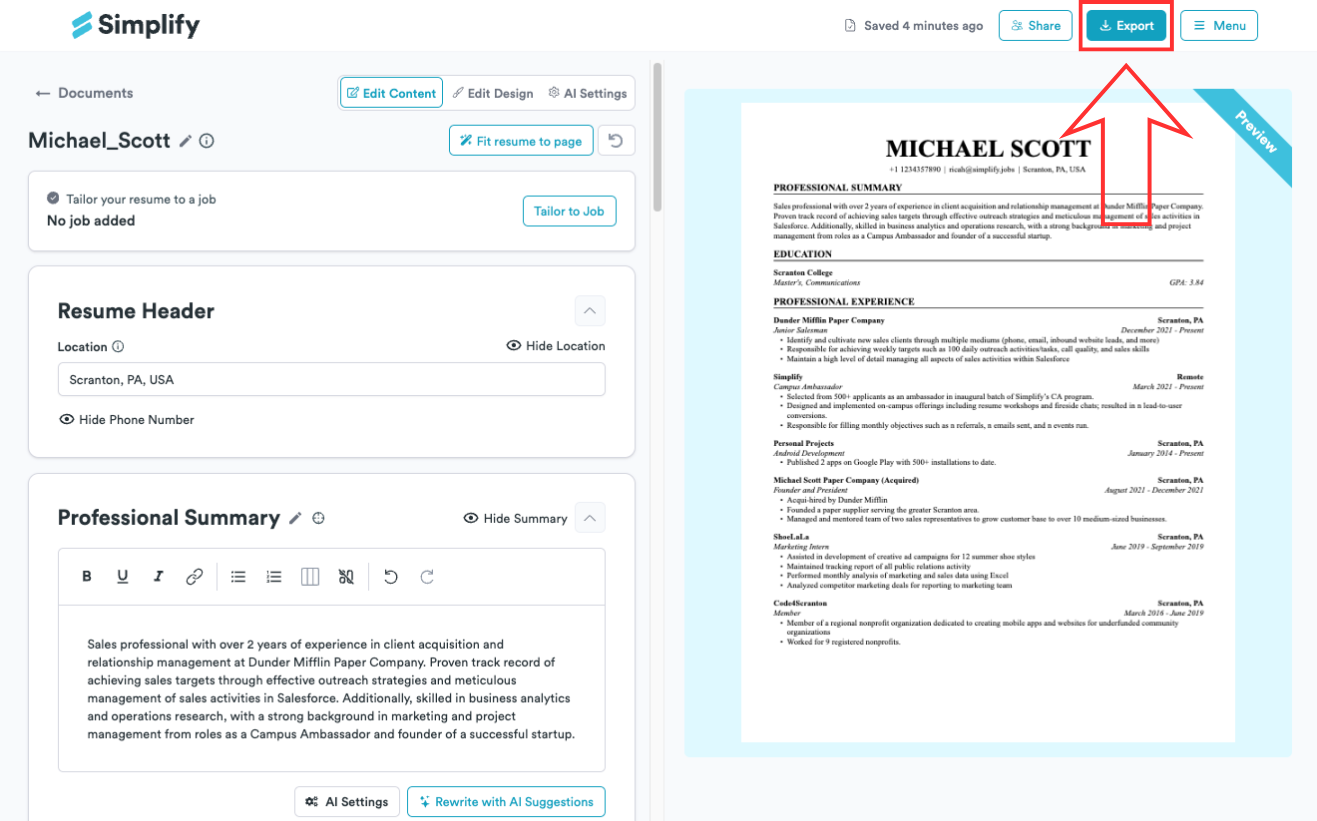
Before using the resume, review the exported file for missing text, page breaks, dates, links, and the correct version. Layout and control placement may differ between builder versions; the screenshots illustrate the section editing and export actions.
What stays separate?
The uploaded source file, the editable builder resume, and your profile serve different purposes. Importing a file creates a new builder document; edits to it do not rewrite the source PDF or Word file. Choose the profile-parsing option separately when you want to add information from an upload to Profile.
Profile titles, company names, and dates sync to builder entries linked to your profile. Tailored bullet edits stay with each resume and update your profile only when you explicitly apply those changes. Simplify+ adds AI tailoring; you can create and edit a builder resume manually without it.
Related articles
Was this helpful?
Still need help? Share an idea