Add a missing school or major
Enter a custom school or major in your profile’s Education section.
Last updated About 2 hours ago
If your school or major is missing from the list, you can add it in Profile → Education. Choose Other for a school or Other/Not Listed for a major, enter the name in the new field, complete the required details, and save.
Add a missing school
Open Profile and scroll to Education.
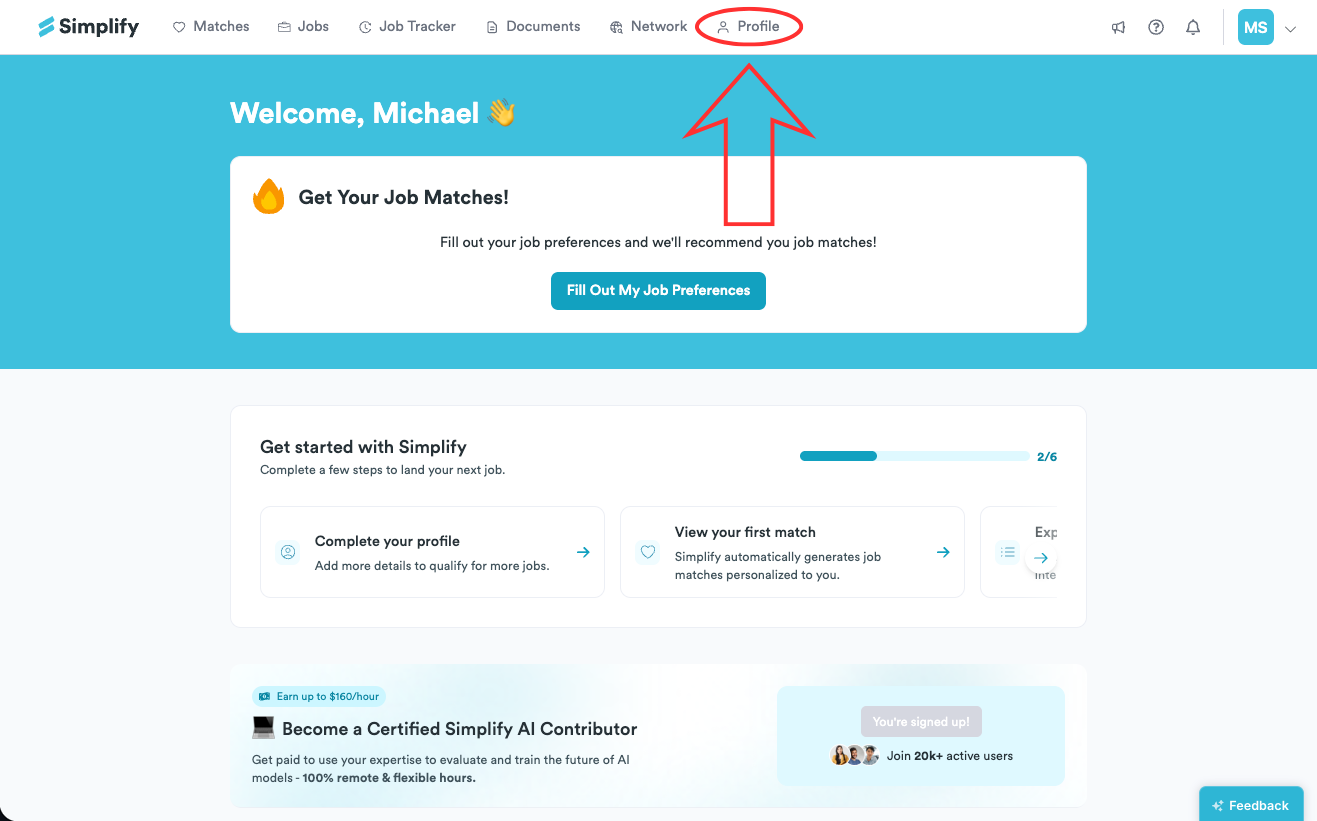
Choose the plus icon to add an education entry, or the edit icon to update an existing one.
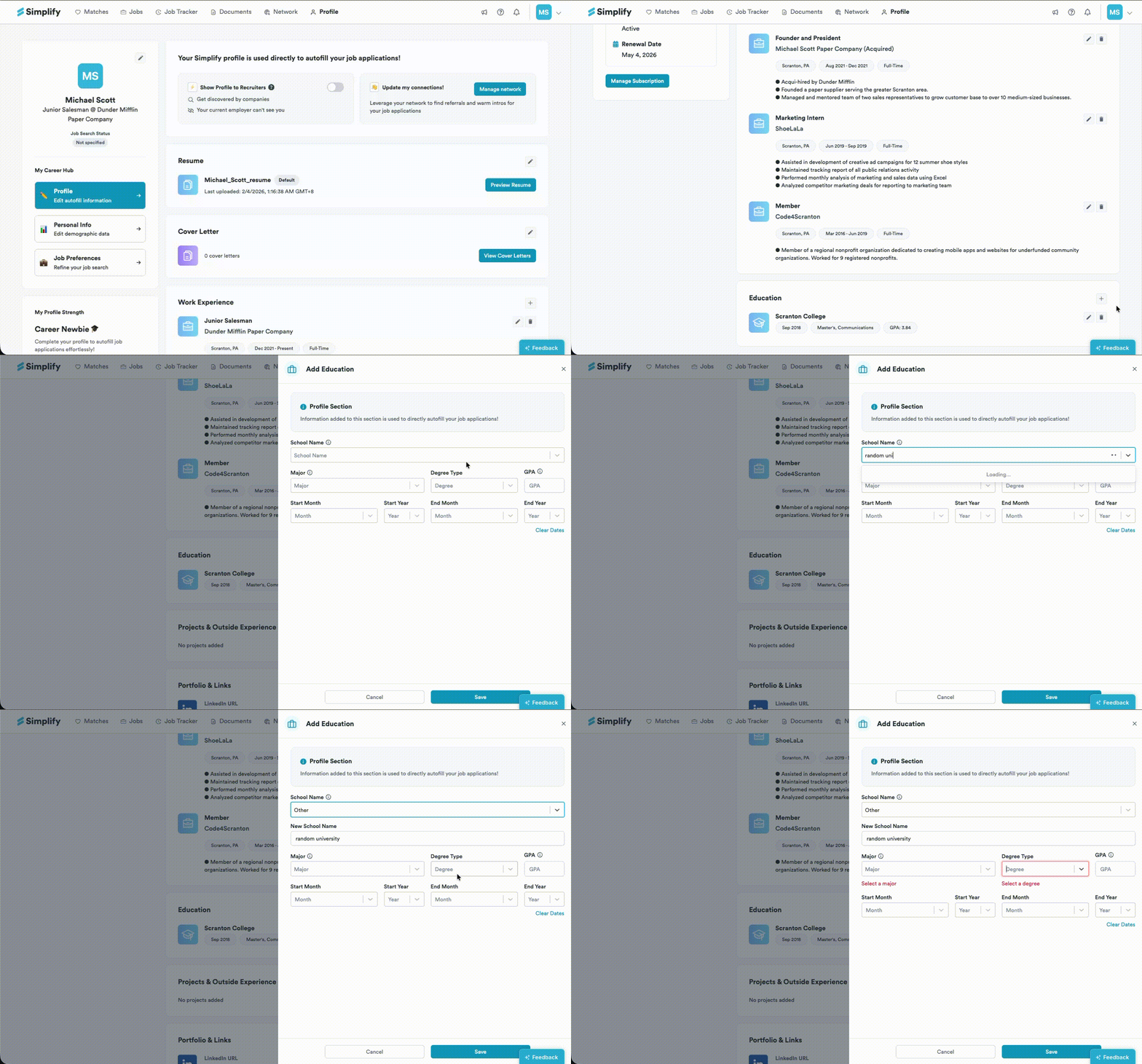
Search for your school. If it is missing, choose Other and enter its name in New School Name. If a Create option appears for the name you typed, you can choose that to prefill the new-name field.
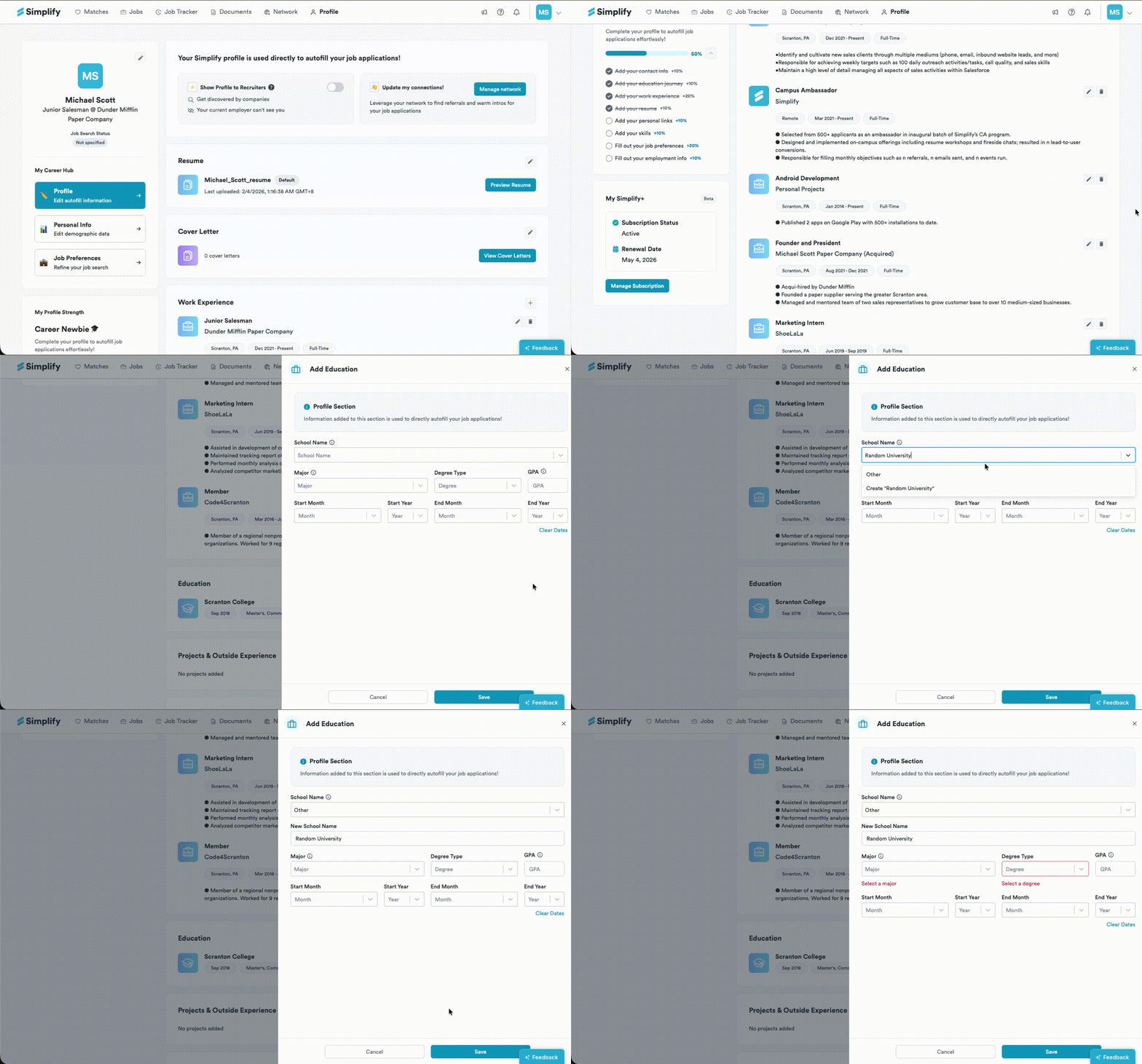
The animation below shows the custom-name route. Complete the other required education fields, then save the entry. Your school should appear in the Education section afterward.
Add a missing major
In the education entry, search the Major list.
If your major is missing, choose Other/Not Listed. Enter it in New Major Name.
Complete the remaining required fields and save. Check the saved school, major, degree, and dates for accuracy.
If an application still does not list your school
The school list in an employer’s application belongs to that application provider. Adding a custom school in Simplify does not add it to every employer’s dropdown. Use the employer’s Other or manual-entry option where available, and review what Copilot fills before submitting.
Related articles
Was this helpful?
Still need help? Share an idea