Autofill not supported?
Check the application page, request support, or copy information from your Copilot profile.
Last updated 15 days ago
If Copilot says autofill is not supported, first check that you’ve opened the employer’s application form rather than only its job description. If that form is unsupported, request support and use Copilot’s Profile tab to copy your information into the application manually.
Check the page and extension
Open the actual application form from the employer’s posting. A job description, search results page, or dashboard may not contain fields Copilot can fill.
Make sure Copilot is enabled and signed in, then reload the application page and open it again.
If the form still says unsupported, use the request option below or complete it manually. Unsupported autofill does not by itself mean there is a problem with your Simplify account.
Request autofill support
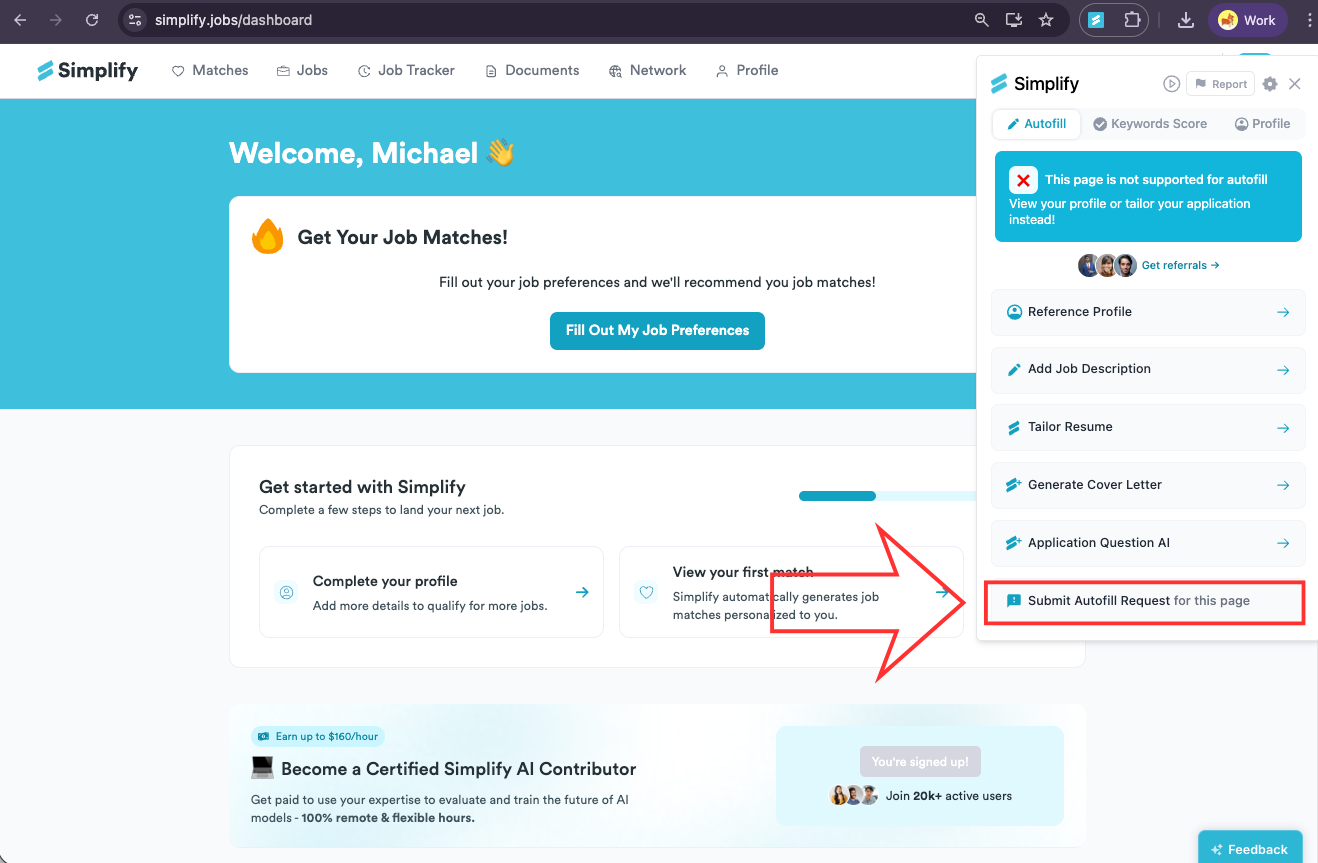
Choose Submit Autofill Request for this page in Copilot where offered. You can also choose Report → Autofill not supported and request support for the page. Include the application URL so we can identify the form.
Copy your information manually
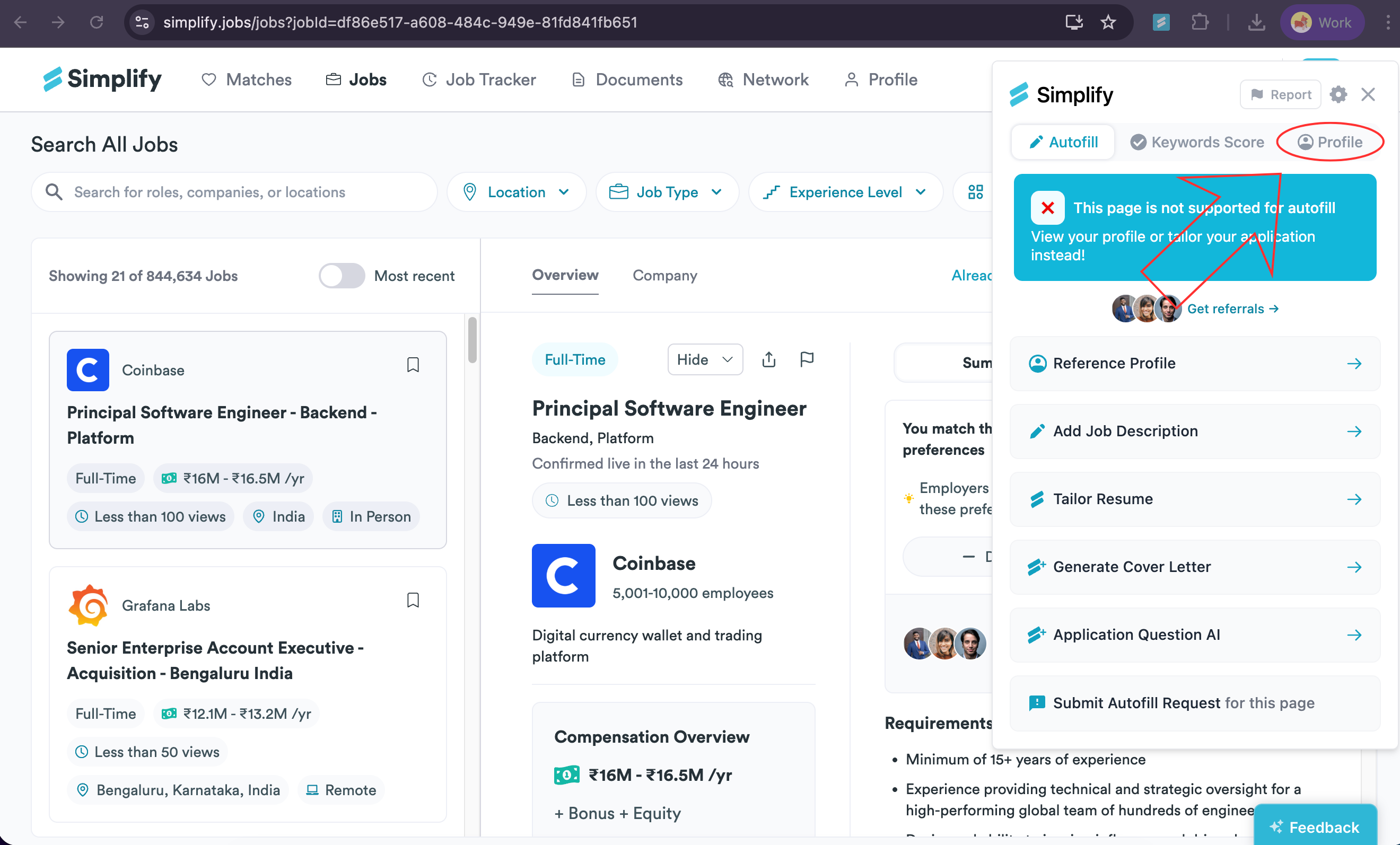
Open the Profile tab in Copilot.
Find the contact, education, or experience information you need and copy it into the application. If information is missing or incorrect, update your Simplify profile first.
You can still use available resume-tailoring or document tools even when the application’s fields are unsupported. If Copilot offers Add This Job to Tracker or a save control, use it to keep a record, or add the application manually in Job Tracker. Review all fields and submit on the employer’s site.
If Copilot will not open
Check that the extension is installed and has permission to run on the site. For iPhone Safari, complete the Safari setup steps. If the issue continues, contact support with the page URL, browser, and what you tried.
Related articles
Was this helpful?
Still need help? Share an idea