Manage or cancel your subscription
Cancel renewal, change billing details, or manage an Apple subscription.
Last updated About 3 hours ago
For a subscription billed by Simplify, open Profile → My Simplify+ → Manage Subscription and complete the cancellation steps. If Apple bills you, cancel through Apple’s subscription settings. Cancellation stops future renewal; you keep paid access until the end date shown in your billing account.
Cancel a subscription billed by Simplify
Open Profile and find the My Simplify+ card. Choose Manage Subscription.
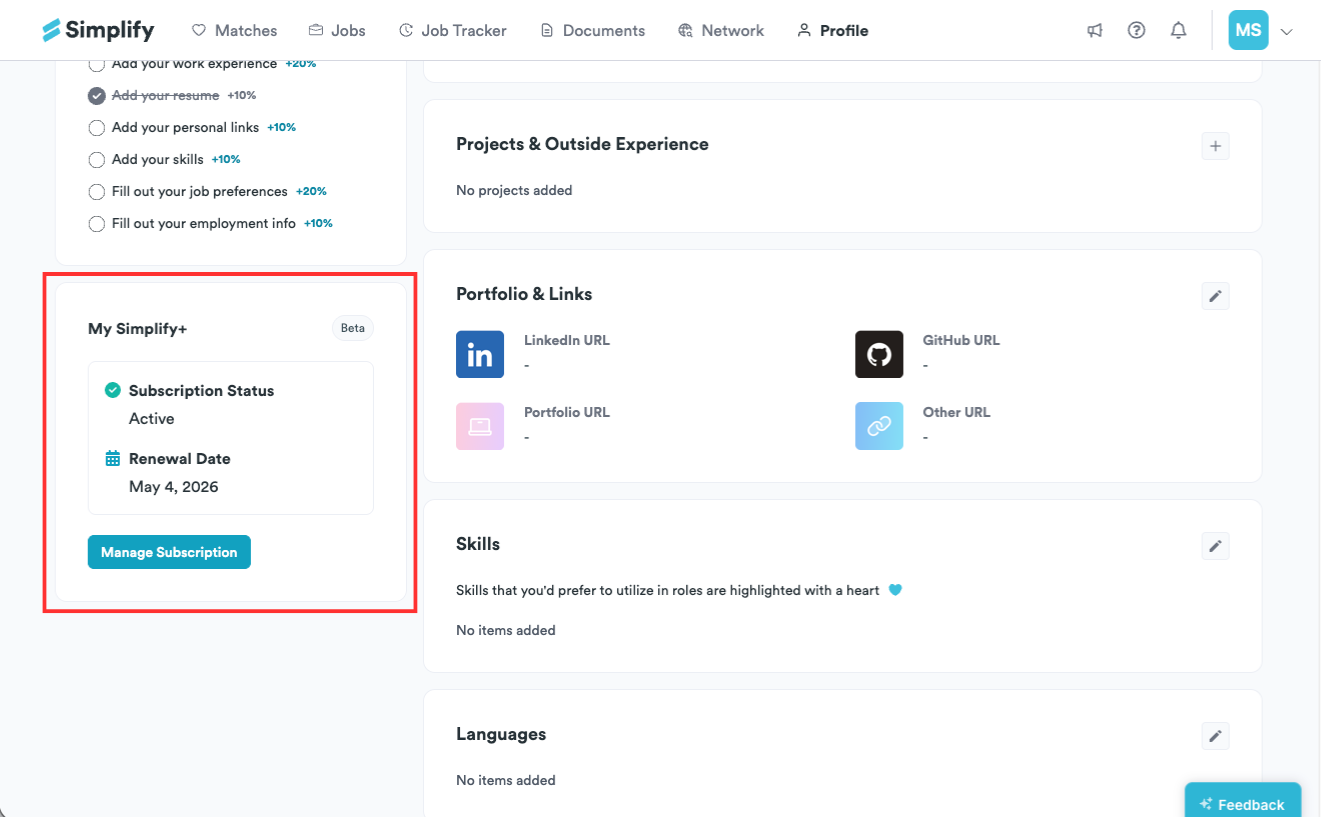
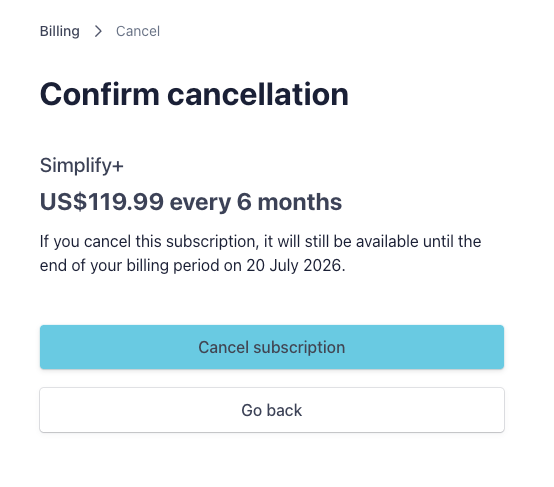
Choose Cancel Subscription and continue to the cancellation confirmation.
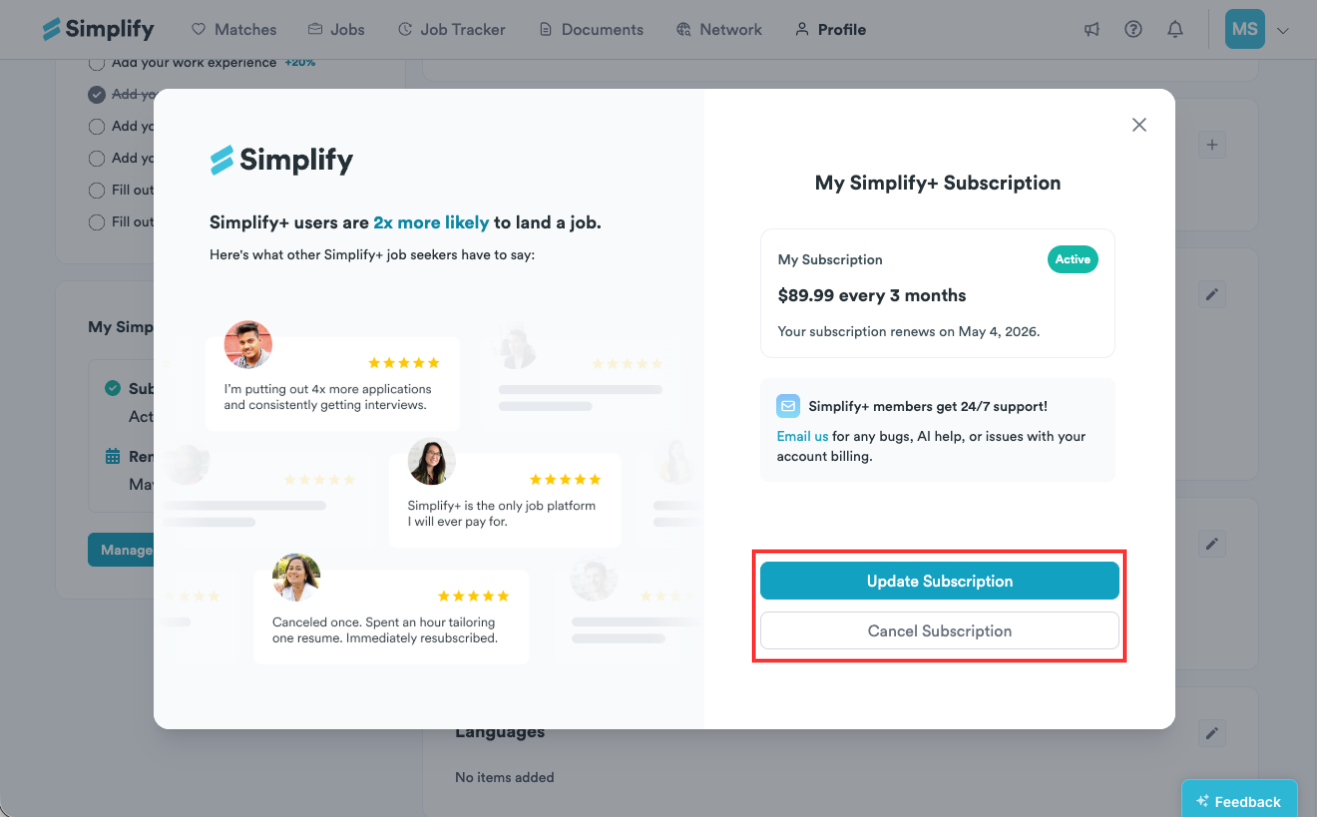
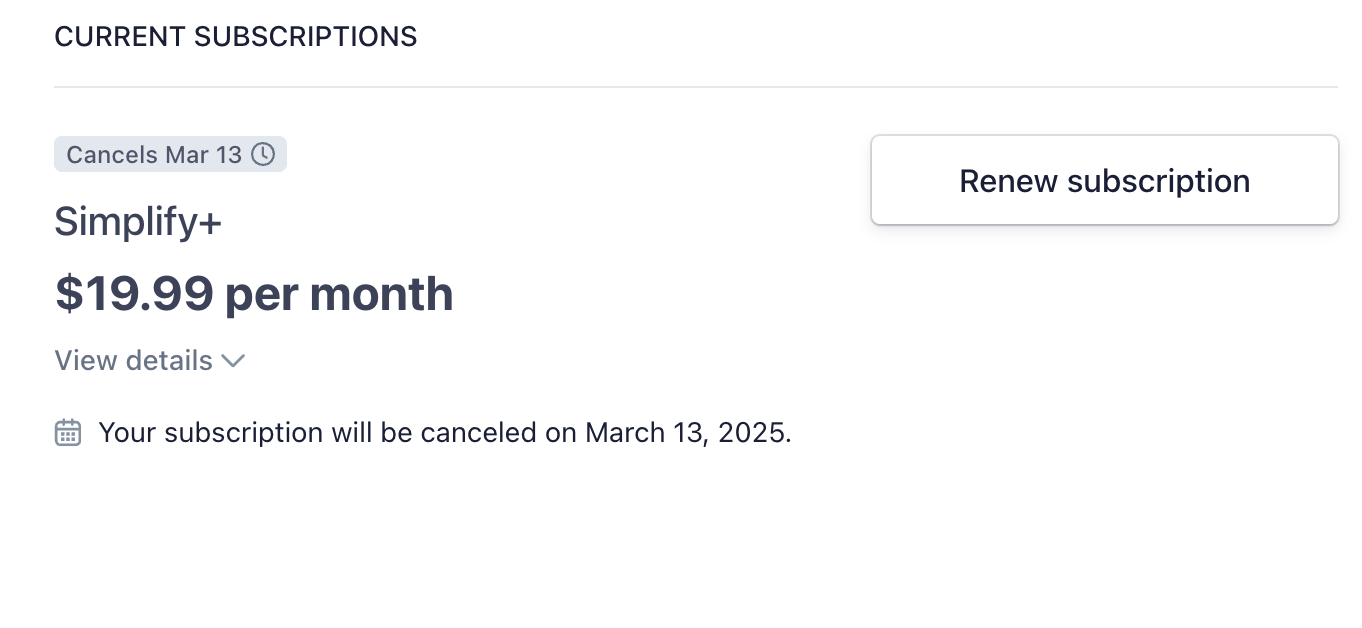
The billing screens below show examples from earlier plans. Their prices, billing intervals, and dates may differ from your account. Use the current plan and access-end date shown in your billing portal.
Renew a cancelled subscription
If a subscription is scheduled to end, the billing portal can offer Renew subscription. Review its terms and confirm if you want renewal restored. Check the resulting renewal date and status.
Change a plan or billing details
In the billing portal, choose Update subscription.
Choose from the plans currently offered, then select Continue.
Review the amount due, billing interval, and effective date before confirming the update.
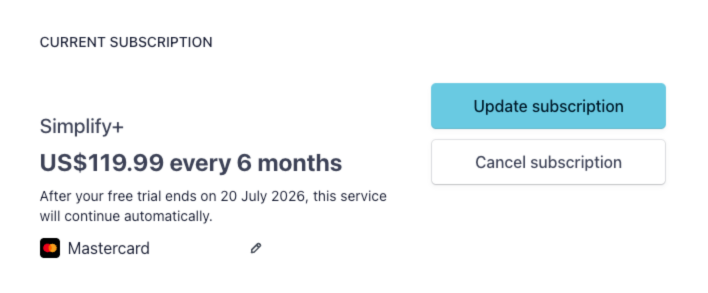
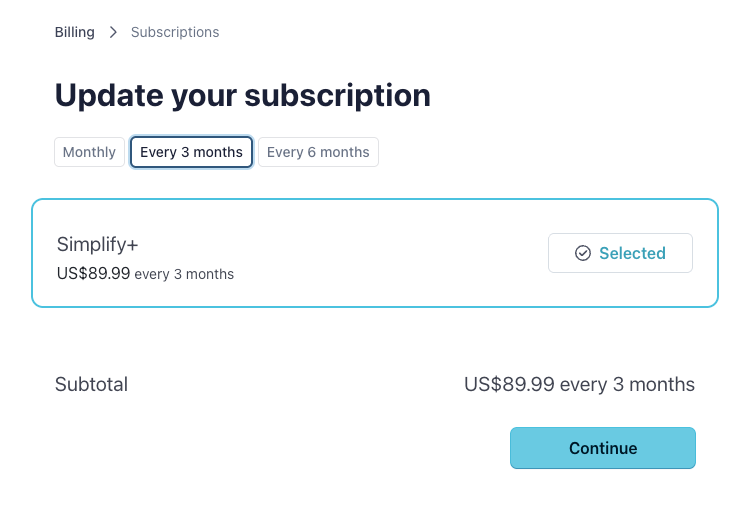
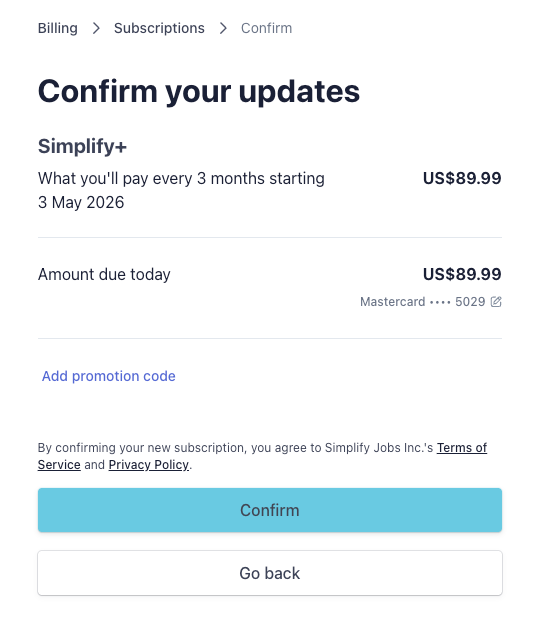
The portal also provides available payment method, billing information, and invoice controls. For App Store subscriptions, use Apple’s billing tools instead.
Complete cancellation and check the end date
On the confirmation page, choose Cancel subscription again to finish. Check that the portal shows the subscription will end rather than renew. Cancelling renewal does not immediately remove the paid access you have already purchased.
Cancel an Apple subscription
If Apple bills the subscription, open iPhone Settings → your name → Subscriptions → Simplify and follow Apple’s cancellation steps. It cannot be cancelled through Simplify’s web billing portal. Check the end date shown by Apple.
Renewals and refunds
Plans renew at the billing interval shown until cancelled. Cancellation does not automatically refund an existing charge. Activated subscriptions are generally non-refundable, with exceptions in the Refund Policy.
For an unintended web renewal, contact support within 24 hours; a prorated refund may be considered, less processing fees. Extended, verifiable technical issues may qualify for a remedy under the policy. Apple decides App Store refunds: submit those requests through Apple’s refund request page.
Before deactivating or deleting an account
Cancel your subscription first. Account deactivation is unavailable while a subscription is active, and deletion is blocked while a subscription billed through Simplify is still running. If the account action remains blocked after cancellation, contact support. Deleting your Simplify account does not cancel App Store billing.
Related articles
Was this helpful?
Still need help? Share an idea