Add or remove custom skills
Select an existing skill, create a missing skill, or remove one from your profile.
Last updated About 2 hours ago
Open Profile → Skills and choose the edit icon to add or remove skills. Search for an existing skill, or use the create option if yours is missing, then save. Use the × beside a selected skill to remove it from your profile.
Open your skills
Open Profile and scroll to Skills.
Choose the edit icon to open Edit Skills.
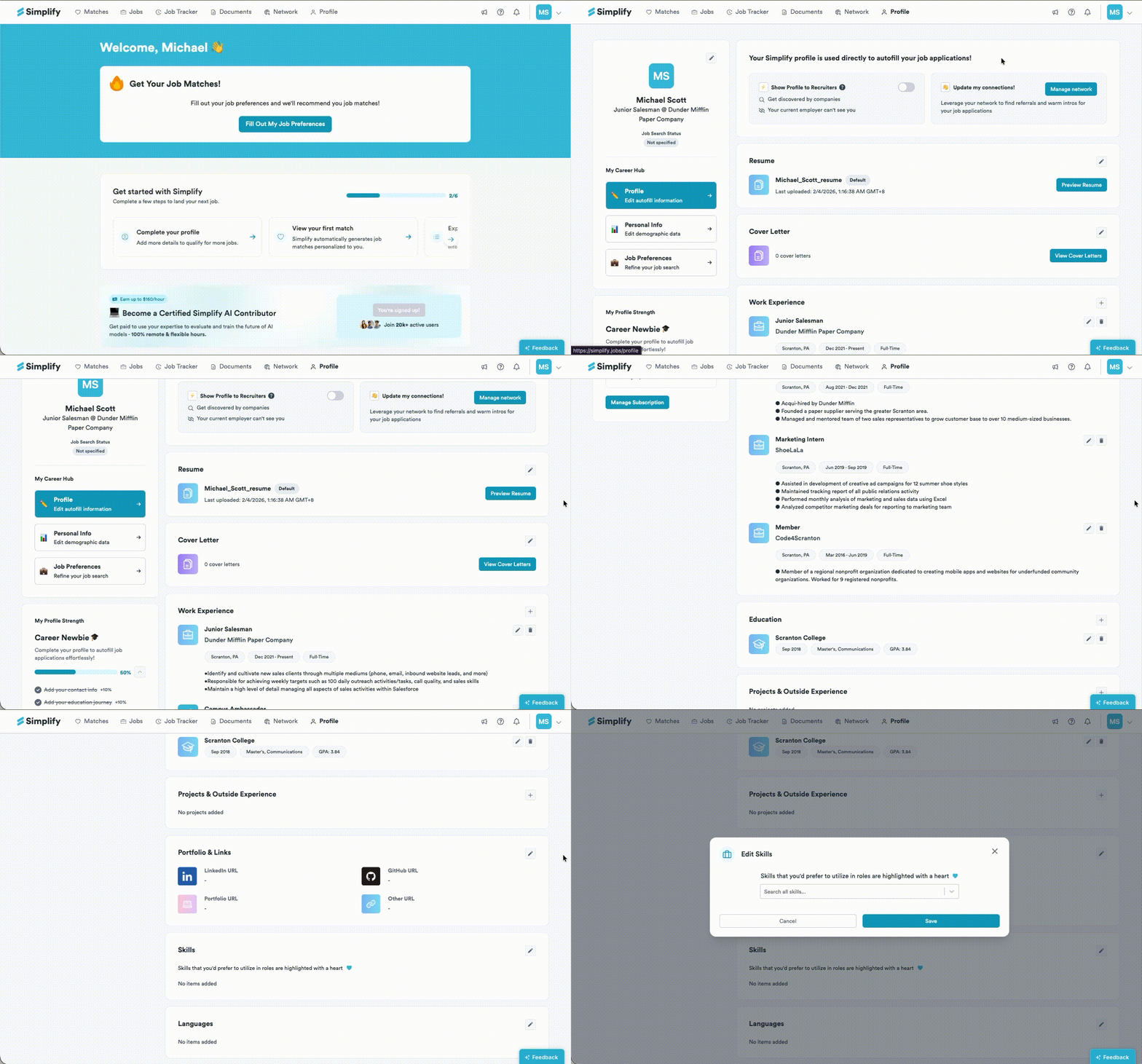
Add an existing or custom skill
Type the skill into the search field. Select the matching skill from the list.
If the skill is missing, use the Create option for the name you entered. Check the spelling before creating it so you do not add an accidental duplicate.
Choose Save and confirm the skill appears on your profile.
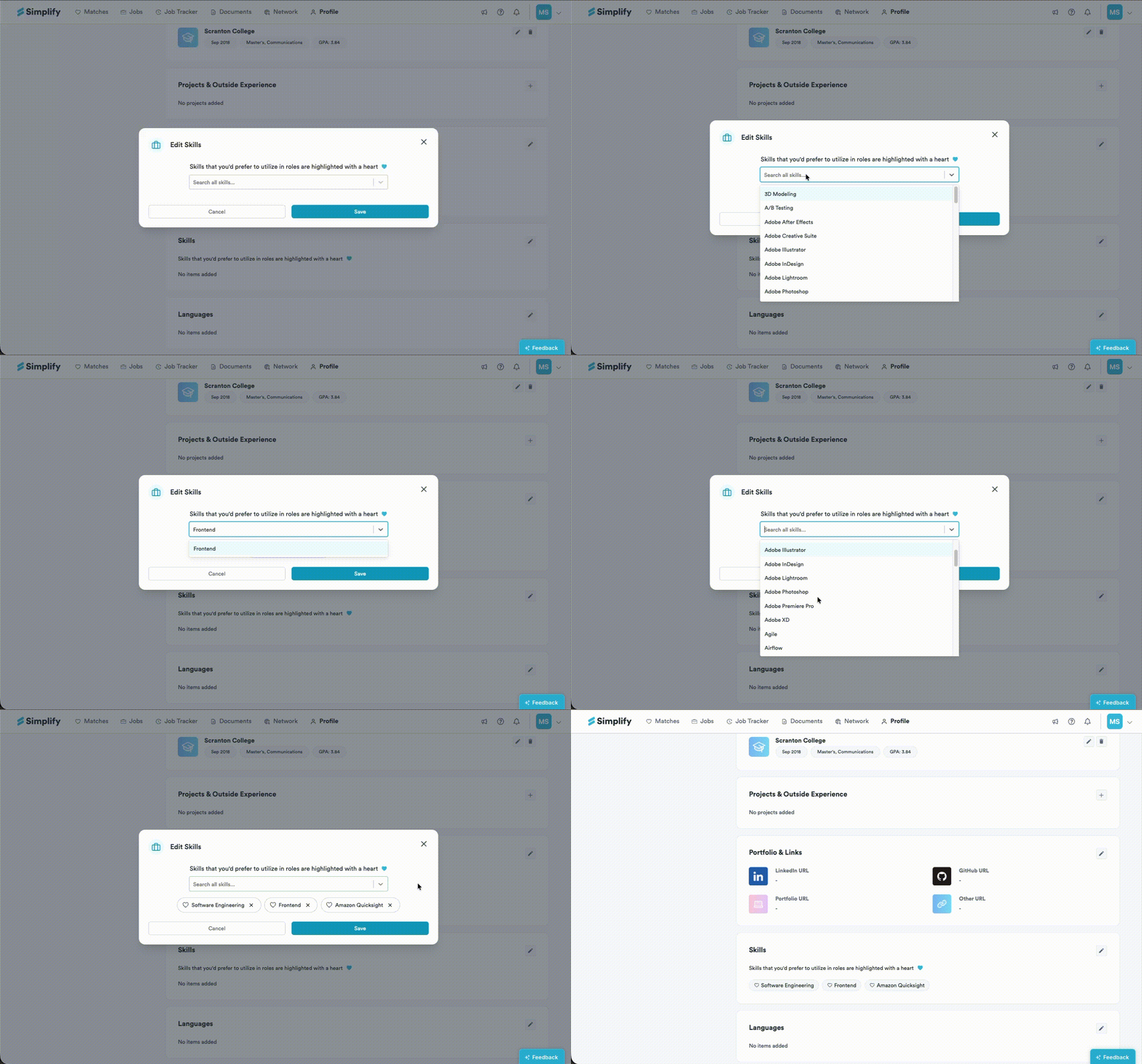
Use specific names for skills you can explain or demonstrate, such as a tool, programming language, or professional skill. The heart beside a selected skill marks a skill you would prefer to use in future roles; it is separate from whether the skill is listed on your profile.
Remove a skill
Open Edit Skills.
Choose the × beside the skill you want to remove.
Choose Save and check your profile.
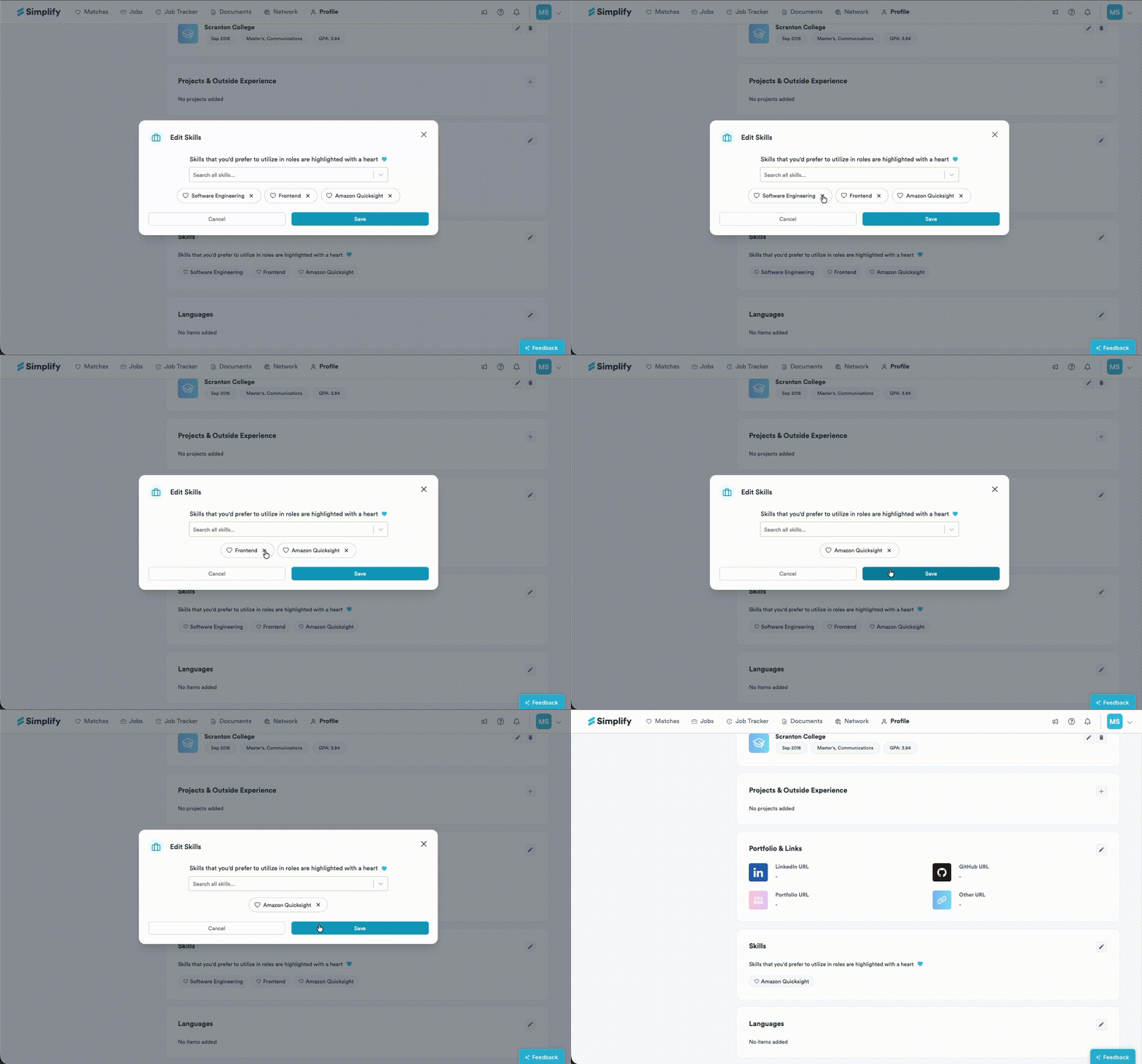
Removing a profile skill does not rewrite the content of PDF or Word files you uploaded. Review any separate resume versions that also mention it.
Related articles
Was this helpful?
Still need help? Share an idea