Report a Copilot issue
Send an autofill or extension report with the page and details needed to investigate.
Last updated About 2 hours ago
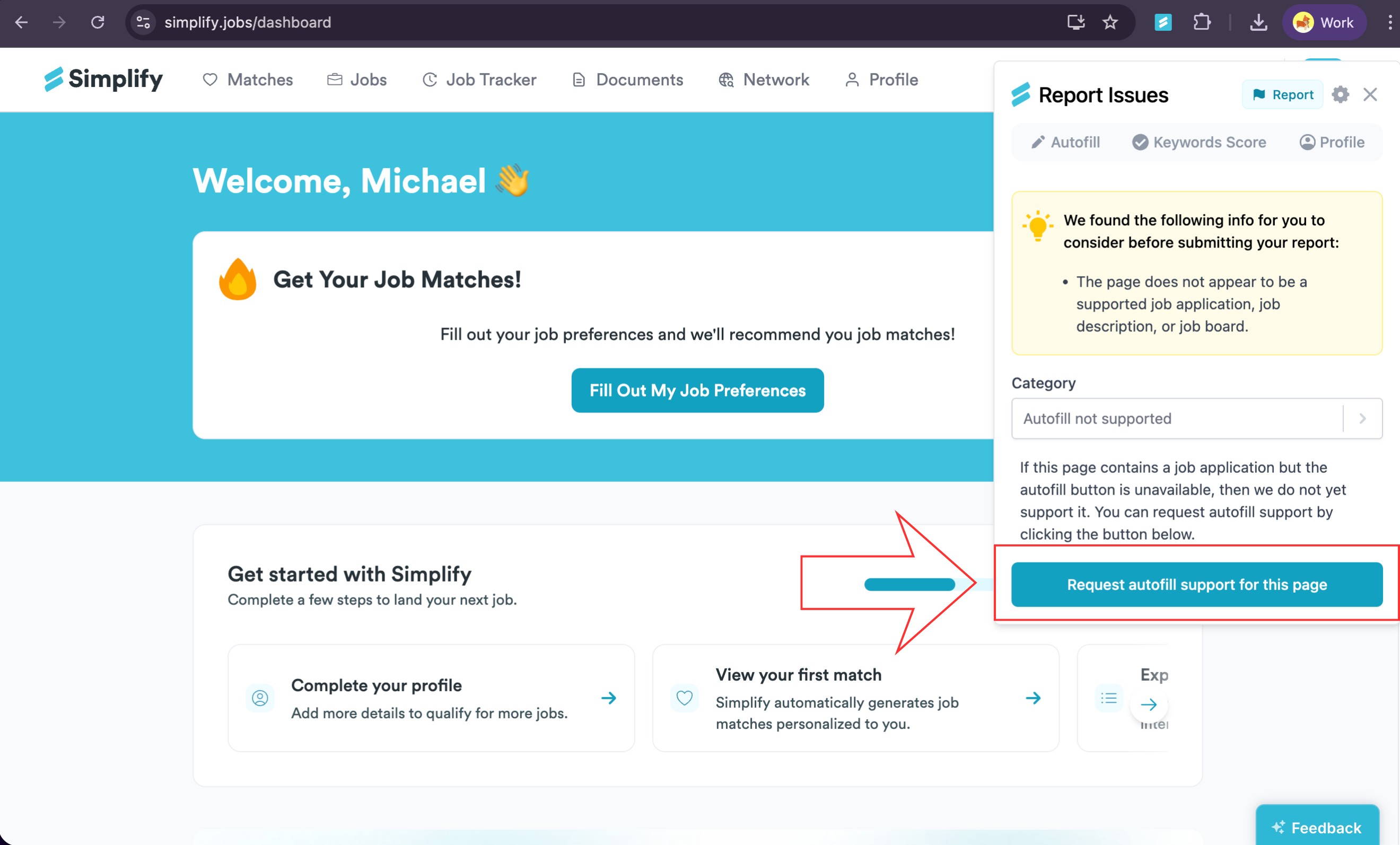
Open Copilot on the page where the problem occurs and choose Report. Select a category and describe what you expected and what happened. Include the job or application URL so we can identify the form and affected fields.
Send a report from Copilot
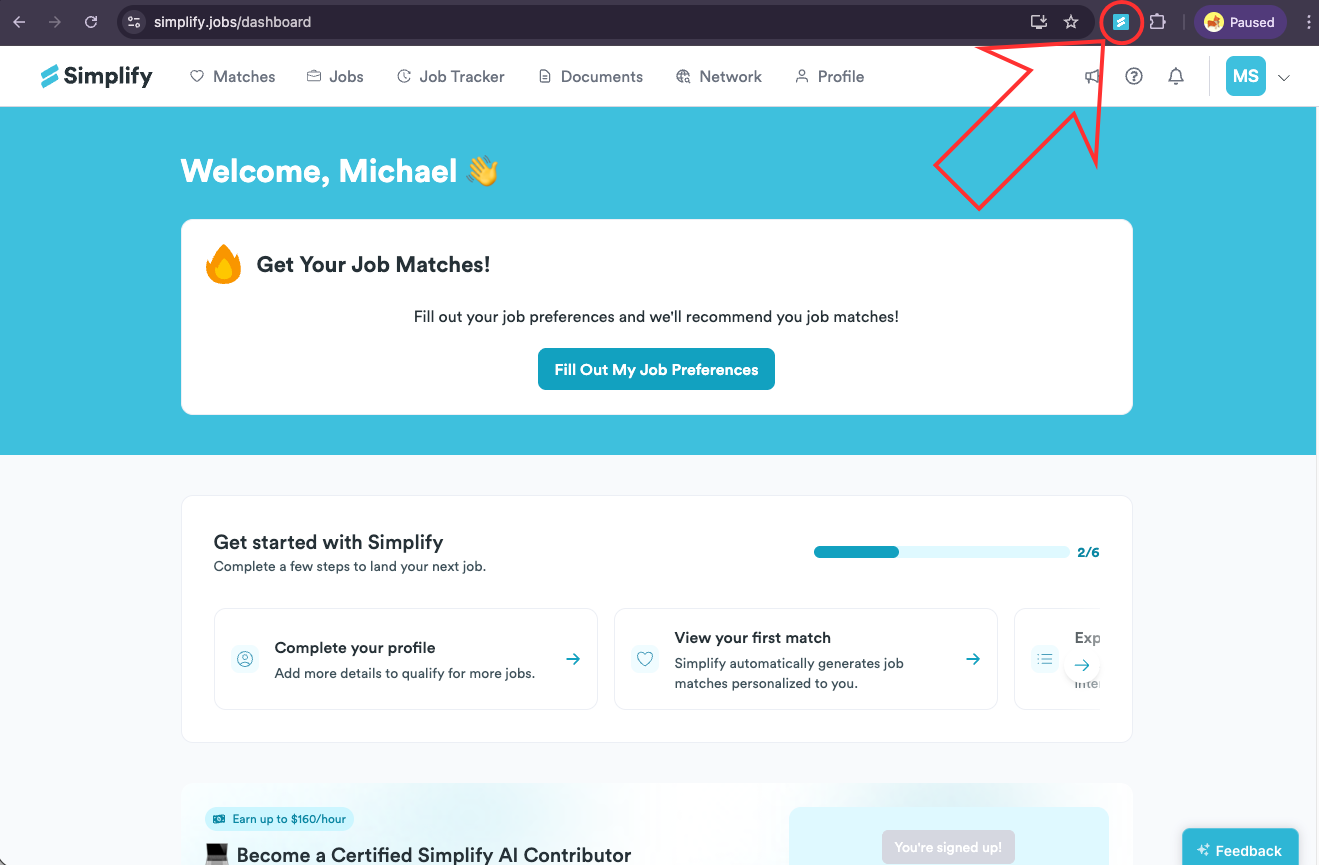
Open the affected application page and select the Simplify icon in your browser toolbar.
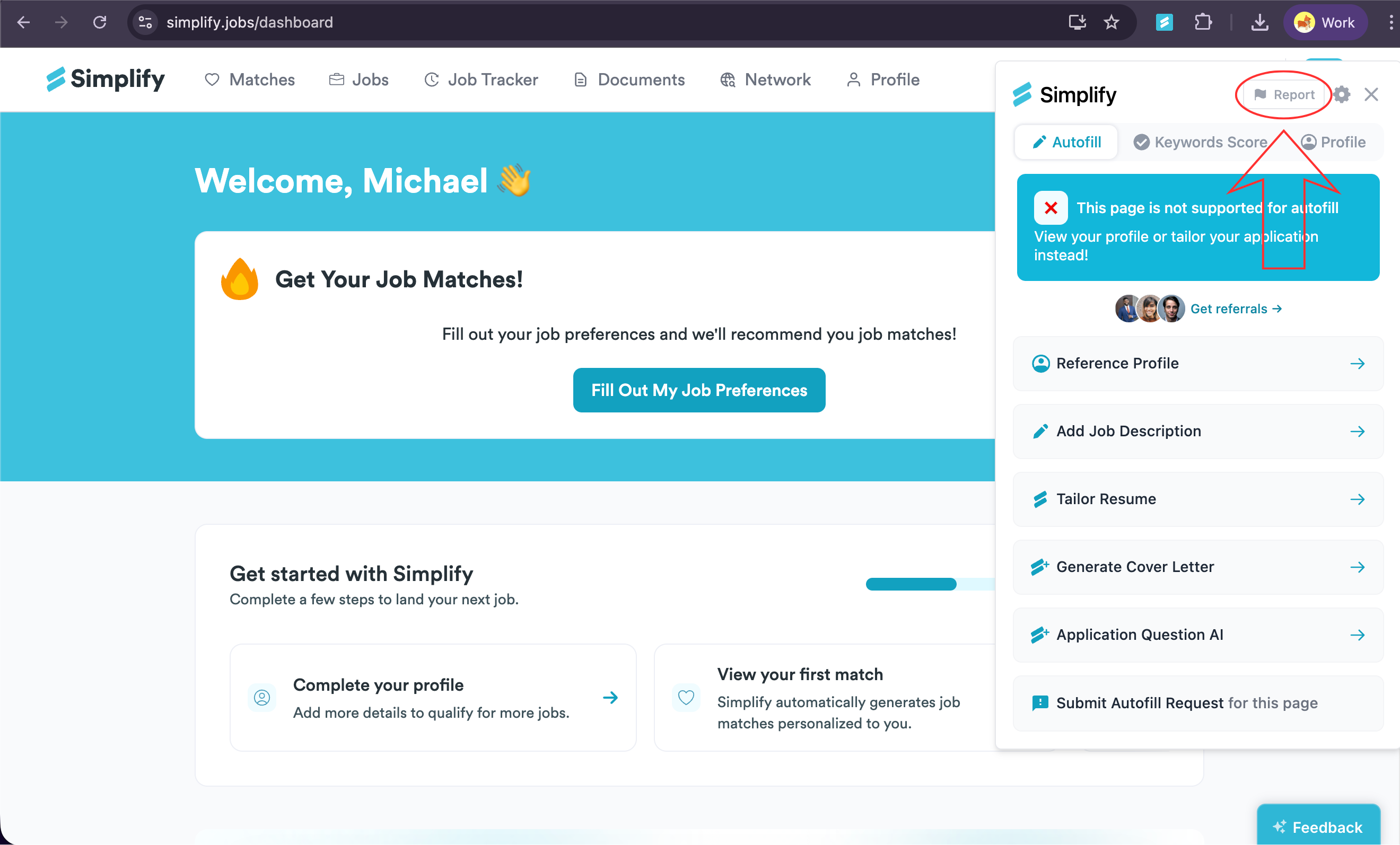
Choose Report at the top of Copilot.
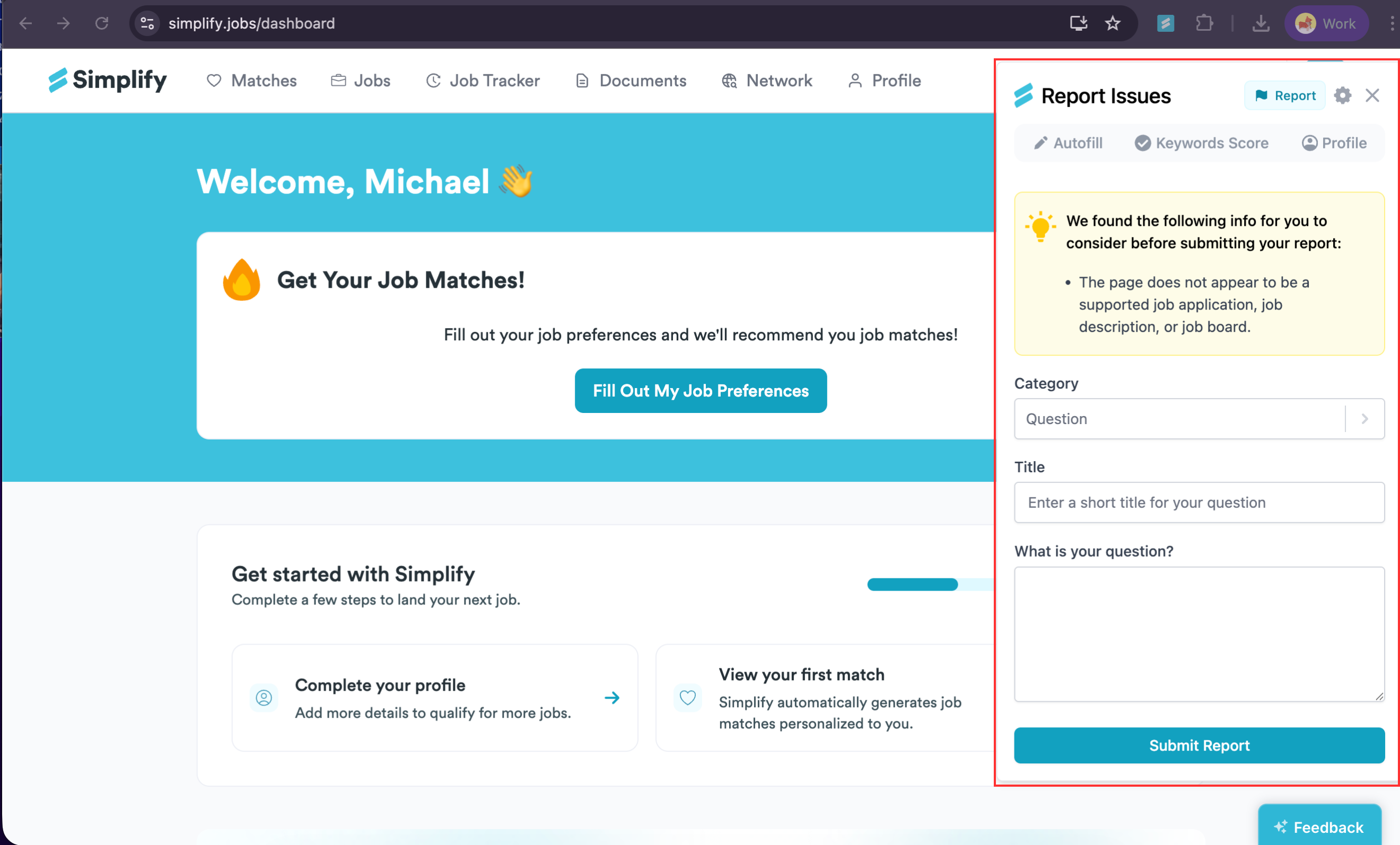
Enter a short title and describe the issue. Include the field or action that failed, what you expected, and what happened instead.
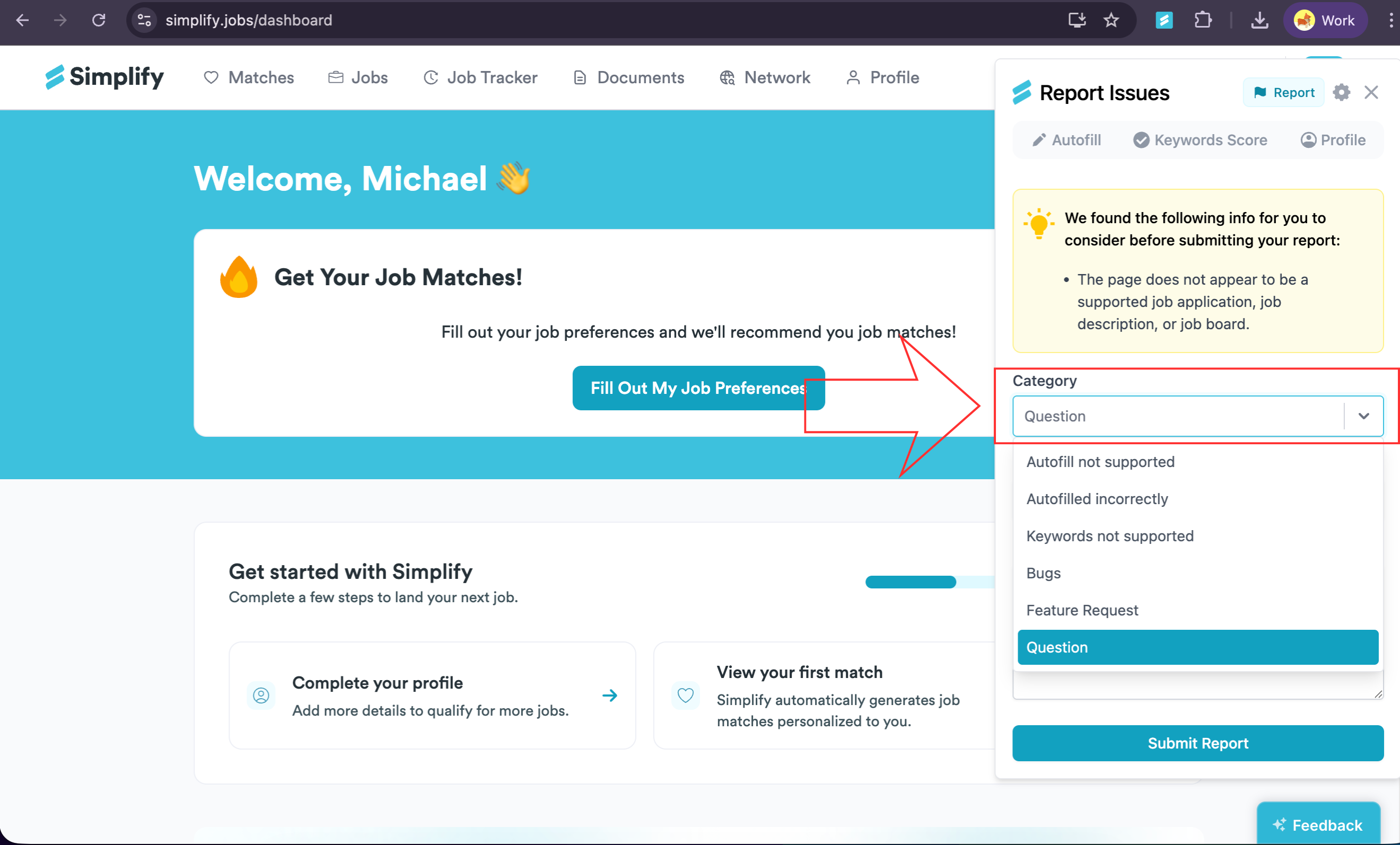
Choose the closest category, such as autofill not supported, incorrect autofill, a keyword issue, or a bug.
For an unsupported form, use Request autofill support for this page where offered. For other reports, complete the form and choose Submit Report.
What to include
Include the job or application URL, your browser, and any visible error message. A screenshot can help show a missing button or incorrect field. Leave out passwords, verification codes, and unrelated personal information.
If you cannot open Copilot to report the issue, email support@simplify.jobs with those details. A support request helps us investigate; it does not immediately add support for that form.
Related articles
Was this helpful?
Still need help? Share an idea