Use AI Email
Generate and edit application-related email drafts from a tracked job with Simplify+.
Last updated About 2 hours ago
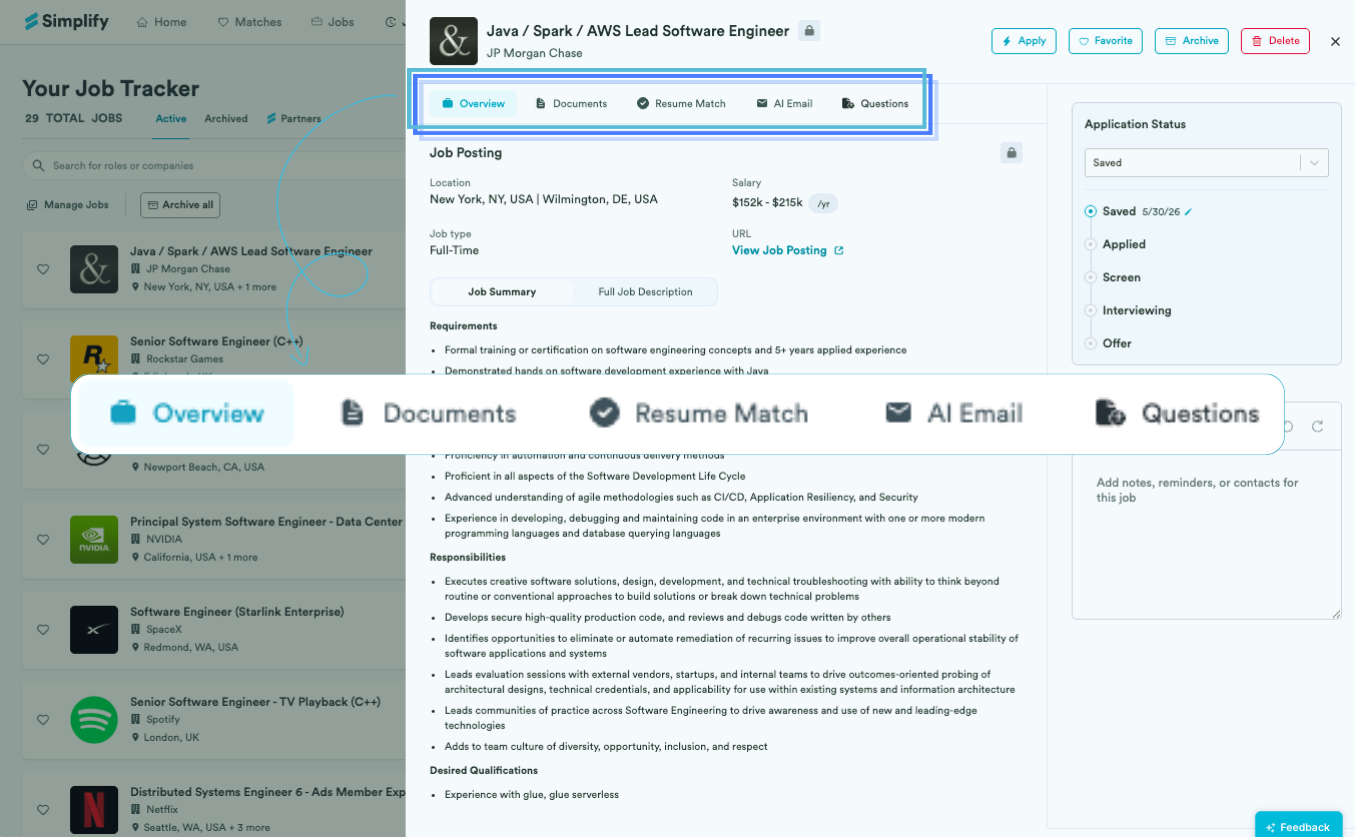
With Simplify+, open an application in Job Tracker → AI Email to generate a follow-up, referral request, thank-you, or another application email. Choose a template, add details, and review the draft. Connecting Gmail adds the separate ability to send messages from the tracker’s Emails tab.
Generate from a tracked application
Open a job in Job Tracker and select AI Email.
Choose the application stage and message type.
Add details in Add Personalization and choose Generate Email.
Read and edit the draft. Use the available copy action to send it with your email app, or use the connected Gmail route described below.
Generation uses information associated with the tracked job, such as its title, company, description, and your profile or resume. Check those details first if the draft refers to the wrong role or background.
Choose a template for the purpose
We group templates by stage so you can start with the right request. Add details the template cannot know, such as a topic you discussed, the person’s name, your availability, or the actual deadline. Check every date and commitment in the result.
Drafting and Gmail are separate
You do not need Gmail connected to generate a draft from the AI Email tab. With Gmail integration enabled, open the tracked application’s Emails → Compose → Ask AI flow to draft and send from Simplify. Review the recipients and message, then choose Send. A generated draft is not sent automatically.
Gmail integration itself is available to all users. Simplify+ is required for AI drafting. The Autopilot email proxy is another separate feature for application verification and forwarding; it does not provide this Gmail compose connection.
Related articles
Was this helpful?
Still need help? Share an idea