Update your uploaded resume
Replace an uploaded resume, check your default, or edit a separate builder resume.
Last updated About 2 hours ago
To update an uploaded PDF or Word resume, upload the revised file from Profile or Documents. To change an editable resume, open it in Resume Builder. Uploading a file, importing it into the builder, and updating your profile are separate actions.
Replace an uploaded file
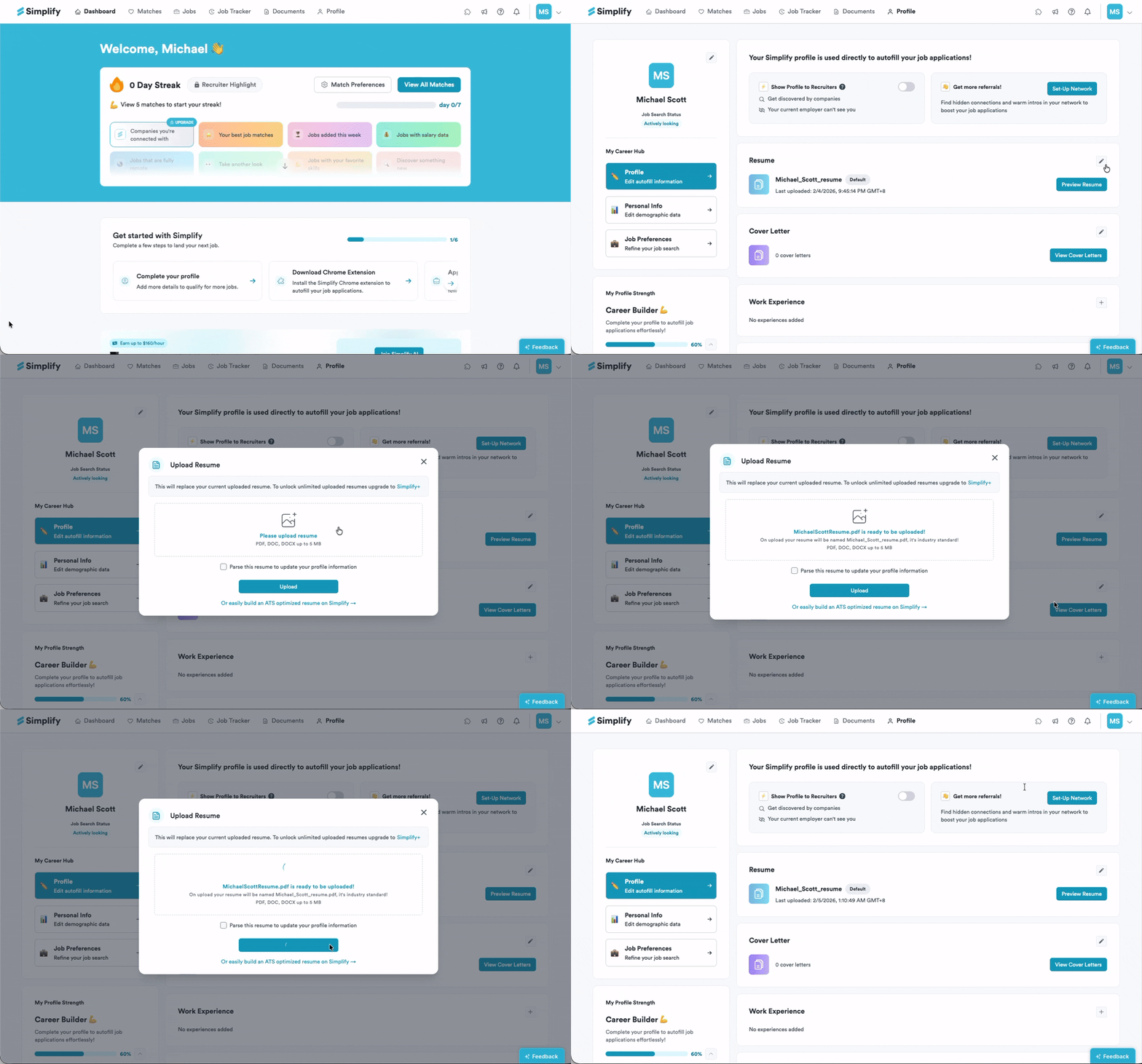
Open Profile and select the edit icon in the Resume section, or open Documents → Resumes.
Choose Upload, select the revised PDF, DOC, or DOCX file, and check the filename shown in the upload dialog. Files can be up to 5 MB.
Choose whether to parse the file to update your profile, then upload. Review any replacement confirmation before continuing.
Preview the uploaded file. Check which resume is marked Default and select the correct resume in Copilot before applying.
Replacement, default resumes, and profile information
On the free plan, uploading a new file replaces your current uploaded resume after confirmation. Simplify+ supports multiple uploaded resumes. A default resume is the one Simplify selects when a flow asks for your default; it does not mean every application must use that version.
Choose Parse this resume to update your profile information only when you want to import the file’s details into your profile. Review the suggested information before saving. Uploading a file without that option does not refresh your profile.
Edit a builder resume instead
Open the generated resume from Documents and edit it in Resume Builder. You can also choose an uploaded file as the starting point for a new editable builder resume. That creates a separate document: later changes to the builder copy do not rewrite the original PDF or Word file.
Related articles
Was this helpful?
Still need help? Share an idea