Browse, save, and apply to jobs in the iOS app
Find jobs on iPhone and choose Safari review or automatic submission with Autopilot.
Last updated About 3 hours ago
Use Home for job recommendations and Search for filtered results in the iOS app. Save jobs to return to them later. To apply, open the application in Safari for manual review with Copilot, or choose Autopilot with Simplify+ for automatic submission.
Browse and open a job
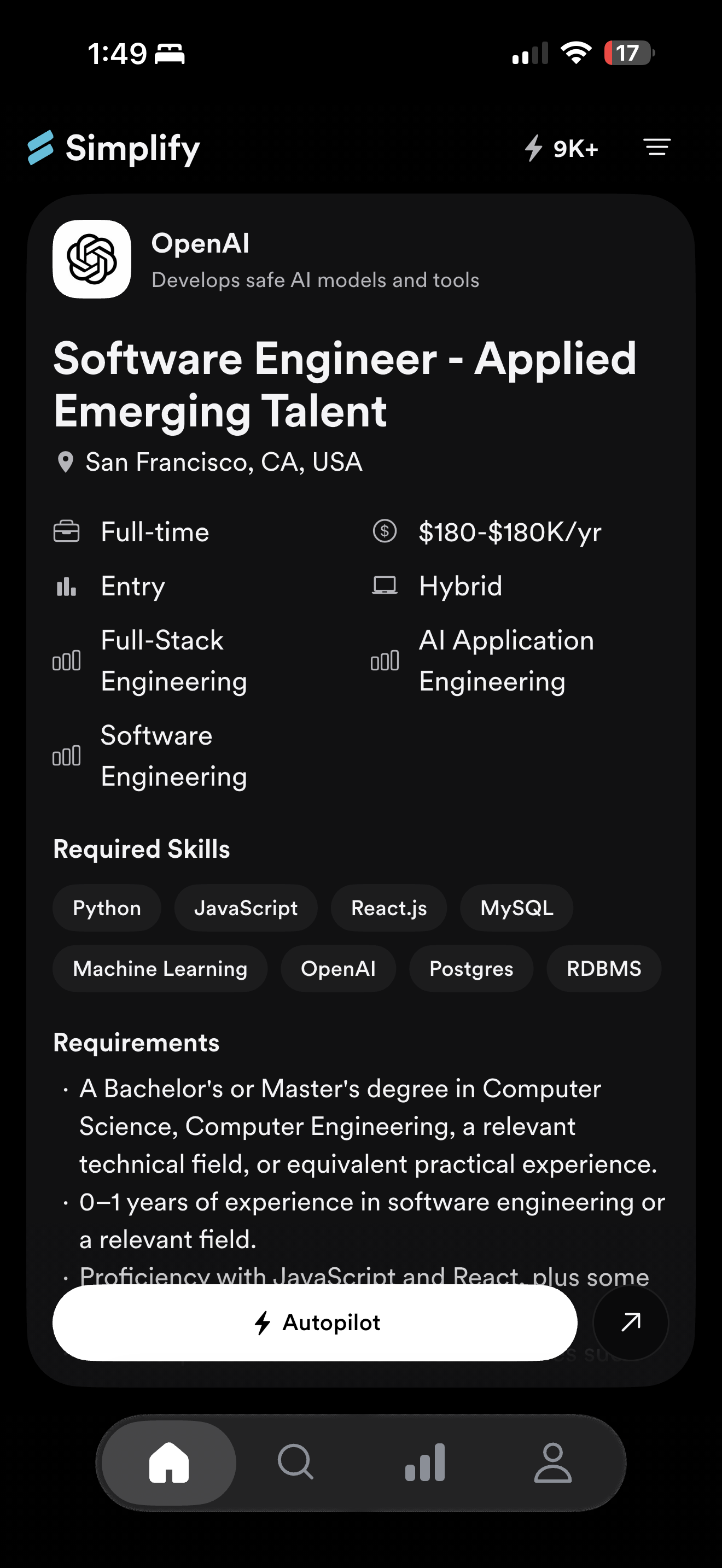
On Home, swipe up to move to the next job. Tap the card to expand the posting and read its requirements, skills, location, and compensation where provided. Swipe down or right to return to the feed.
We designed the card view so you can read one role at a time on a small screen. The card is a starting point; open the full posting before deciding whether the role’s responsibilities and requirements fit your search.
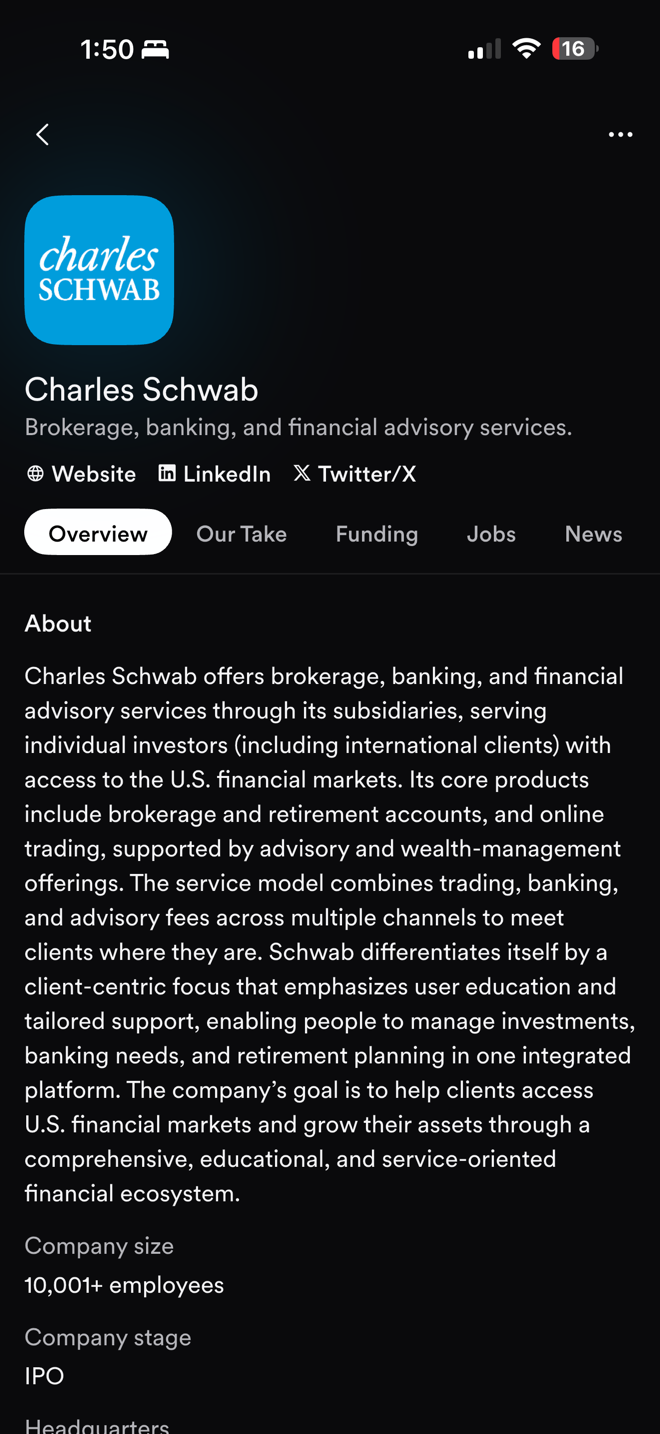
Tap the company to open its page. The company view can include an overview, Simplify’s take, funding, open jobs, and news. Check the employer’s own posting for current application details.
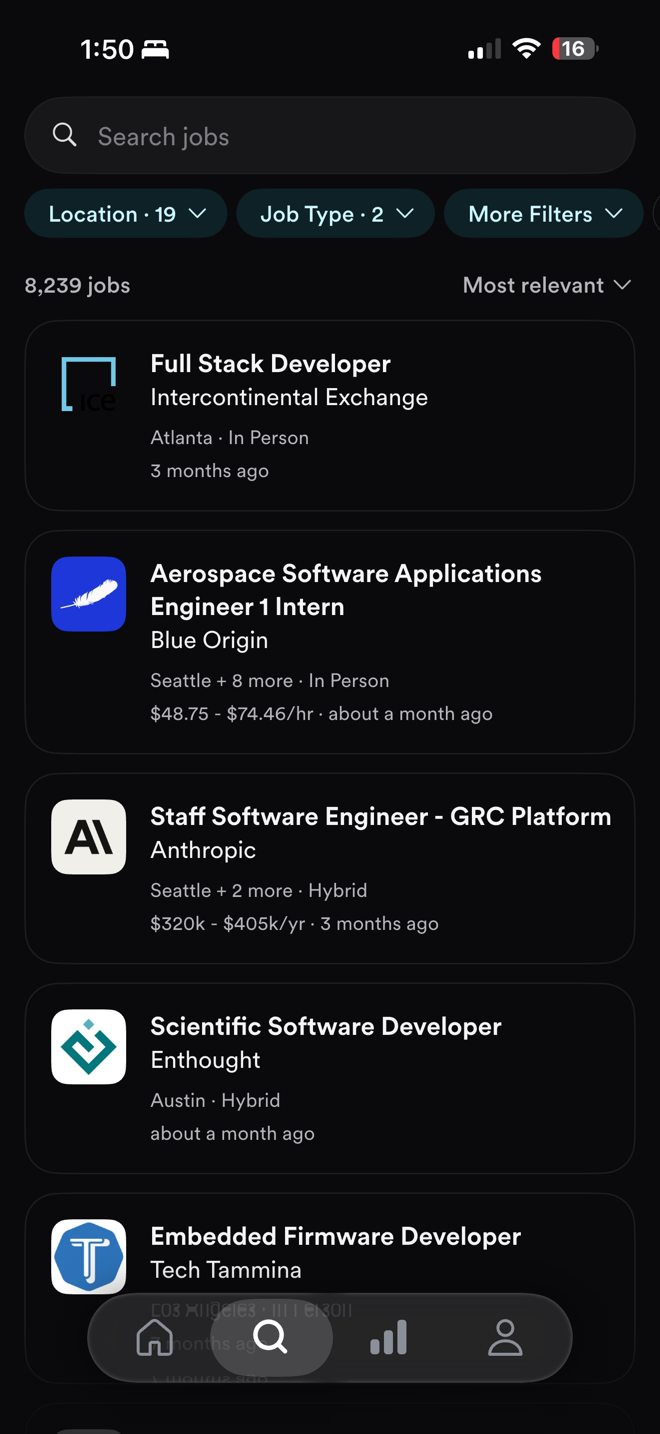
Use Search when you want a specific role, company, or location. Apply the available filters, then open a result to read it.
Save a job
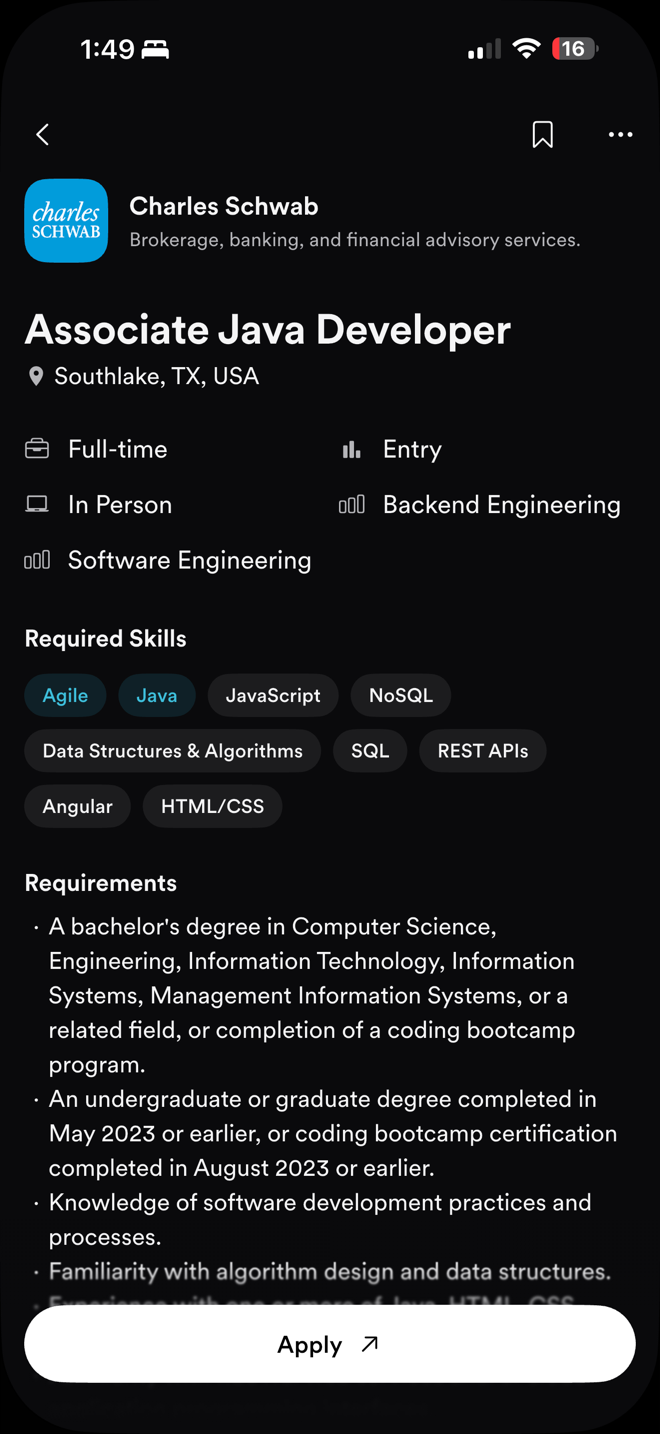
Open the full posting and tap the bookmark in the top-right. Find it later under Applications → Saved, on the phone or the web. Saving does not submit an application.
Apply in Safari with Copilot
Tap Apply to open the employer’s application in Safari. If the card shows Autopilot, tap the adjacent ↗ button for this manual route.
Open Copilot, choose autofill on a supported form, and check the attached resume and completed answers.
Complete any remaining questions and submit the employer’s application yourself. Look for the employer’s confirmation afterward.
If Copilot does not appear, check Safari extension setup and website permissions. On an unsupported form you can still enter the information yourself.
Apply automatically with Autopilot
On a supported job, Simplify+ members can choose Autopilot. It fills and submits the application without a review step. Check your profile, resume, and settings beforehand. A successful submission uses one Autopilot credit.

Follow runs and results in the application views. If a run fails, open the job’s application in Safari to finish it manually. A failure is not an employer rejection. The credit guide explains how usage and weekly resets work.
Choose the resume Autopilot sends
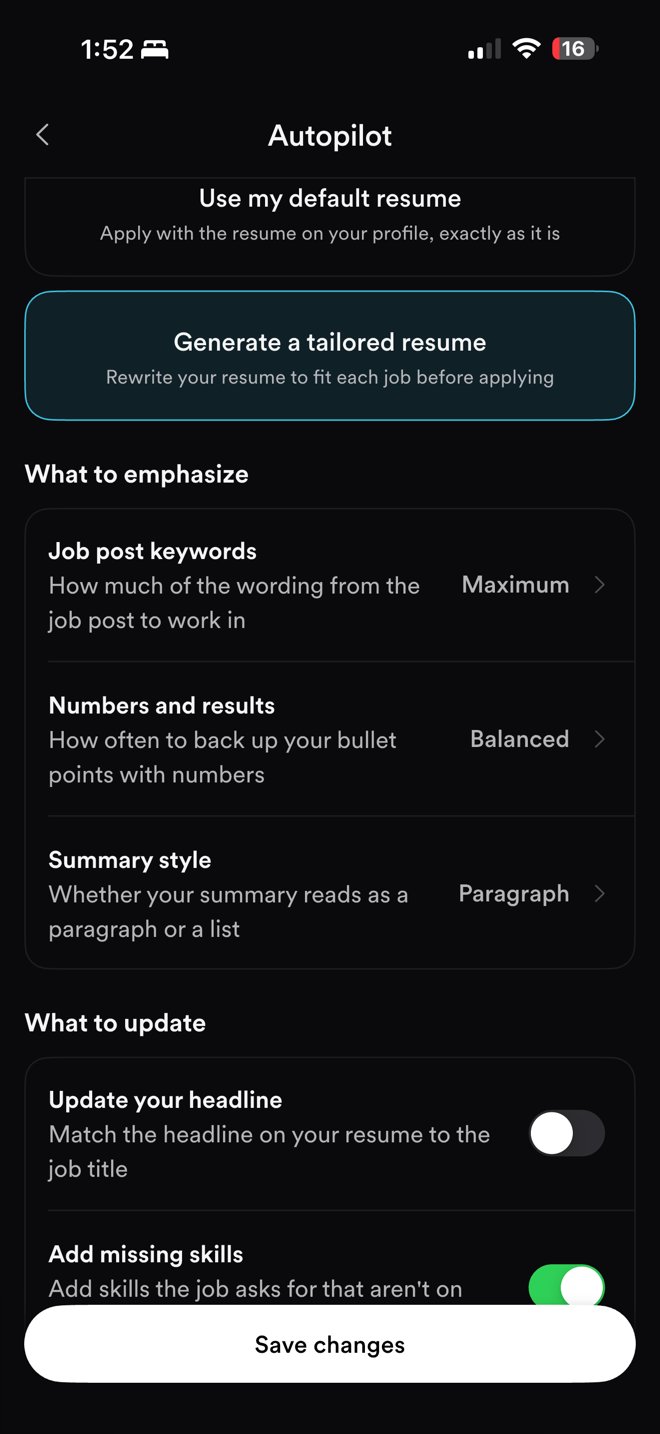
Open Profile → Settings → Autopilot. Use my default resume sends your current default. Generate a tailored resume creates a version for each job before applying.
For tailored resumes, What to emphasize controls keyword emphasis, numbers and results, and summary style. What to update includes headline and skills options. Check the source profile for accurate experience and metrics, then choose Save changes. These settings guide automatic tailoring; they do not create a later approval step.
Tailored versions are saved in Documents for later review or reuse. If you want to edit a draft before applying, create it with the web builder and use Copilot’s manual application flow.
Related articles
Was this helpful?
Still need help? Share an idea