Set your Job Match preferences
Change target roles, locations, salary preferences, and job recommendation emails.
Last updated About 2 hours ago
Open Match Preferences from your dashboard, or Profile → Job Preferences, to change the jobs Simplify recommends. Update the relevant fields and save, then return to Matches. Job Board search filters are separate from your saved matching preferences.
Edit and save your preferences
Open Match Preferences on your dashboard, or Profile → Job Preferences. You can also follow Change preferences in a match explanation.
Change the fields relevant to your search. Review previously selected options as well as adding new ones.
Save the changes, then return to Matches and review the recommendations.
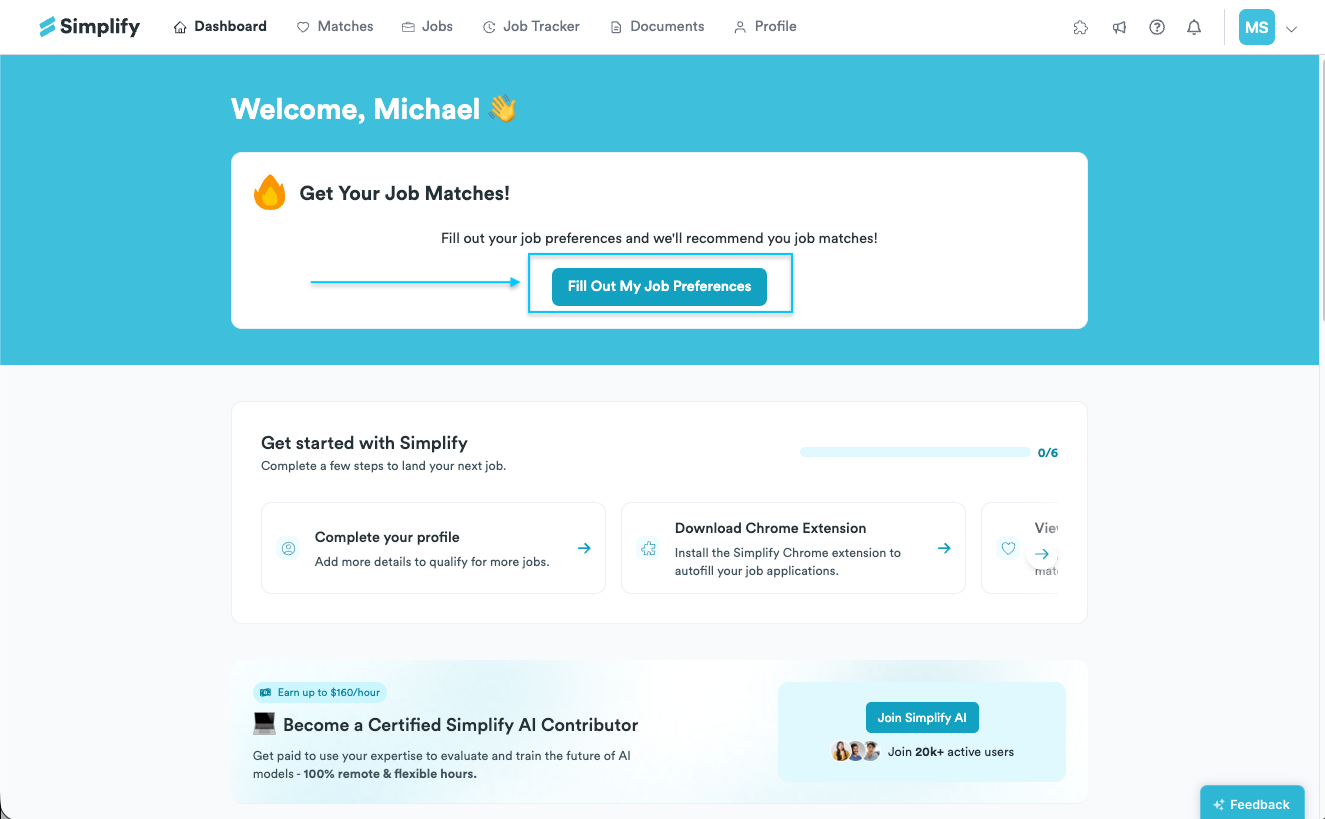
You first set these preferences during onboarding, but you can revisit them as your search changes. Saving preferences provides the inputs for recommendations; a temporary Job Board search uses its own filters.
Which preferences can I change?
The matching questions cover target roles and specializations, locations, remote or in-person work, salary expectations, company sizes, industries, and technical interests. Use the exclusions offered when you know a type of role, company, industry, or technology you do not want.
Choose multiple options where you are open to more than one direction. For example, if you are considering both data analyst and product analyst work, include the relevant roles rather than expecting one title to represent every related job.
Why am I still seeing an unexpected job?
Open Why This Job is a Match and check the listed reasons. A location, specialization, or skill you selected earlier may be influencing the recommendation. Check your profile for outdated experience and skills as well as your preference answers.
If results are too narrow, broaden a constraint you are willing to change. If results are consistently irrelevant, send thumbs-up or thumbs-down feedback on examples and include the mismatch in a support report. Avoid making every preference broader if you actually need a strict location or authorization requirement.
Choose match email frequency
The job recommendation email controls on your dashboard let you choose Daily, Weekly, or Never. Email frequency changes how often recommendations reach your inbox; it does not edit the target roles or locations themselves. In the iOS app, check the separate notification settings for phone alerts.
After changing preferences, save and reopen Matches. If the expected change does not appear, reload and confirm the new answers were saved. Include the specific field and an example recommendation when reporting a persistent issue.
Related articles
Was this helpful?
Still need help? Share an idea