Use Simplify in Claude, ChatGPT and Codex (MCP)
Connect your Simplify account to an AI assistant to find jobs, tailor resumes and apply with Autopilot from a chat.
Last updated About 1 hour ago
Simplify+ members can connect Simplify to an AI assistant they already use. Then ask, in plain words, which jobs sponsor visas, what to follow up on in your Job Tracker, or for a resume tailored to a role. The assistant reads and updates your real Simplify account, so your matches, resumes, Job Tracker and Autopilot credits stay in one place.
What you need
An active Simplify+ subscription. Free accounts can sign in but cannot connect.
A Simplify profile with a default resume. If you don't have one yet, finish your profile first.
One of the AI apps below.
Connect Simplify
Jump to your app: Claude · Claude Code (CLI) · ChatGPT (web) · ChatGPT app · Codex CLI
Prefer to have an AI walk you through it? Copy the setup steps for your app and paste them into a chat.
Copy for Claude (Claude and Claude Code)
Copy for Claude (Claude and Claude Code)
# Connect Simplify to Claude

### Claude

For Claude on the web and the Claude desktop app.

1. In the left panel, open **Plugins**, choose **Add**, then **Add custom connector**.
2. Name it **Simplify** and paste this address:

   ```
   https://mcp.simplify.jobs/mcp
   ```

3. Choose **Continue**. On the next screen, keep the default settings and choose **Add**. If your browser asks "Finish connecting a connector?", choose **Continue connecting**.
4. Sign in to Simplify, choose what Claude may do (check **Apply and update your profile** if you want it to save jobs, tailor resumes or apply) and choose **Approve**. If your browser asks, choose **Open Claude**.

Claude Free accounts can add one custom connector. On Team and Enterprise plans, an admin adds it for your organization first.

### Claude Code (CLI)

```bash
claude mcp add --transport http simplify https://mcp.simplify.jobs/mcp --scope user
```

Then run `/mcp`, choose **simplify** and **Authenticate**.
Copy for ChatGPT (ChatGPT web, ChatGPT app and Codex CLI)
Copy for ChatGPT (ChatGPT web, ChatGPT app and Codex CLI)
# Connect Simplify to ChatGPT and Codex

### ChatGPT (web)

1. In the left panel, open **Plugins**, choose **Add**, then **Add custom MCP server**.
2. Name it **Simplify**. Under **Connection**, keep **Server URL** and paste this address:

   ```
   https://mcp.simplify.jobs/mcp
   ```

   Leave **Authentication** as **OAuth**.

3. Check **I understand and want to continue**, then choose **Create as a plugin**.
4. Choose **Continue to Simplify**, sign in, choose what ChatGPT may do (check **Apply and update your profile** if you want it to save jobs, tailor resumes or apply) and choose **Approve**.
5. In a chat, type **@Simplify** to use it.

### ChatGPT app

1. Open **Settings**, go to **Integrations**, then **Plugins**.
2. Choose **Add**, then **Add MCP server**.
3. In **Connect to a custom MCP**, name it **Simplify** and set **Type** to **Streamable HTTP** (not STDIO).
4. Paste this address into **URL** and choose **Save**:

   ```
   https://mcp.simplify.jobs/mcp
   ```

5. In your MCP list, choose **Authenticate** next to **simplify**.
6. Your browser opens Simplify. Sign in, choose what ChatGPT may do (check **Apply and update your profile** if you want it to save jobs, tailor resumes or apply) and choose **Approve**. On Simplify, this connection shows up as **Codex**. That's expected.
7. In a chat, type **@Simplify** to use it.

### Codex CLI

Run this in your terminal. It opens your browser to sign in to Simplify:

```bash
codex mcp add simplify --url https://mcp.simplify.jobs/mcp
```

Then start Codex with `codex`. If the browser didn't open, run `codex mcp login simplify`.

Ask in plain words, for example "find me some jobs"; Codex picks up Simplify on its own. It may ask you to approve the matches tool before showing personalized matches.
Claude
For Claude on the web and the Claude desktop app.
In the left panel, open Plugins, choose Add, then Add custom connector.
Name it Simplify and paste this address:
https://mcp.simplify.jobs/mcpChoose Continue. On the next screen, keep the default settings and choose Add. If your browser asks "Finish connecting a connector?", choose Continue connecting.
Sign in to Simplify, choose what Claude may do (see "Permissions" below) and choose Approve. If your browser asks, choose Open Claude.
Claude Free accounts can add one custom connector. On Team and Enterprise plans, an admin adds it for your organization first.
Claude Code (CLI)
claude mcp add --transport http simplify https://mcp.simplify.jobs/mcp --scope userThen run /mcp, choose simplify and Authenticate.
ChatGPT (web)
In the left panel, open Plugins, choose Add, then Add custom MCP server.
Name it Simplify. Under Connection, keep Server URL and paste this address:
https://mcp.simplify.jobs/mcpLeave Authentication as OAuth.
Check I understand and want to continue, then choose Create as a plugin.
Choose Continue to Simplify, sign in, choose what ChatGPT may do (see "Permissions" below) and choose Approve.
In a chat, type @Simplify to use it.
ChatGPT app
Open Settings, go to Integrations, then Plugins.
Choose Add, then Add MCP server.
In Connect to a custom MCP, name it Simplify and set Type to Streamable HTTP (not STDIO).
Paste this address into URL and choose Save:
https://mcp.simplify.jobs/mcpIn your MCP list, choose Authenticate next to simplify.
Your browser opens Simplify. Sign in, choose what ChatGPT may do (see "Permissions" below) and choose Approve. On Simplify, this connection shows up as Codex. That's expected.
In a chat, type @Simplify to use it.
Codex CLI
Run this in your terminal. It opens your browser to sign in to Simplify:
codex mcp add simplify --url https://mcp.simplify.jobs/mcpThen start Codex with codex. If the browser didn't open, run codex mcp login simplify.
Ask in plain words, for example "find me some jobs"; Codex picks up Simplify on its own. It may ask you to approve the matches tool before showing personalized matches.
Permissions
When you sign in, Simplify shows two options.
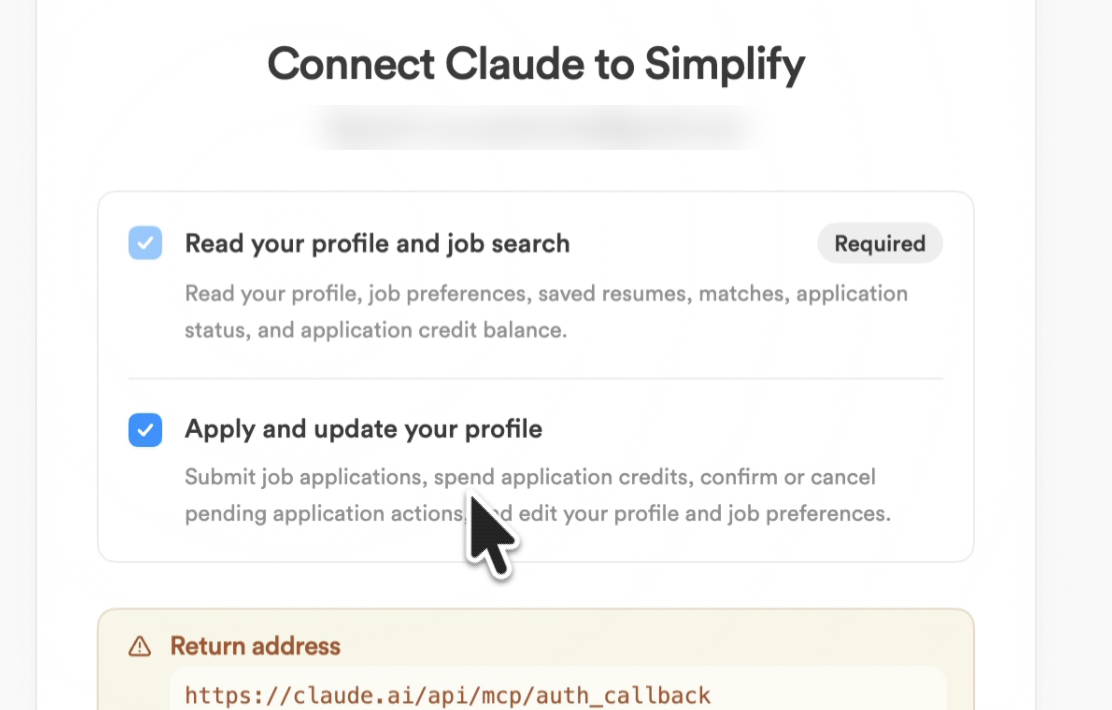
Check "Apply and update your profile" if you want the assistant to save jobs, tailor resumes or apply with Autopilot for you. Leave it unchecked if you only want to search and ask questions. The assistant will never submit an application without asking you first.
If you left it unchecked and change your mind, disconnect and reconnect, then check it.
Try these first
Start a new chat and mention Simplify in your first message, so the assistant knows to use it. These work as written, because Simplify already knows your preferences and resume:
Use Simplify to find jobs that match my preferences, and explain why each one fits me.
Summarize my Simplify Job Tracker: what did I apply to recently, and what should I follow up on?
Use Simplify to find jobs that match my preferences and sponsor visas, and tell me what you couldn't verify.
Use Simplify to tailor a copy of my resume for the best match. Show me what you changed.
After the first results, check which resume and filters the assistant used, and ask it to adjust anything that looks wrong.
Visa sponsorship information comes from company-level data and is missing for many companies. Unknown doesn't mean a company won't sponsor. Check the job post or ask the employer.
Applying with Autopilot
Autopilot submits supported applications for you, without a final review step. In a chat, the assistant confirms the job, the resume and your tailoring settings, then submits only after you say yes. It returns a link to that run so you can follow it in the Autopilot tab.
Simplify+ includes 100 Autopilot credits a week, the same allowance as on the website. A credit is used only when an application is submitted successfully.
Resumes
The assistant can open your saved resumes and create a tailored copy for a role. Your original stays unchanged, and the assistant lists what it changed.
To see the tailored PDF, open it in your Simplify documents. In ChatGPT the PDF also shows in the chat (ChatGPT may ask you to allow the file first). Claude doesn't show it in the chat yet.
Privacy and disconnecting
Information the assistant reads from Simplify, such as your profile, resume and saved answers, is sent to that AI app. The app's own privacy policy then applies. Don't connect Simplify to an assistant you don't trust with that information. Simplify's Privacy Policy covers how we handle your data.
To disconnect, remove the Simplify connector or plugin in your AI app's settings. You can also go to Settings → Connected apps on Simplify and disconnect one connection, one app, or all apps. You stay signed in to Simplify.
Troubleshooting
Still stuck? Contact support with the app you used and what you asked.
Related articles
Was this helpful?
Still need help? Share an idea