How to Change Your Email
Last updated 8 months ago
⚙️ VIA SETTINGS
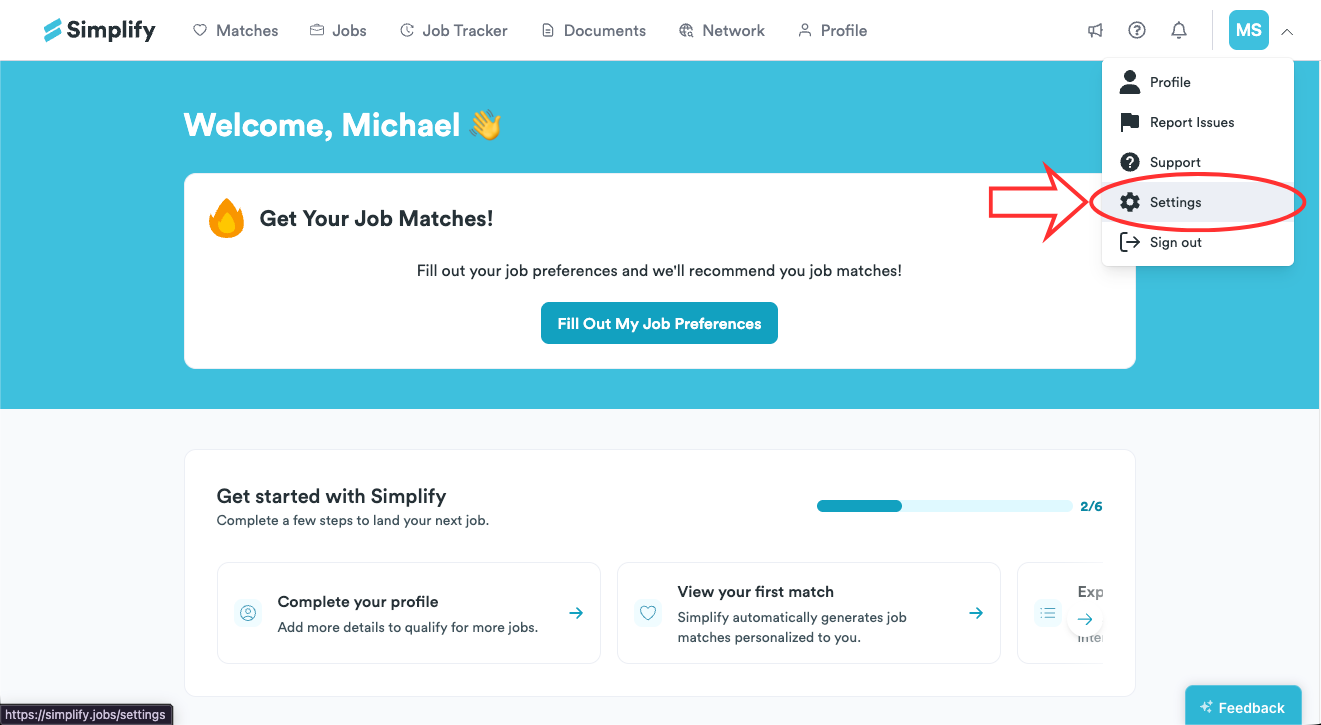
Go to Settings by following this link or navigating from Simplify's top-right menu.
Enter your new email address and click "change email." You're not done yet! Make sure to follow the Simplify link in your updated inbox to save your changes.
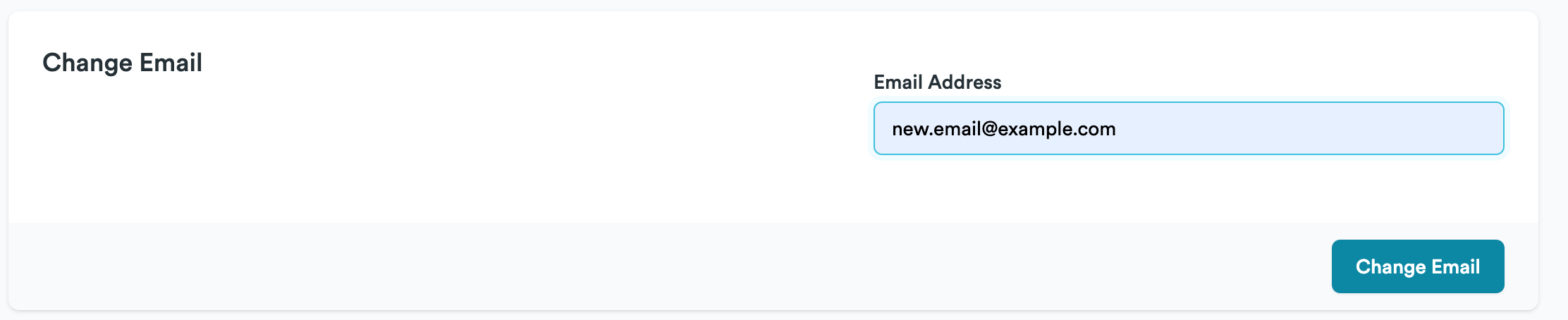
Almost done! Just open the email we sent to your new address and click the link to save your changes.
👤 VIA PROFILE
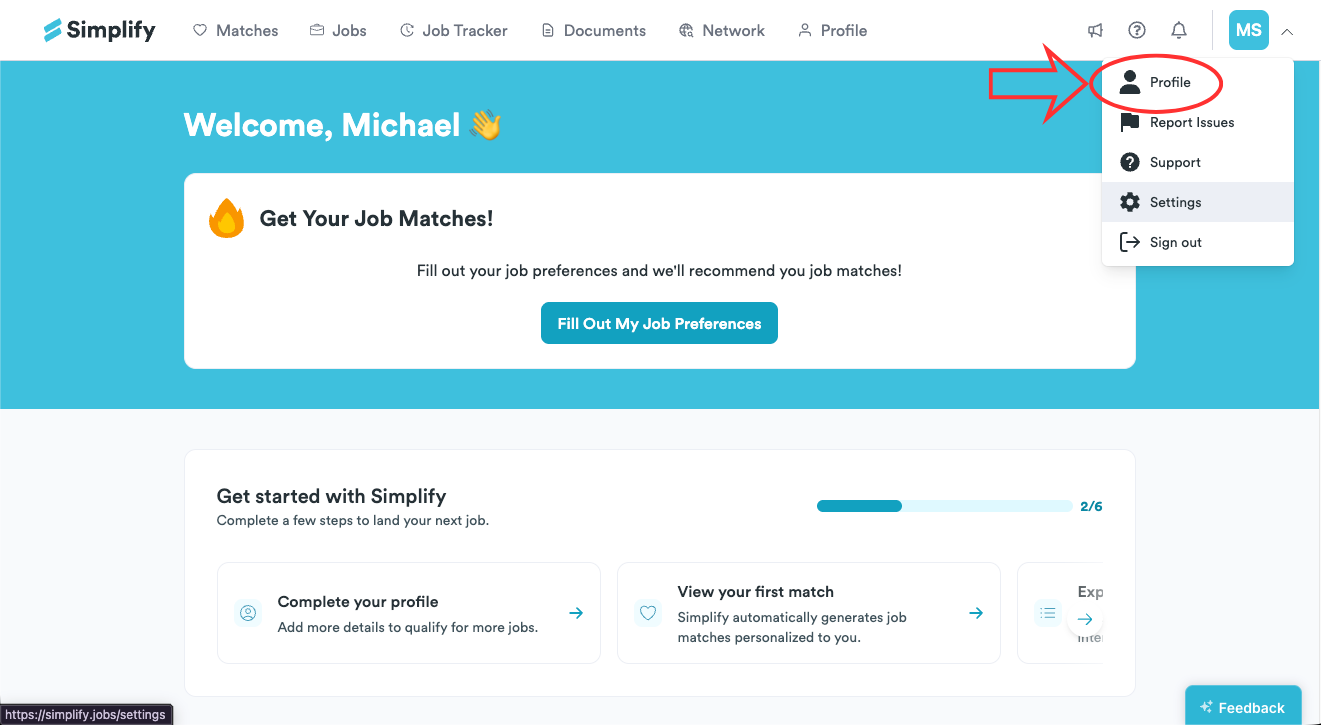
Go to your Profile by following this link or navigating from Simplify's top-right menu.
On the left side of the screen, look for the Personal Info tab and click it.
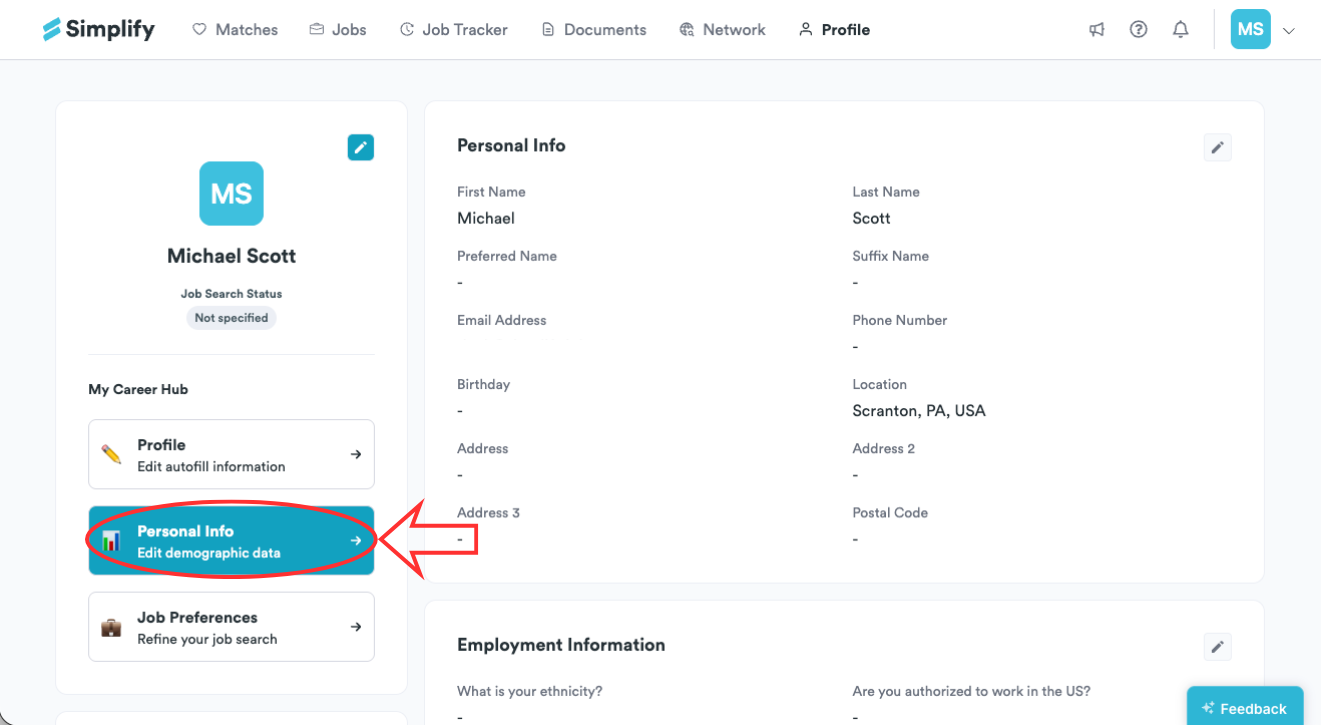
Click the pencil icon in the top right of the Personal Info section.
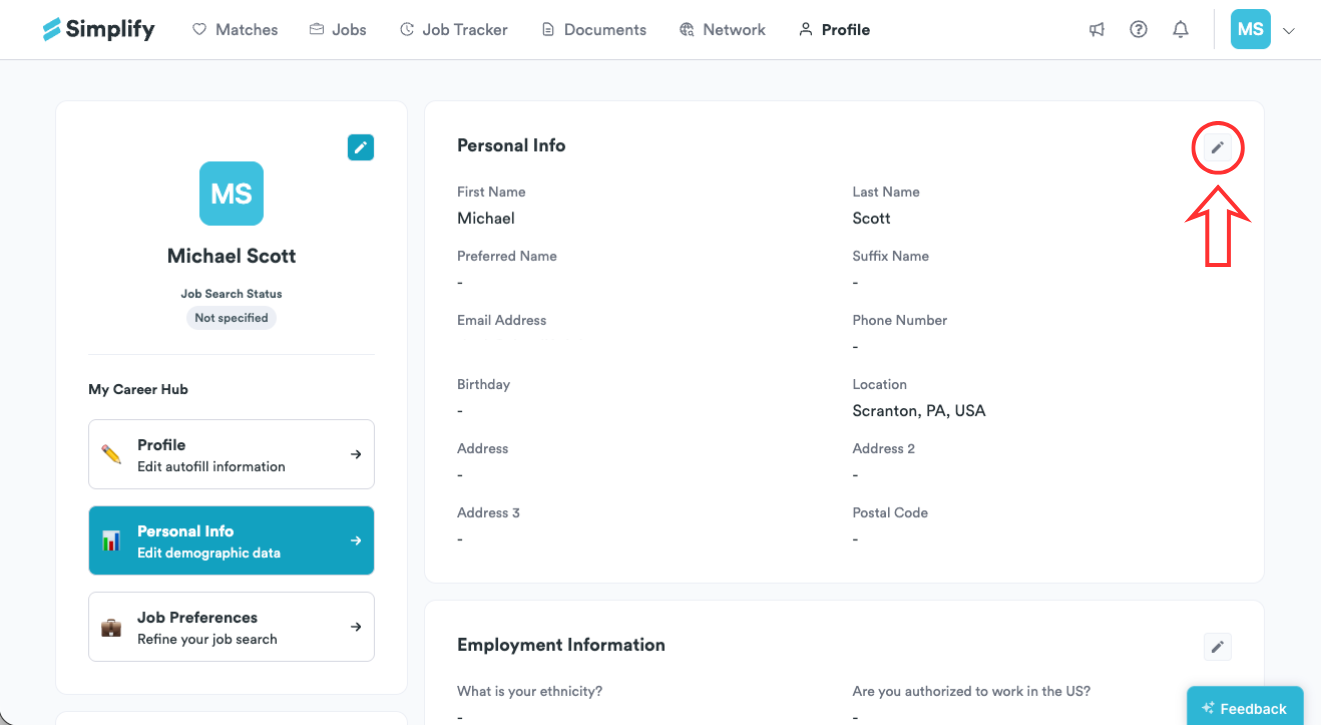
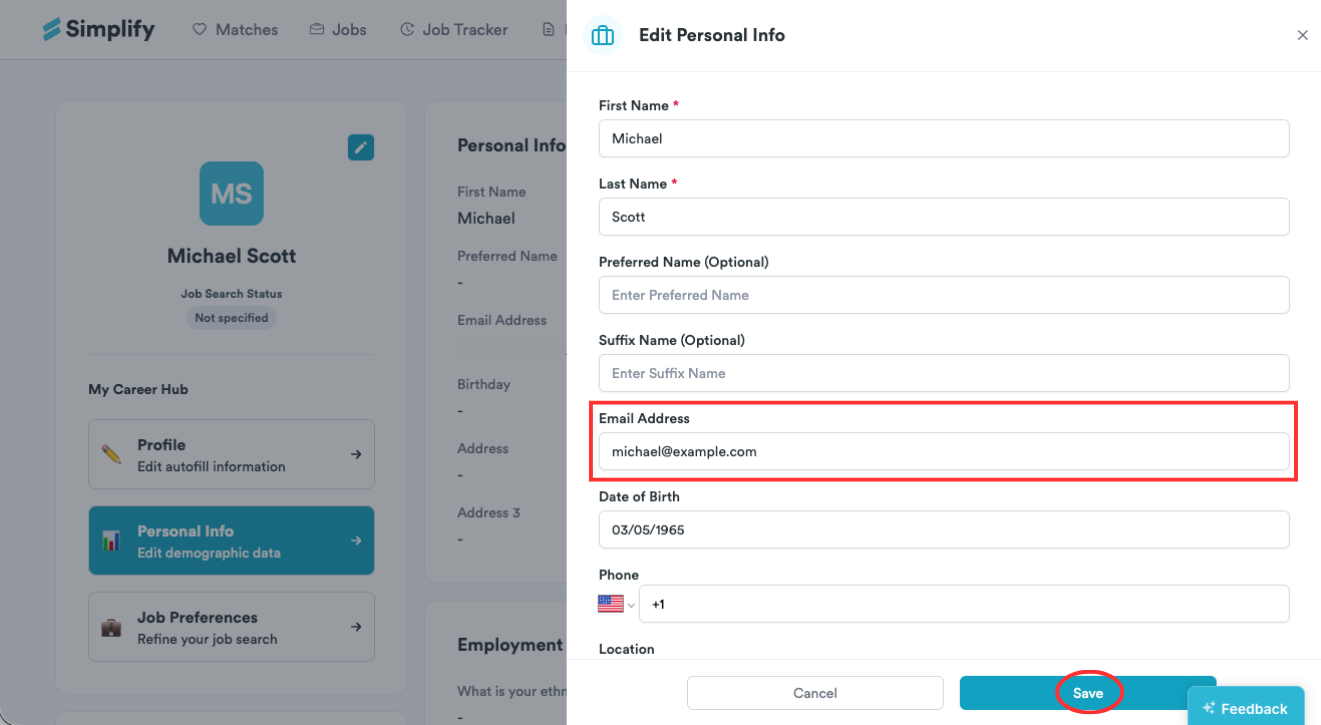
When the ‘Edit Personal Info’ window appears, enter your new address in the Email Address field and click Save.
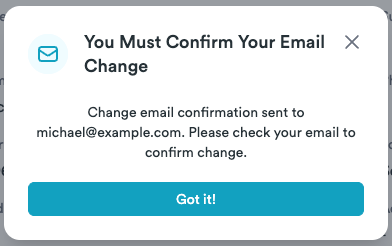
Make sure to confirm the email change by following the link in your inbox.
❓ Need More Help?
If you’re running into issues or have questions before taking this step, feel free to email us at support@simplify.jobs or leave feedback on any Simplify page. We’re here to help.
Still need help? Share an idea