Resume Builder Basics
💡 The resume builder is a tool to quickly edit and tailor your resume to specific jobs using recruiter recommended format. When your resume is ready - download and upload it to your profile!
Last updated 4 months ago
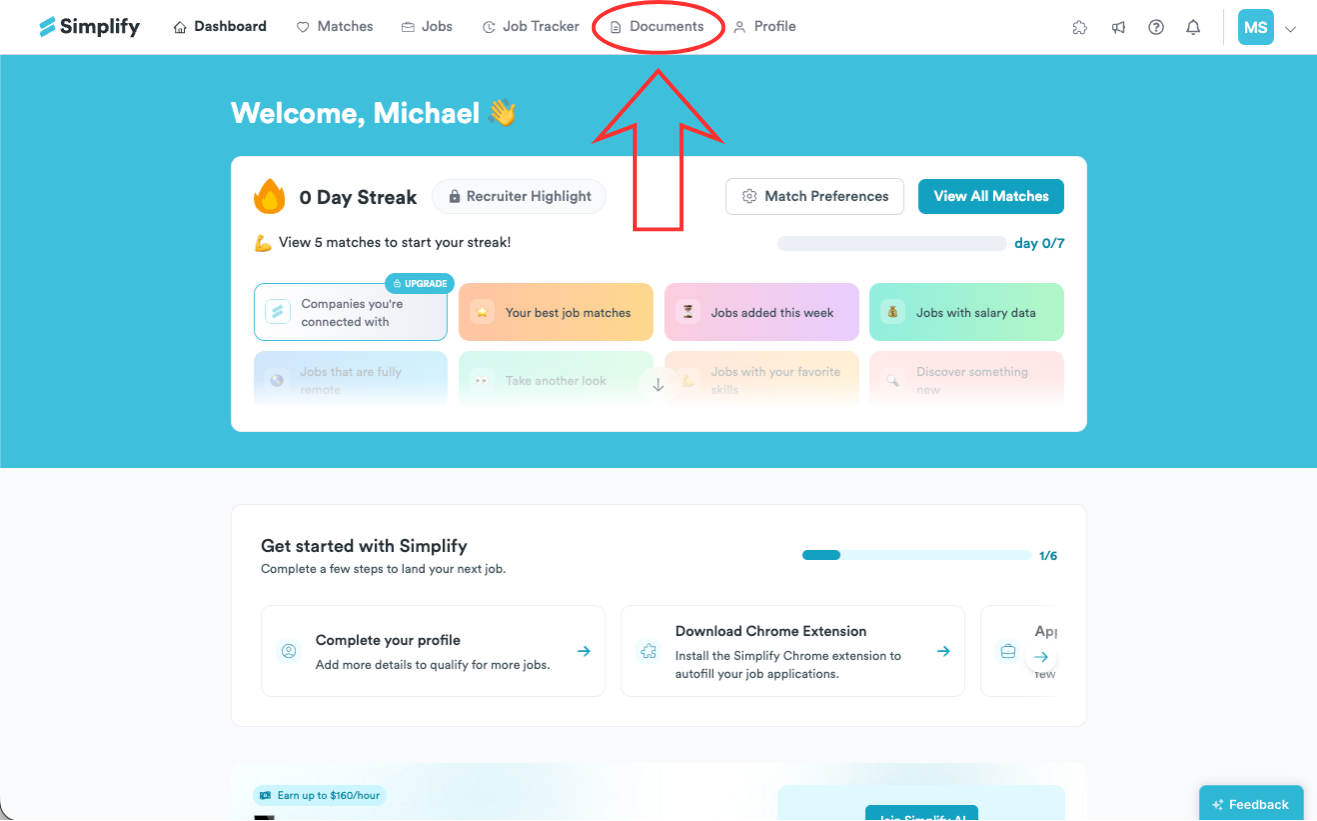
Access the Resume Builder by going to the Documents page and clicking New Resume on the left side of the screen.
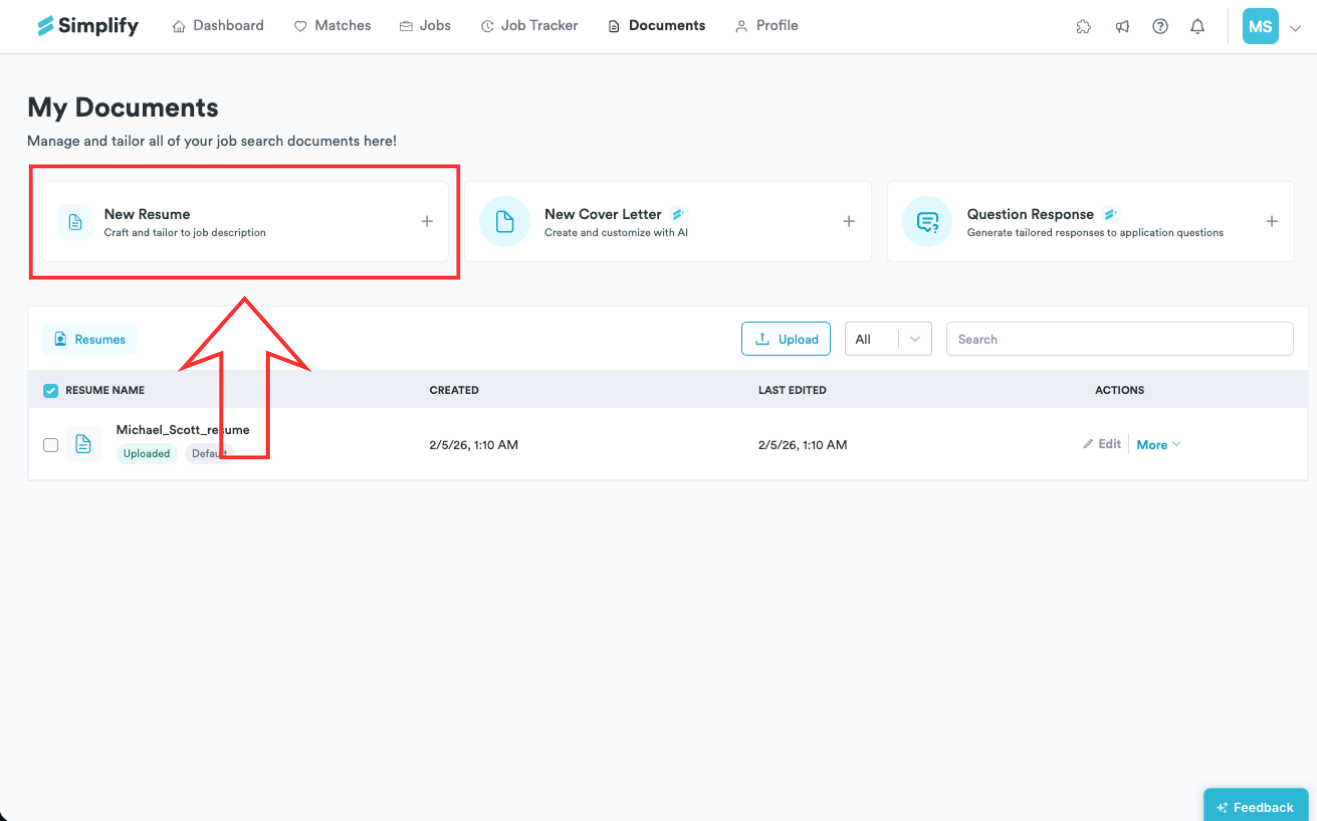
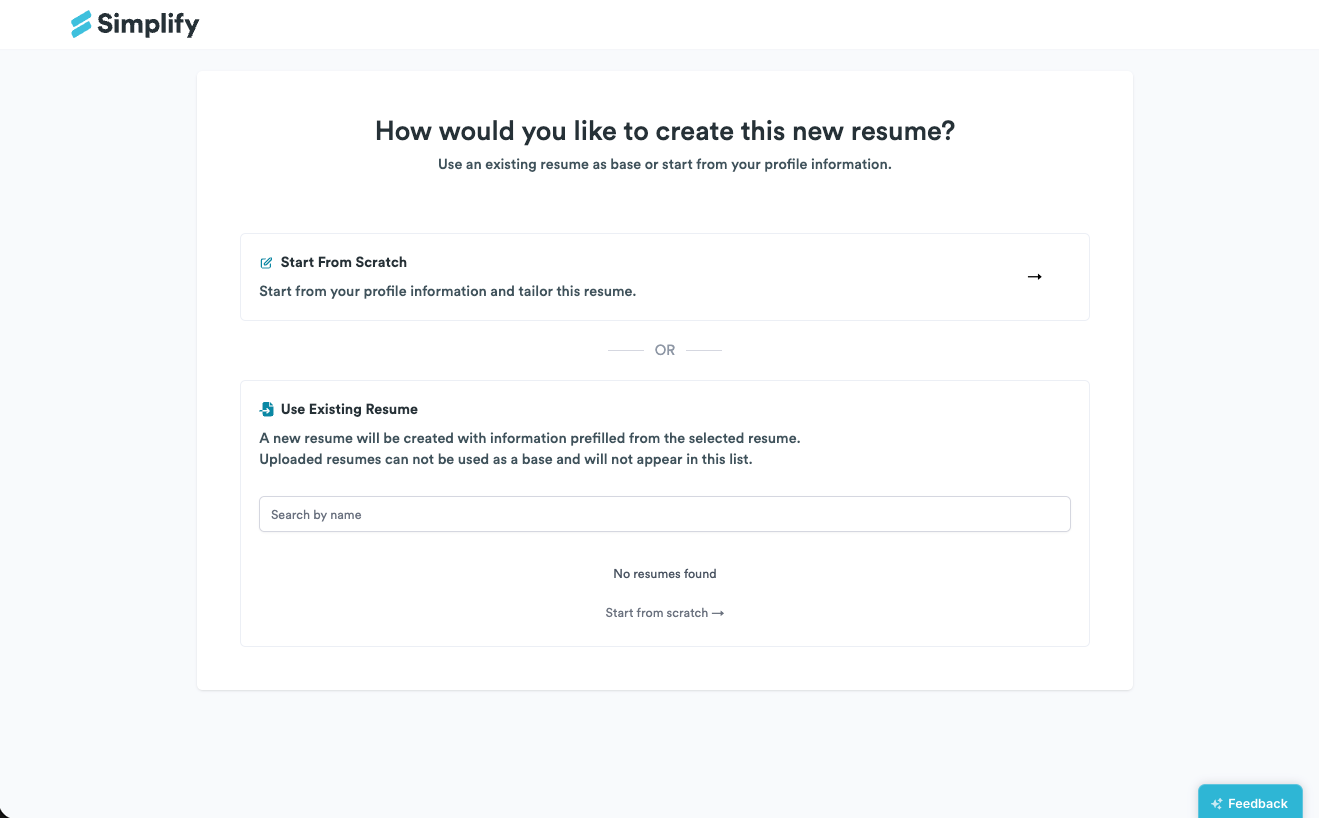
In the next page, you’ll be prompted to choose:
Start From ScratchThe resume is prefilled with information from your Simplify profile.
Use Existing Resume
A new resume is created with details prefilled from the selected tailored resume.
Uploaded resumes cannot be used as a base and will not appear in this list.
You will see your resume split into blocks: Resume Name, Education, Certificates, Professional Experience, Projects & Outside Experience, Skills, Languages, and Interests.
At the very bottom, click Add Custom Section to create an additional section. To rename any section title, click the pen icon next to the title and enter the new name.
You can rearrange sections by dragging and dropping. Hold the six dot handle at the top left of a section, drag it to a new position, then release.
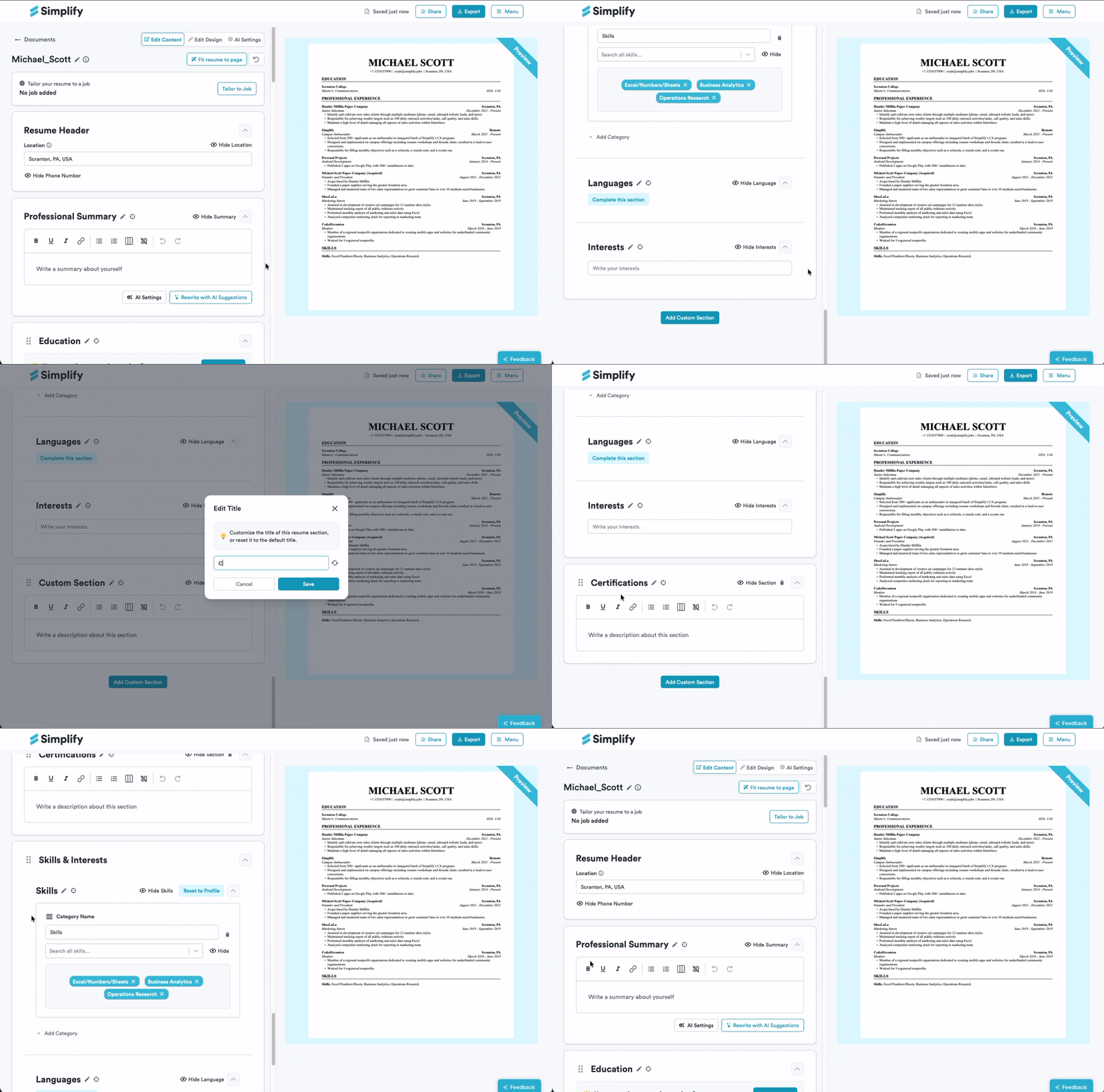
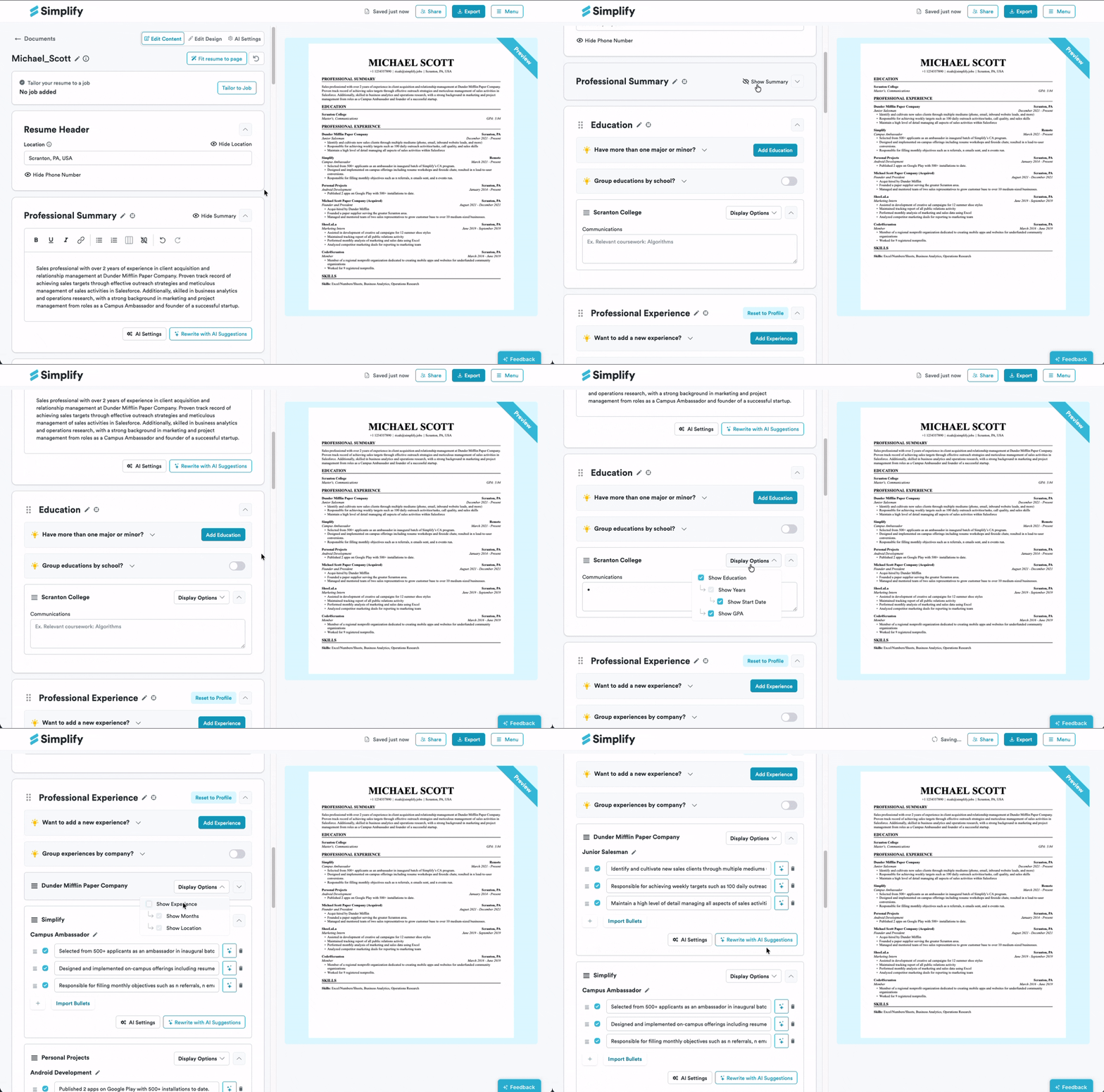
You can choose to edit or hide any section. Hidden sections will not appear on the downloaded resume.
To hide a section, click Hide [Section] in the top left of that block.
To hide a specific work experience or education entry, click Display options for that entry and uncheck Show Experience.
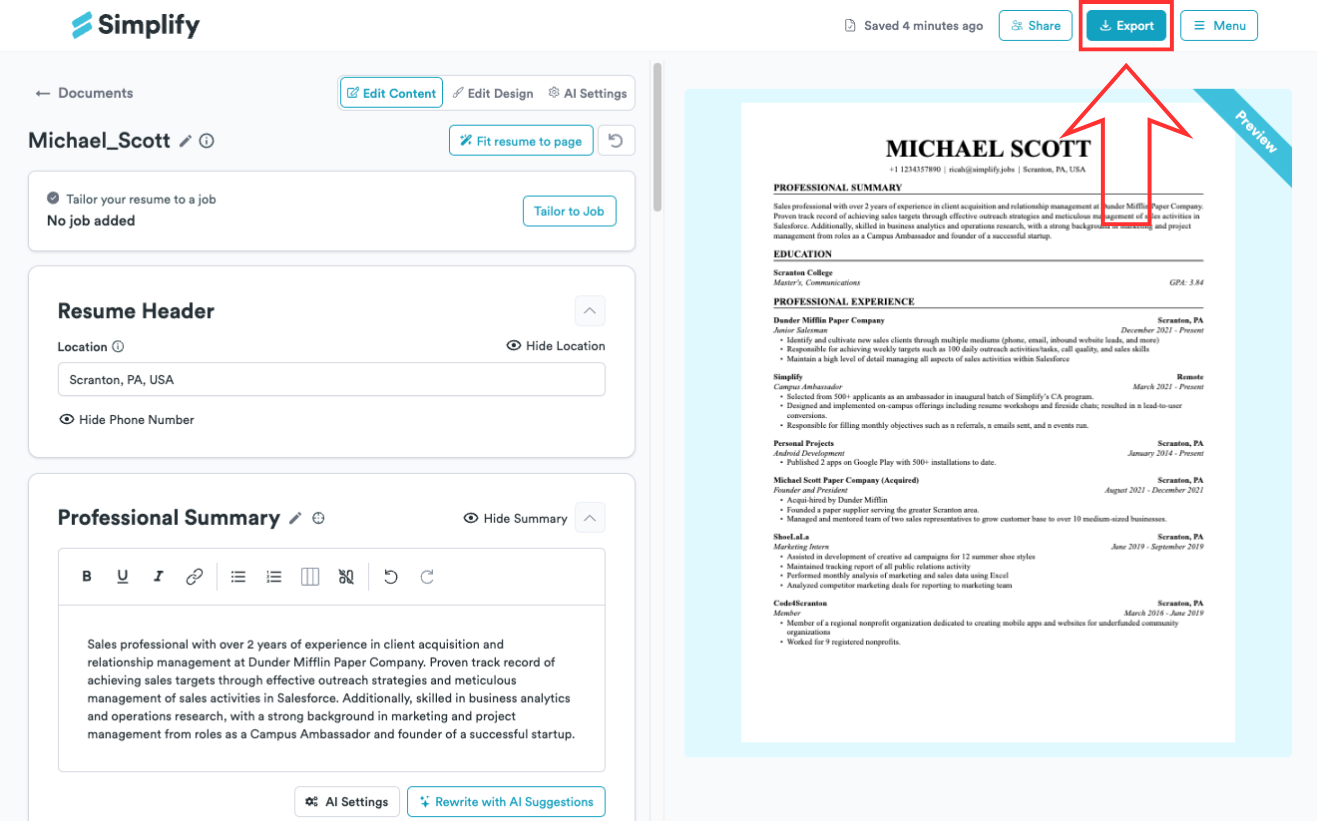
Changes are autosaved. When finished, you can use the resume to autofill directly from the Simplify extension or download it by clicking Export in the top right corner of the builder.
💡 Need help rewriting your resume? Take advantage of our latest AI features with Simplify+!
Still need help? Share an idea