Manage Autofill Settings in the Simplify Extension
Copilot settings let you decide how applications are filled, giving you control over AI-generated responses, automation, and individual autofill fields.
Last updated 4 months ago
Click on the Simplify extension. Be sure to have the extension pinned for quick access!
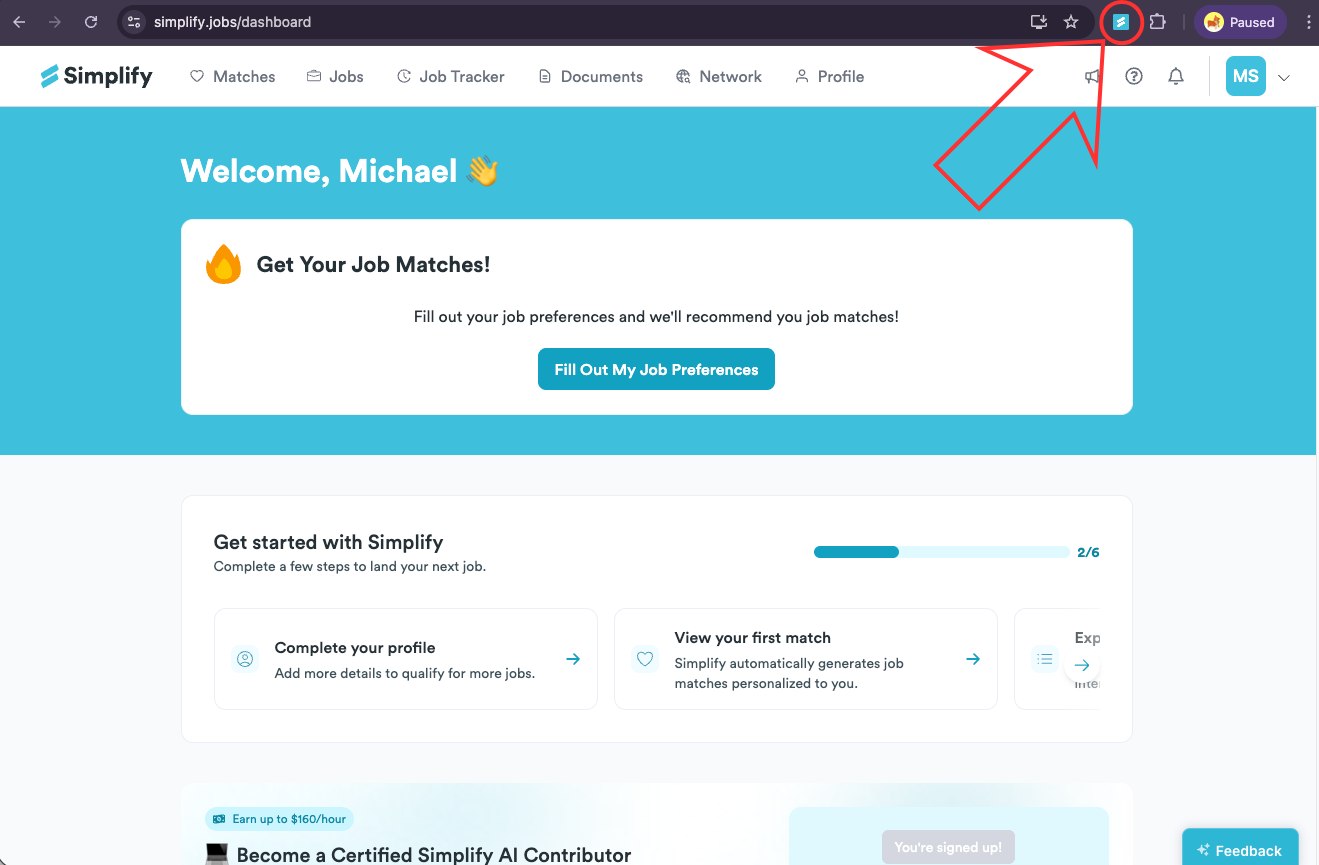
On the extension popup, click the gear icon in the top right corner to open Settings.

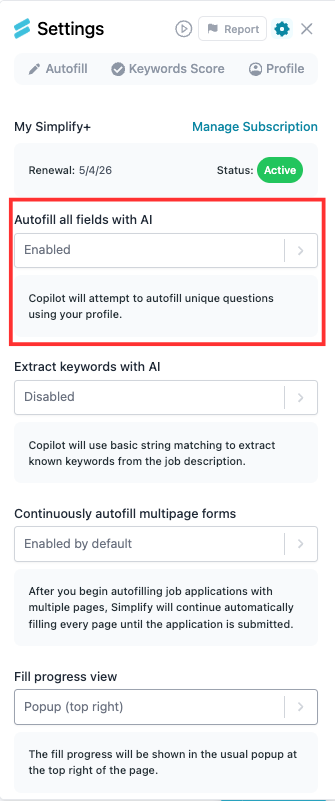
Autofill all fields with AI
Use this to let Copilot answer unique questions using information from your profile.
Enabled: Copilot will attempt to autofill unique questions using your profile.
Disabled: Copilot will not attempt to autofill unique questions using your profile.
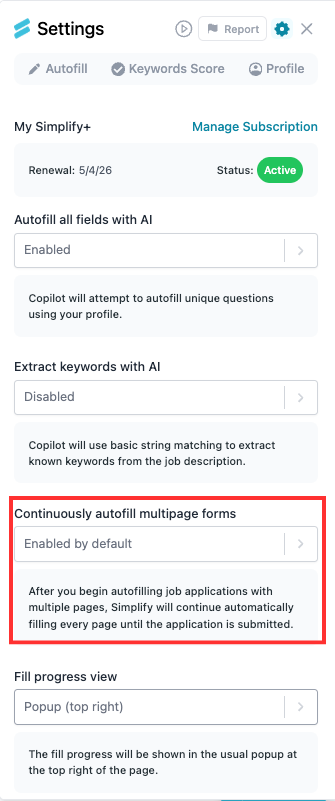
Continuously autofill multipage forms
Controls whether Simplify moves through multi-page applications on its own.
Disabled: For applications with multiple pages, you must click Autofill on each page.Enabled: After you start autofilling a multi-page application, Simplify will continue filling each page automatically until the application is submitted.
Fields to autofill
Alternatively, you can turn off autofill for specific fields by untoggling them. Use this if you prefer to fill certain items yourself.
Examples: LinkedIn URL, Disability, Location, Phone, Education, Work Authorization, Salary.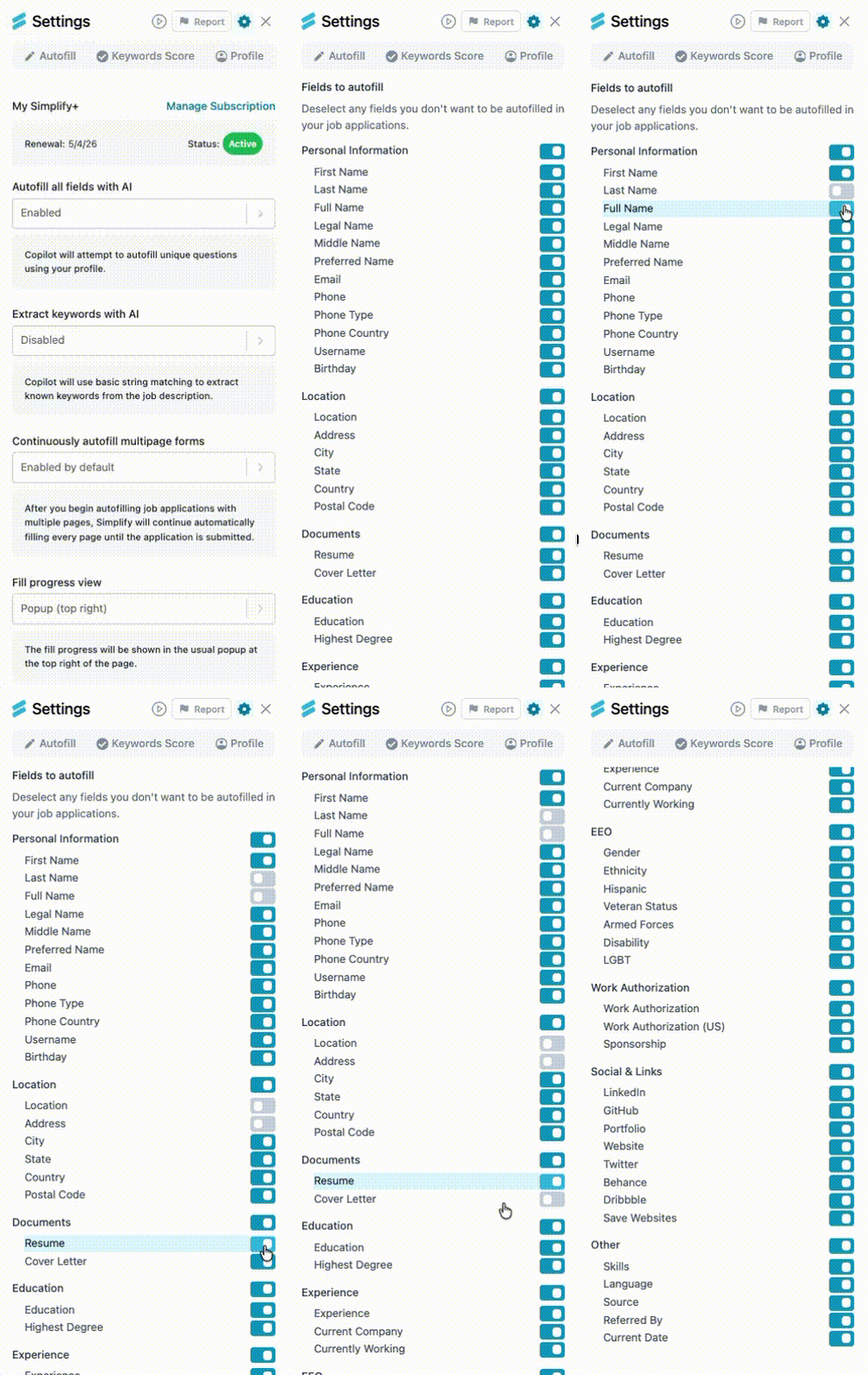
Still need help? Share an idea