Manage your documents
Organize uploaded files, editable resumes, cover letters, templates, and question responses.
Last updated About 2 hours ago
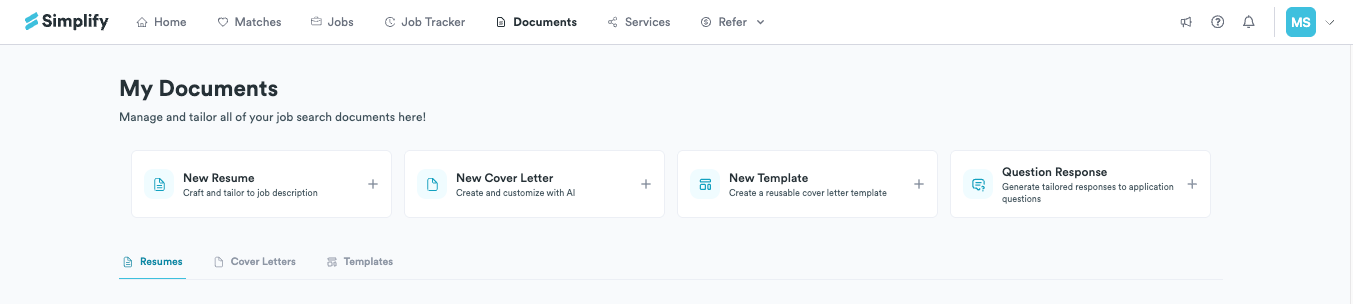
Open Documents to find your resumes, cover letters, templates, and question responses. Uploaded files and editable builder resumes are separate items. You can use a PDF or Word upload to create a new builder resume without turning the original file into an editable document.
Choose the document you need
We built Documents to keep versions together because most applications do not use exactly the same materials. You might keep a general resume, one for a role type, and a version for a specific company. Use the document type tabs to find the right item.
Create or upload a document
Open Documents.
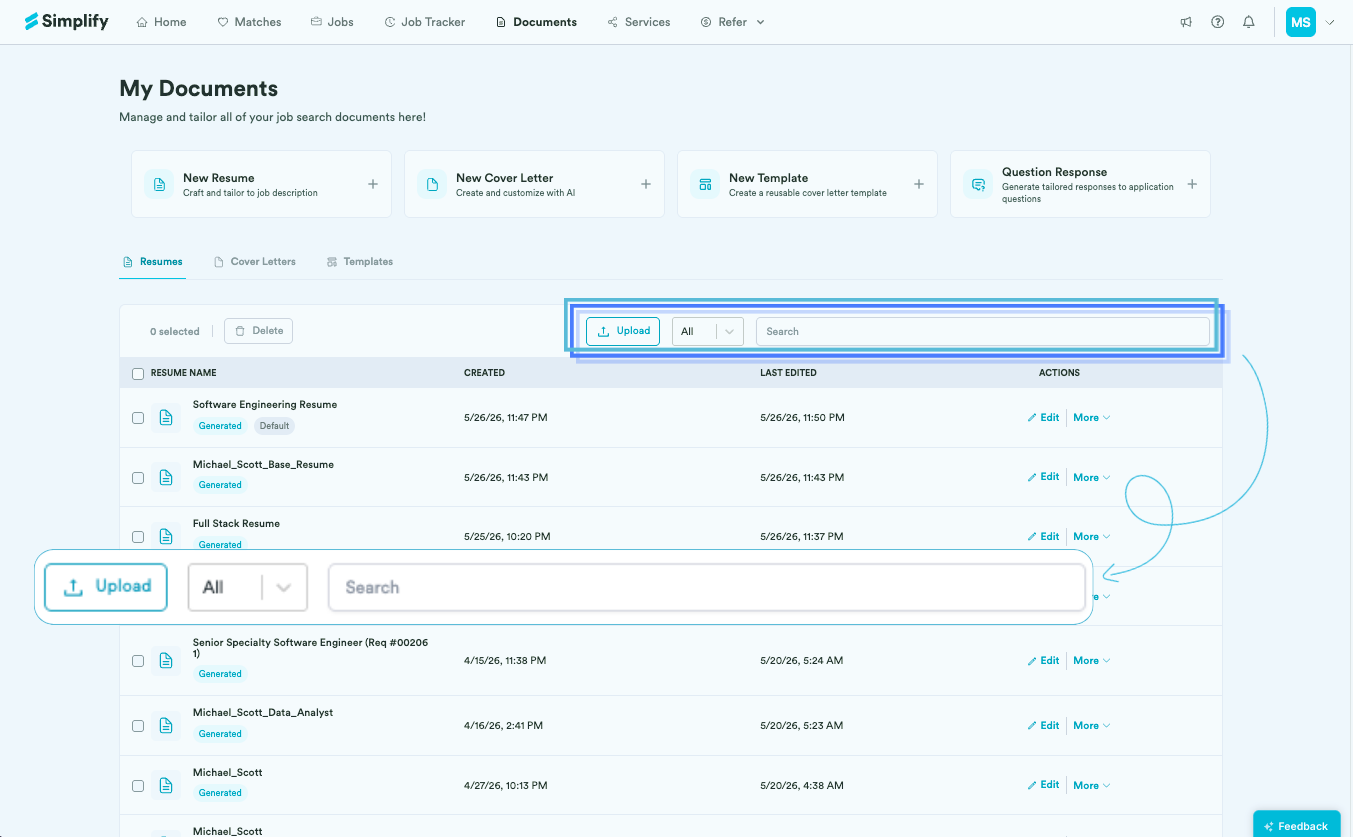
Choose New Resume, New Cover Letter, New Template, or Question Response for the task you want. To store an existing file, use Upload in the relevant tab.
Follow the editor or upload prompts and review the resulting item before using it in an application.
Resume Builder and manual cover letter writing are available without Simplify+. AI generation and tailoring require Simplify+. On the free plan, uploading a new resume replaces the current uploaded resume after confirmation; Simplify+ supports multiple uploaded resumes. This upload limit is separate from creating builder resume versions.
Find and organize versions
Select the document type tab, then use search or the available filters to find a version. Name versions by their purpose so you can tell them apart. Check the row’s type and preview the document before choosing it for an application.
Edit a document or replace a file
Choose Edit on a builder resume or editable cover letter to open its editor. Changes save to that document. To change the contents of an uploaded resume file, upload the revised source file or create a separate builder copy and edit that.
To use an upload as a builder source, choose New Resume and upload or select the file. The builder imports its information into a new document. This does not turn the stored PDF or Word file into a live editable file or preserve its exact original layout.
Default resumes and application selection
The resume marked Default is used by flows that request your default resume, including Autopilot when you choose that option. Check the default indicator and use the resume row’s available controls to change it. In Copilot, check the Resume selector before filling the application if you want a different version.
Profile information and already submitted files
Parsing an upload to update your profile is optional. Choose Parse this resume to update your profile information during upload and review the suggestions before applying them. Creating a builder resume from a file is a separate action.
Profile titles, company names, and dates sync to builder entries linked to your profile. Tailored bullets update your profile only when you explicitly apply them. Uploaded files remain separate, and changes in Documents do not replace documents already received by an employer.
Related articles
Was this helpful?
Still need help? Share an idea