Install and set up Copilot
Install the browser extension, sign in, and try autofill on an application.
Last updated About 2 hours ago
Install Simplify Copilot from the Copilot page, sign in to your Simplify account, and open a supported job application. Choose Autofill this page, review the completed fields, and submit the application yourself. iPhone Safari setup has a separate guide below.
Install the extension
Copilot supports Chrome and other Chromium-based browsers such as Edge, Brave, and Arc. A Firefox version is also available, with more limited support. On iPhone, Copilot is a Safari extension included with the Simplify iOS app.
Open the Copilot installation page in the browser where you apply to jobs.
Follow the link for your browser. Choose Add to Chrome or Add to Firefox, then confirm the installation.
Pin the Simplify extension to your toolbar and sign in with your Simplify account.
Check your profile and default resume before starting your first application.
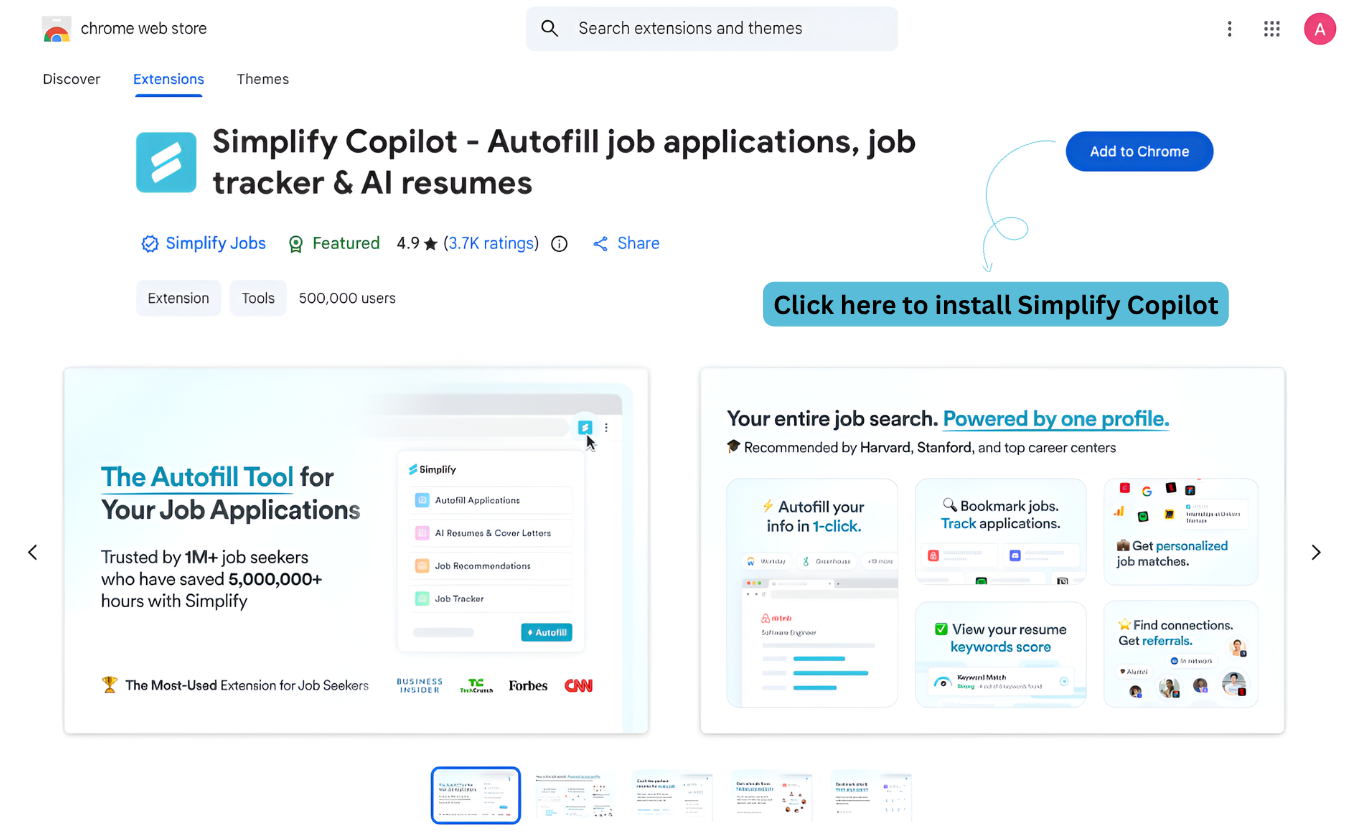
The store screenshot illustrates the install button. The ratings, user count, and other listing details in the screenshot are examples from when it was captured.
Try autofill on an application
Open a job from Simplify or an employer’s career site and start its application.
Open the teal Simplify tab or the toolbar icon. If the page is supported, choose Autofill this page.
Wait for filling to finish, check the attached resume and answers, and complete any fields Copilot could not fill.
Review the full application and choose the employer’s final Submit button yourself.
How Copilot uses your profile
Most applications ask for the same contact details, work history, education, links, and resume. We built Copilot to reuse that saved information across forms so you can spend your attention on checking the application and answering the questions that are specific to the job.
Update incorrect details in Profile before autofilling again. You can choose a different resume in Copilot and use its settings to exclude fields you prefer to fill yourself. Simplify+ adds AI help for tailoring resumes, cover letters, and written answers; basic autofill is free.
Browser and application limits
Copilot works with many applications on systems such as Workday, Greenhouse, Lever, Ashby, iCIMS, and Taleo. Support still depends on the particular form; a supported provider name does not mean every custom page will fill correctly.
Firefox support is in beta and provided on a best-effort basis. Browser extension restrictions can limit what works there. If you encounter a Firefox-specific problem, try Chrome or the iPhone Safari extension and include your browser when reporting it.
If Copilot does not appear
Check that the extension is enabled, signed in, and allowed to run on the site. Reload the actual application page after installing. On an unsupported form, use the Profile tab to copy information manually or request autofill support. iPhone Safari requires its own setup and website permissions.
Related articles
Was this helpful?
Still need help? Share an idea