Change or reset your password
Change your password in Settings or request a reset link if you cannot sign in.
Last updated About 2 hours ago
To change your password while signed in, open Settings → Change Password. If you’ve forgotten it, choose Forgot your password? on the sign-in page and request a reset link using your Simplify account email.
Change your password while signed in
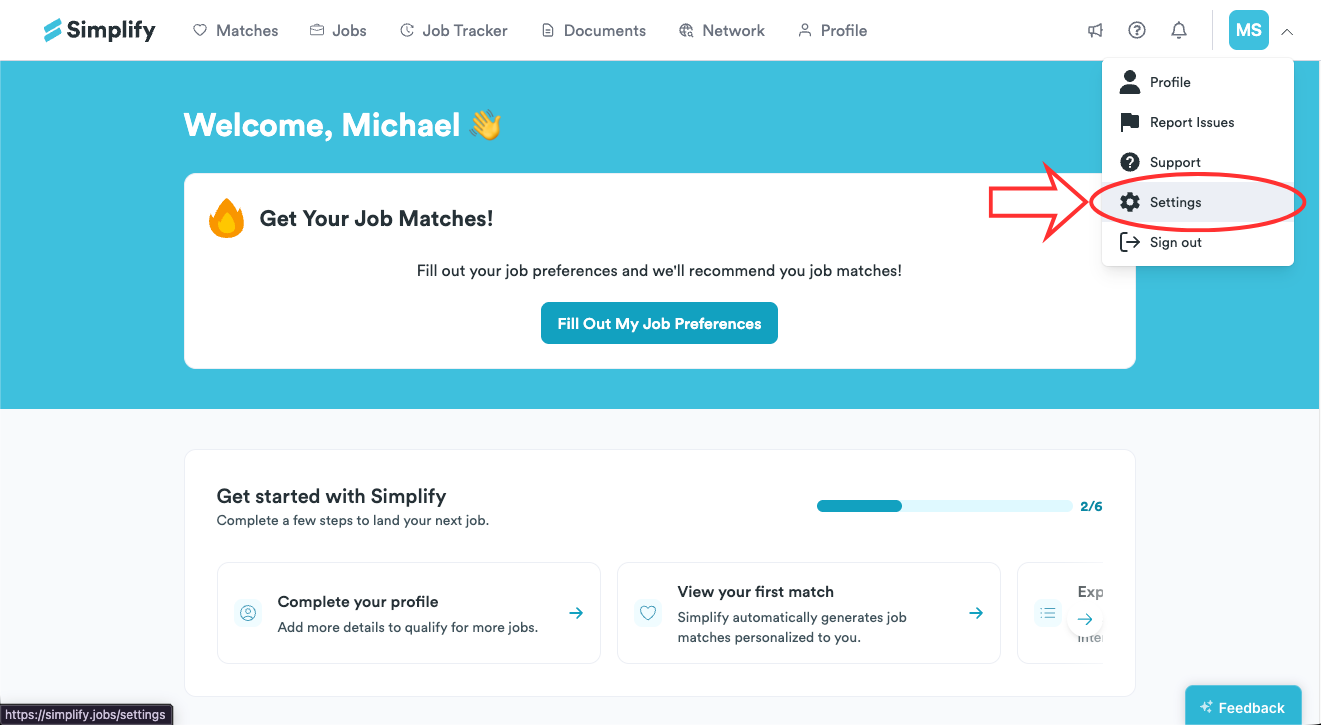
Open your account menu and choose Settings.
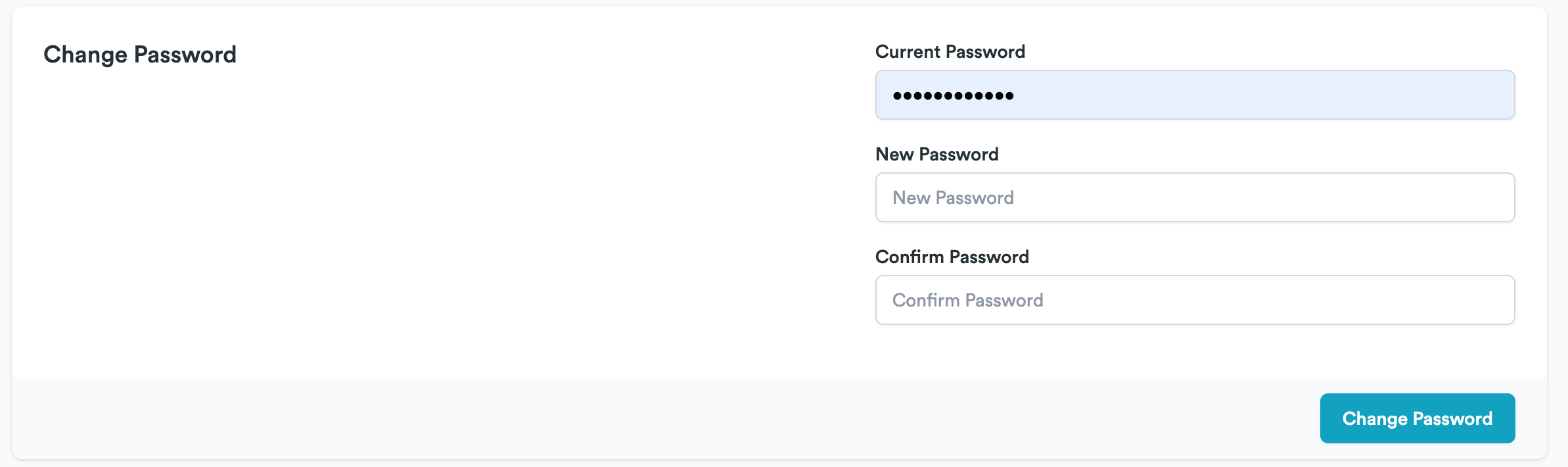
In Change Password, enter your current password, new password, and the new password again to confirm it.
Choose Change Password.
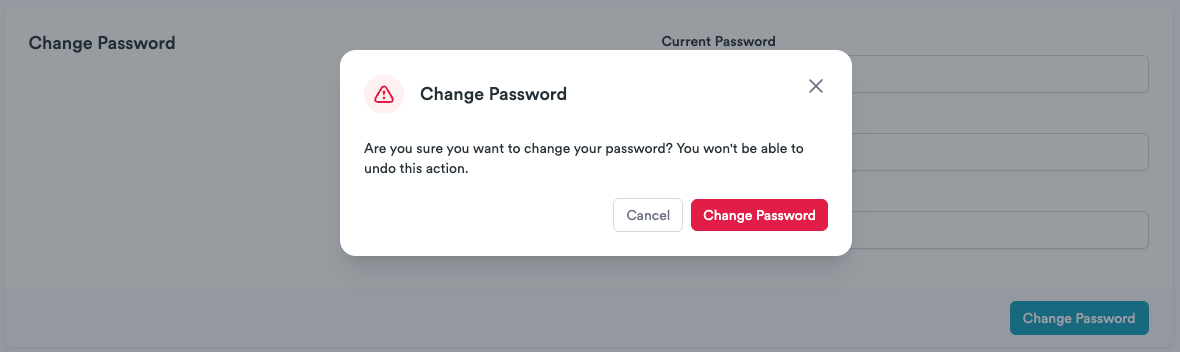
Review the confirmation dialog and choose Change Password again.
Reset a forgotten password
Open the sign-in page and choose Forgot your password?.
Enter the email address on your Simplify account and choose Reset password. Complete the verification prompt if one appears.
Open the reset email and follow its link. Enter and confirm your new password, then sign in again.
If you cannot complete the reset
Check that you entered the account’s email address and look in spam or junk for the reset email. If a link is no longer usable, request a new one. If you normally sign in with Google, try that sign-in method for your existing account. Contact support if you still cannot get in; never send your password or reset link.
Related articles
Was this helpful?
Still need help? Share an idea