Use Flow Chart Insights
View your application funnel and save, share, or export a chart snapshot.
Last updated About 2 hours ago
Open Job Tracker → Flow Chart to see how your tracked applications move through hiring stages. The chart reflects the statuses recorded in your tracker, so keep those records current. You can save a snapshot, share its public link, or export it as a PNG.
Open the application funnel
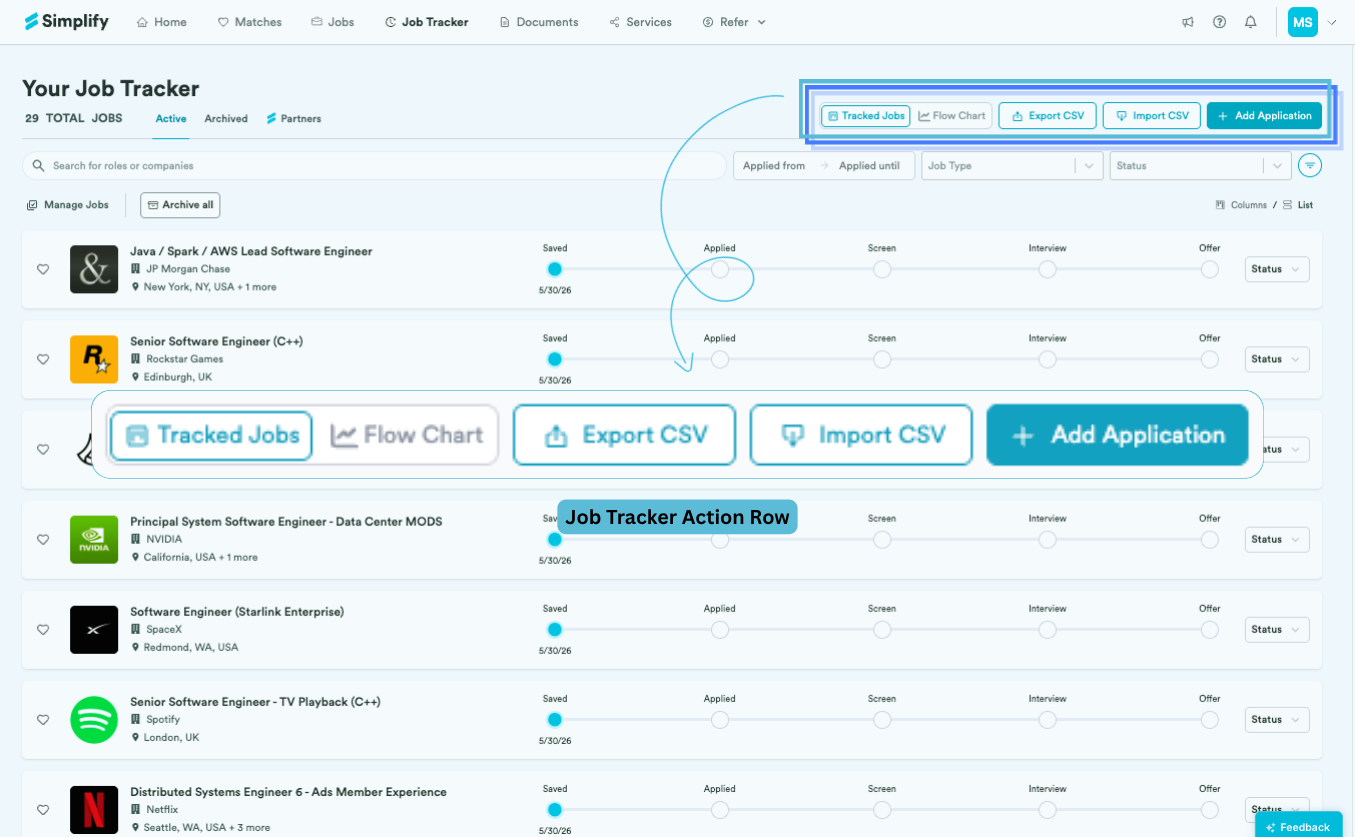
Open Job Tracker and choose Flow Chart in the top action row.
Review the chart and the Insights area. Update incorrect or missing application statuses in Tracked Jobs before interpreting the results.
What the chart tells you
The chart summarizes the application stages recorded in Job Tracker, including applied, screening, interview, offer, rejection, and no-response paths. Its totals describe your tracker records. They are not a complete history of applications you have not added, or a comparison with every applicant to an employer.
Use the chart to ask concrete questions, such as whether applications are reaching screening or where responses stop. A small set of applications or out-of-date statuses can make a rate misleading, so read the counts alongside the percentages.
Save, share, and export a snapshot
Choose Save & Share from the Flow Chart view.
Enter a title and optional description. Review whether to include demographic information before saving.
Choose Save & Generate Link, then copy the link. Use My Saved Charts to return to saved snapshots.
Use the chart’s export option to download a PNG. A saved snapshot captures that view so you can compare it with a later chart.
Anyone with a shared chart link can view it without a Simplify account. Review the information you include before sharing the link publicly.
Related articles
Was this helpful?
Still need help? Share an idea