Use the Job Tracker
Save jobs, track application stages, import records, and keep notes and documents together.
Last updated About 2 hours ago
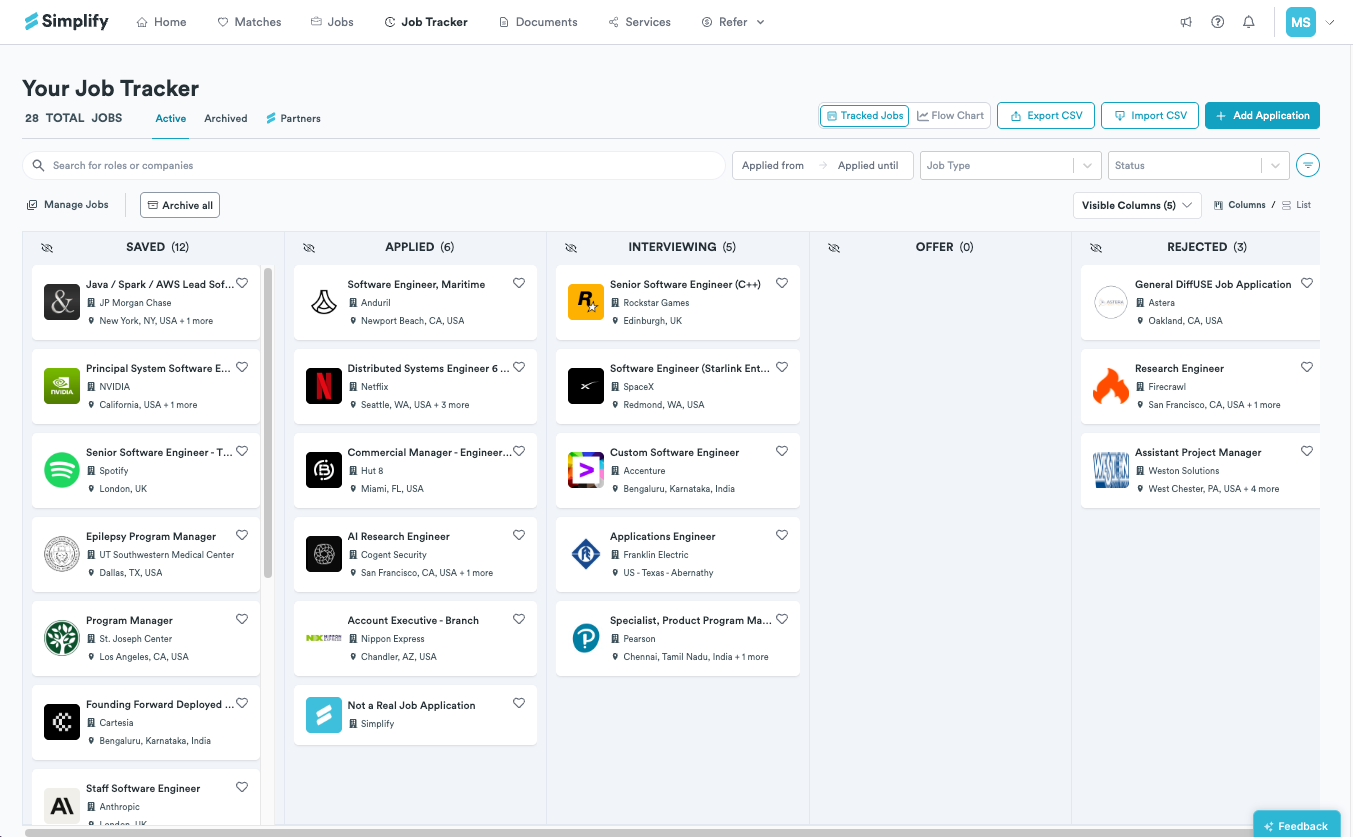
Open Job Tracker to manage saved jobs and applications. Open a job’s record to update its status, notes, or documents. A saved or manually added record tracks a job; it does not submit an application to the employer.
How jobs get into your tracker
Jobs you save from Matches or the Job Board appear as saved records. Copilot can add an application when it detects a supported submission, and Autopilot records the jobs it works on. You can also add records manually or import a CSV. Check the status afterward so it reflects what actually happened.
Save a job you found elsewhere
Open the posting and open Copilot.
Choose the job title at the top of the panel to open the save form.
Check the extracted title, company, location, and other details. Correct anything wrong, then save.
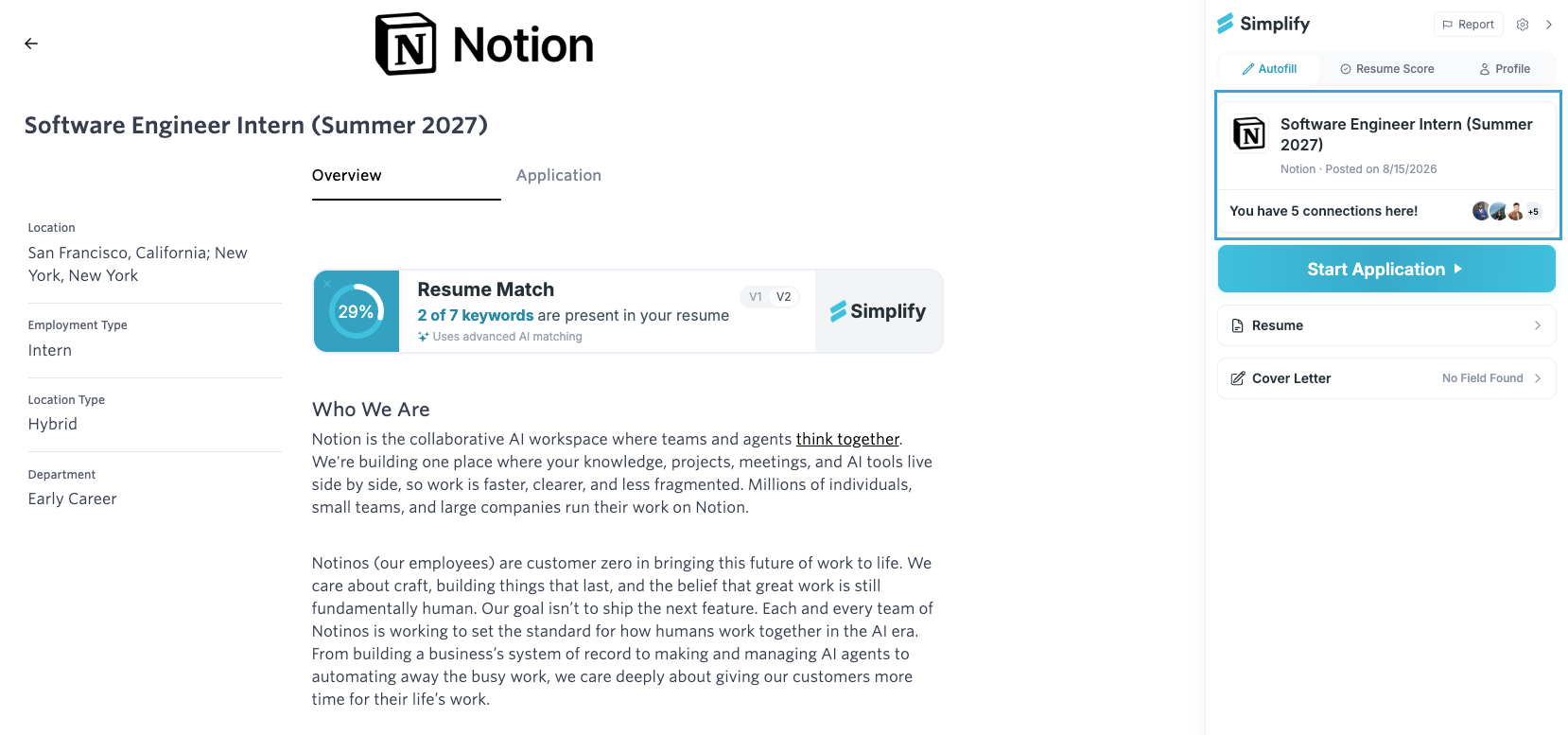
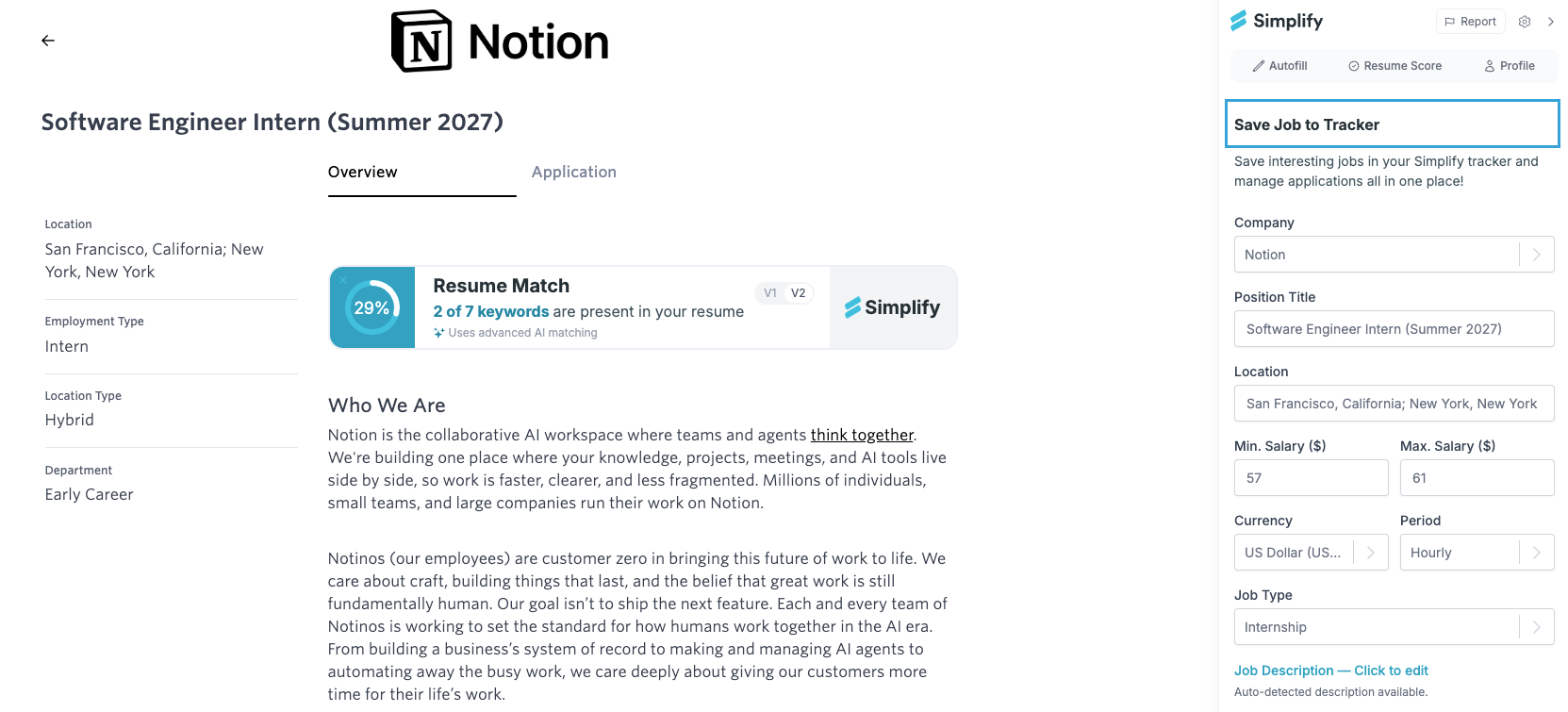
You can save a posting before applying. After you submit the employer’s form, update its status if the submission was not detected. For a page Copilot cannot process, use Add Application in Job Tracker instead.
Add a record or import a spreadsheet
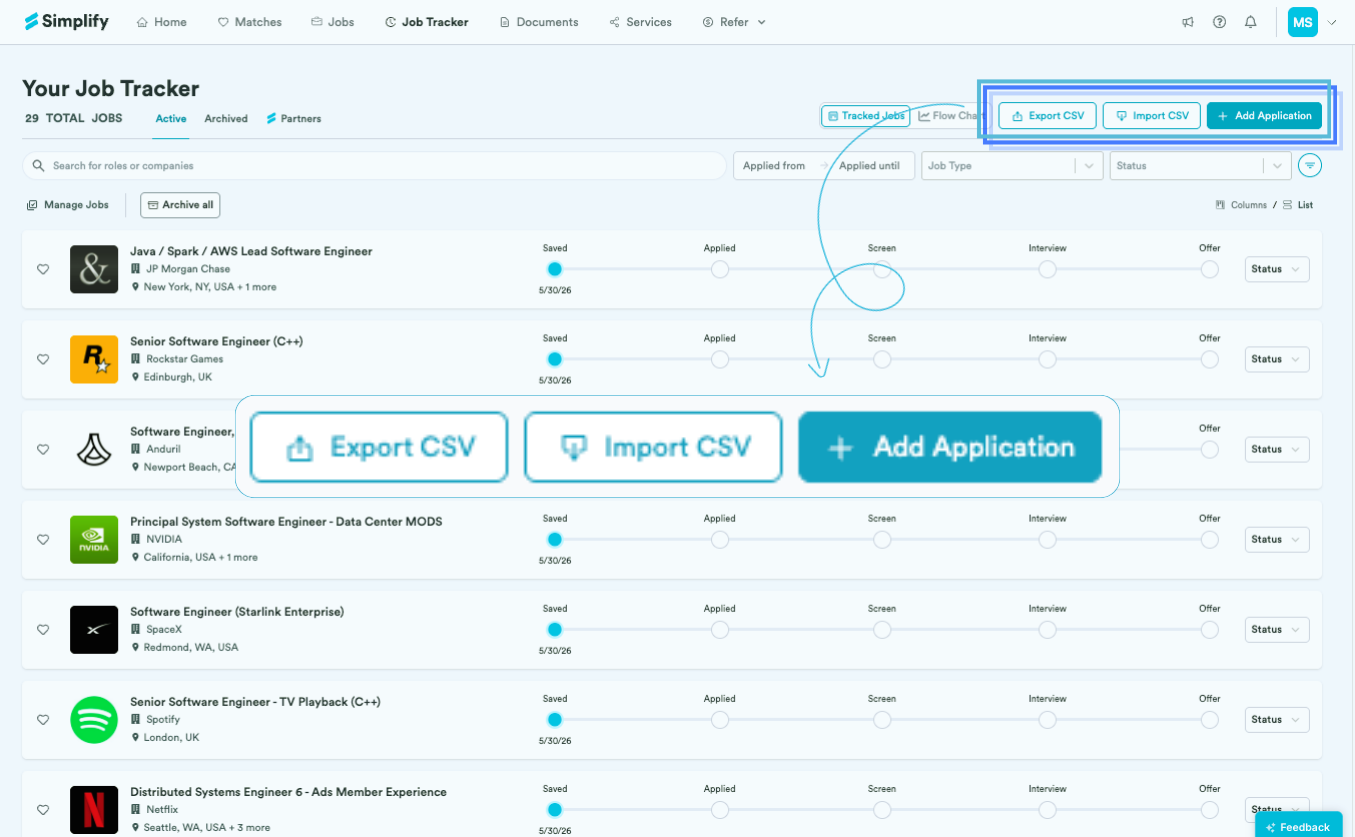
Choose Add Application for a single job and enter its details and current status. Choose Import CSV to bring in several records from a spreadsheet. Neither action submits applications to employers.
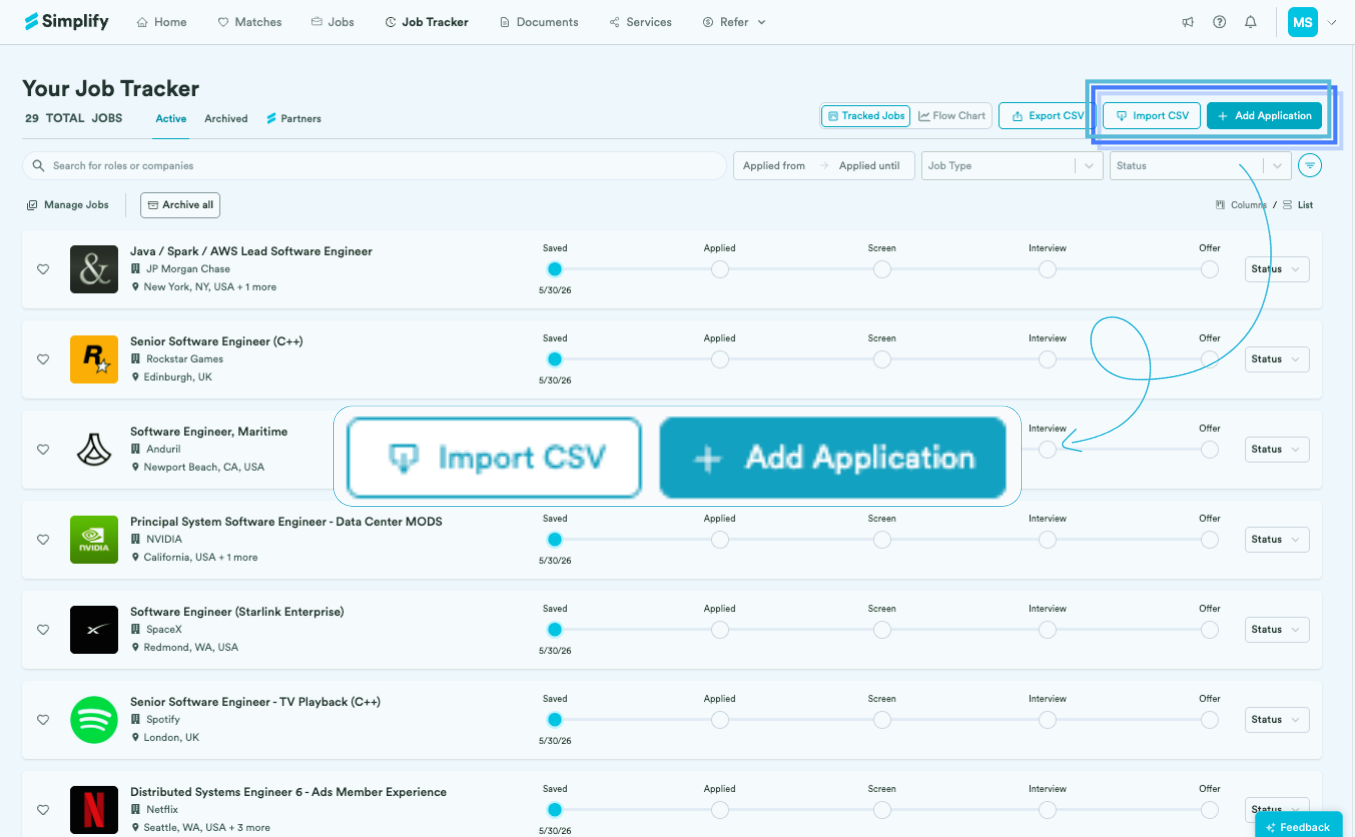
Export your existing spreadsheet as a CSV. Include a company name and position title for each row; location is optional.
Open Import CSV and select the file.
Choose where the header starts if needed, then map each CSV column to the corresponding tracker field.
Review the preview. Resolve any reported row errors or use the available skip option, then finish the import and check the resulting records.
Other supported mappings can include job type, status, notes, and posting link. A correct mapping matters more than matching an example header exactly. Review existing records before importing a spreadsheet again so you do not create unwanted duplicates.
Export your records
Choose Export CSV from the top action row. The download contains application data stored in your tracker and can be opened in a spreadsheet tool. Check the downloaded columns if you need a particular field for another system.
Find and organize applications
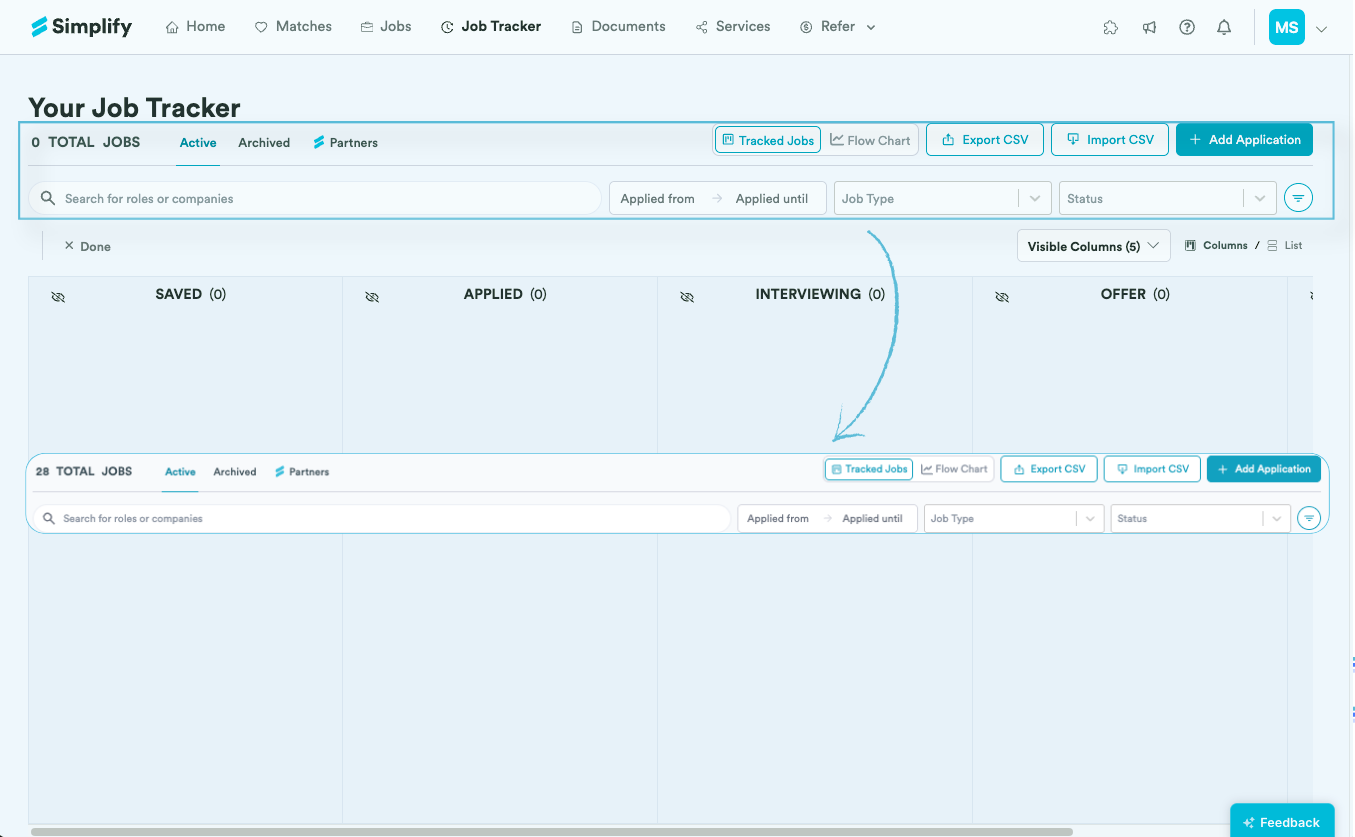
Search for a role or company and use filters such as application date, job type, and status. Switch between Columns and List depending on whether you want to move cards through stages or scan rows. Use the heart to favorite a record.
Update an application’s status
Drag the card between stages in Columns view.
Choose a status from the dropdown in List view.
Open a job and change Application Status in its detail panel.
Use Saved for an unsubmitted job and Applied after submitting. Later stages should reflect the messages or decisions you have received. Gmail integration can recommend status changes from recruiting emails; approve or decline those suggestions rather than assuming every suggestion is correct.
Keep documents, notes, and messages together
Open a tracked job to find its posting information, associated documents, resume feedback, notes, and writing tools. With Gmail connected, the Emails tab shows matched conversations. Simplify+ adds AI Email drafts for follow-ups, referral requests, interviews, and offer-stage messages.
We keep these details with the job so you can return to the version or conversation relevant to that application. If you applied with a different document elsewhere, check the tracker’s associated resume and notes so the record remains useful.
Archive or delete records
Archive a record when you want it out of Active without losing it. Use the single-job Archive action, Archive all for the current view, or Manage Jobs for available bulk actions. Archived records are available under Archived and can be returned to Active.
Use Delete only when you want to remove the record permanently. Deleting a tracker record does not withdraw an application from the employer. If you are unsure whether you will need the history, archive it first.
Related articles
Was this helpful?
Still need help? Share an idea