Turning on Copilot in Safari
💡 Copilot comes built into the Simplify iOS app as a Safari extension, but iOS keeps it turned off until you enable it. Turn it on once in Settings and Copilot will pop up on job applications in Safari.
Last updated About 1 hour ago
Copilot comes built into the Simplify app for iPhone. Safari keeps extensions turned off until you enable them, so you'll turn it on once in Settings. After that, Copilot appears on its own whenever you open a job application in Safari.
Open the Simplify app. You'll see a prompt to enable the Safari extension. Tap it to go straight to the right screen in Settings. (Dismissed the prompt? Open your 👤 Profile tab, then Settings, and tap Simplify Copilot for Safari.)
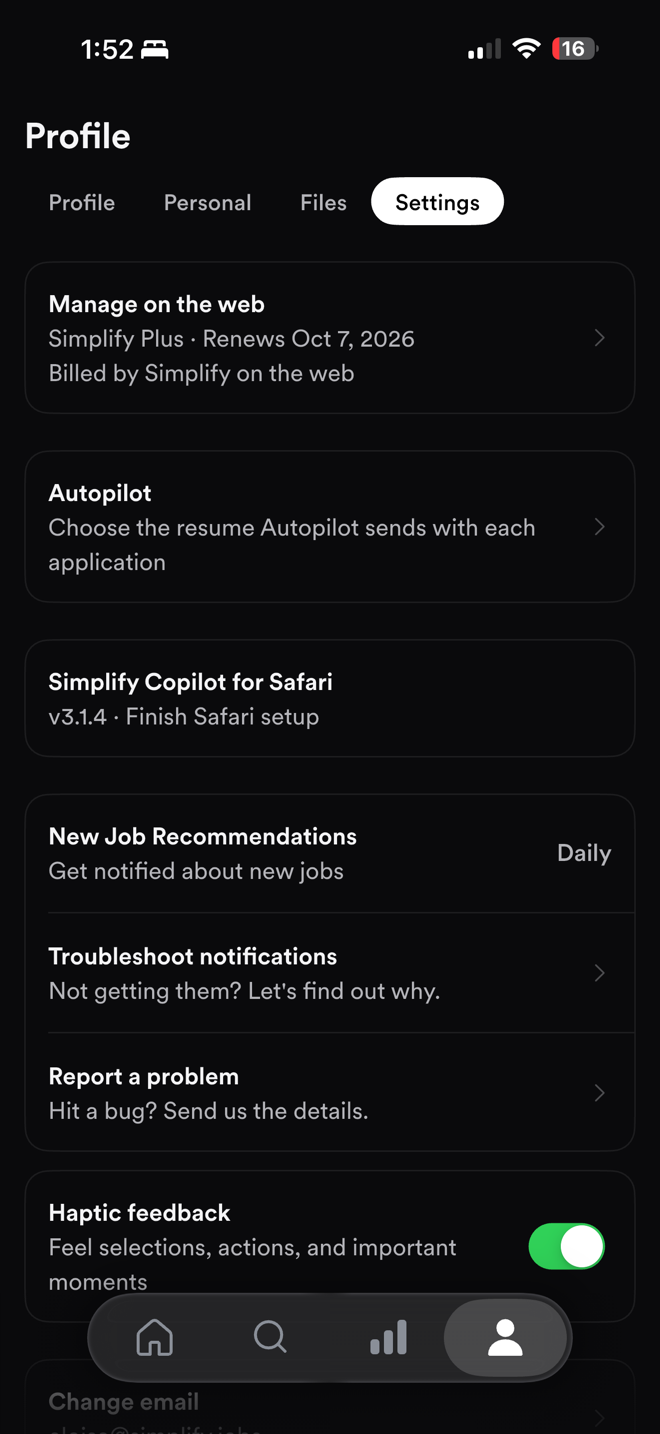
Turn on Simplify Copilot.
When Safari asks about website access, choose All Websites, then Allow.
Open a job application in Safari. Copilot recognizes the page and a small sheet slides up from the bottom of the screen. Tap it to autofill the application.
If Copilot doesn't appear on a page you know is an application, open it yourself: tap the Extensions button in the address bar and choose Simplify Copilot.
🔒 Why Copilot needs access to all websites
Copilot has to see a page to know whether it's a job application. Application links aren't standardized. The same company might use any of a dozen different portals, so there's no fixed list of sites Copilot could be limited to. If access is set to Ask or Deny, Copilot can't see the page and won't appear.
Copilot only reads pages to detect and fill job applications.
💡 Tip: If Copilot was working and then stopped, check this setting first. Open Settings, find Simplify Copilot, and make sure All Websites is still set to Allow.
To see everything Copilot can fill once it's on:
Using Copilot to Autofill Applications
❓ Need More Help?
If Copilot is turned on and allowed on all websites but still doesn't appear on an application, open Profile → Settings → Report a problem in the app and tell us which job site you were on. That sends us your app version along with the report.