Browsing, saving, and applying to jobs in the app
How the job feed in the Simplify iOS app works: swipe to browse, tap to expand, save with the bookmark, and apply with Copilot or Autopilot from your phone.
Last updated About 2 hours ago
How to browse and apply to jobs from your phone
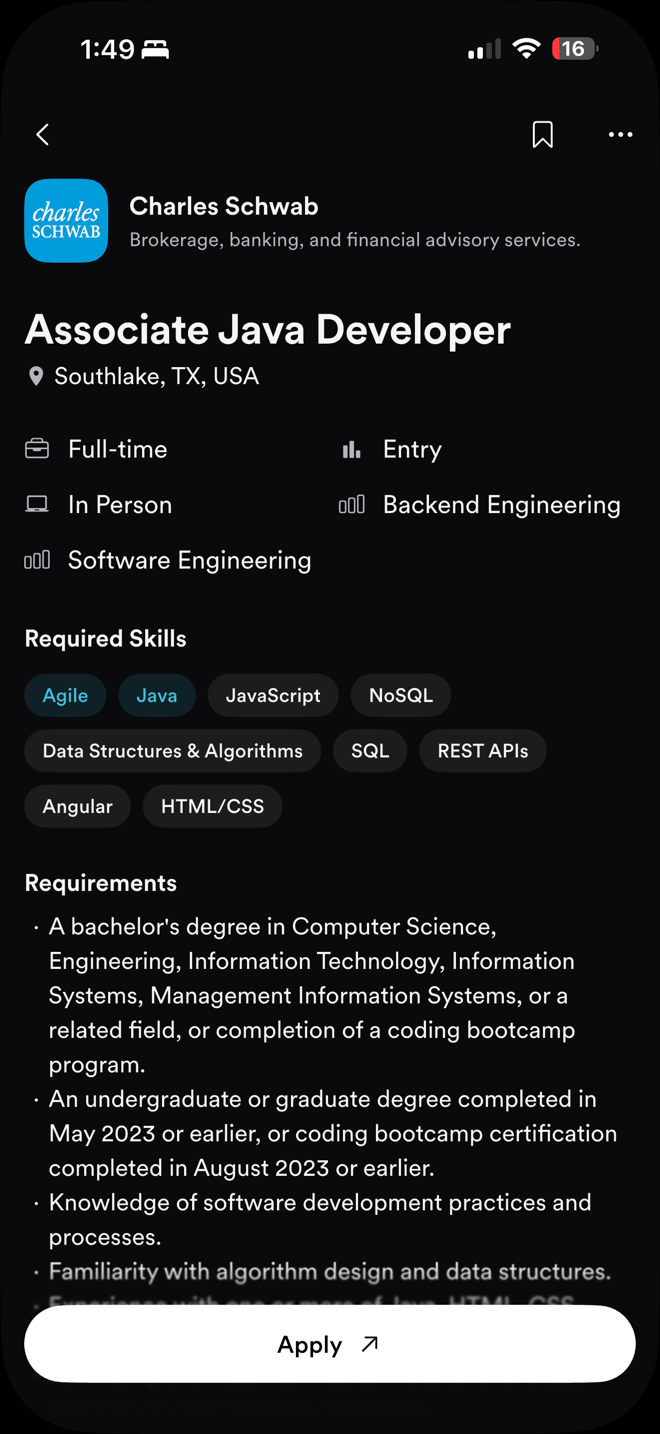
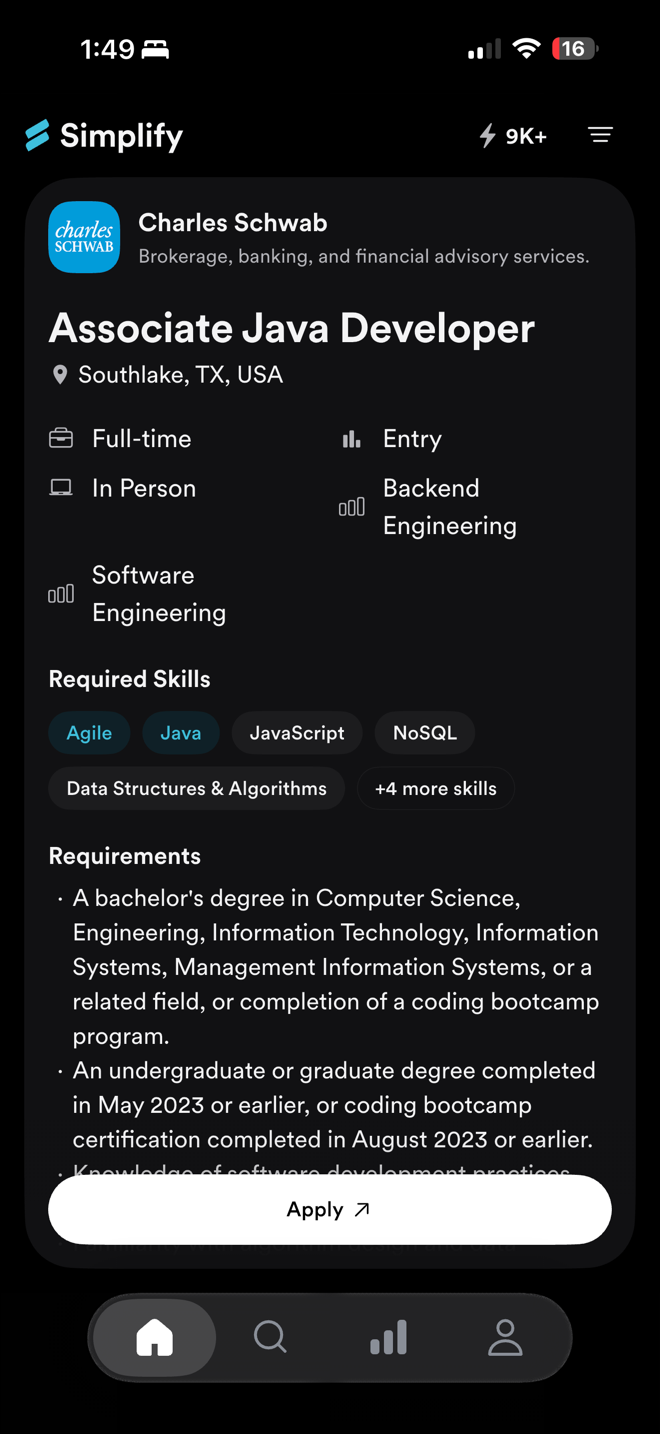
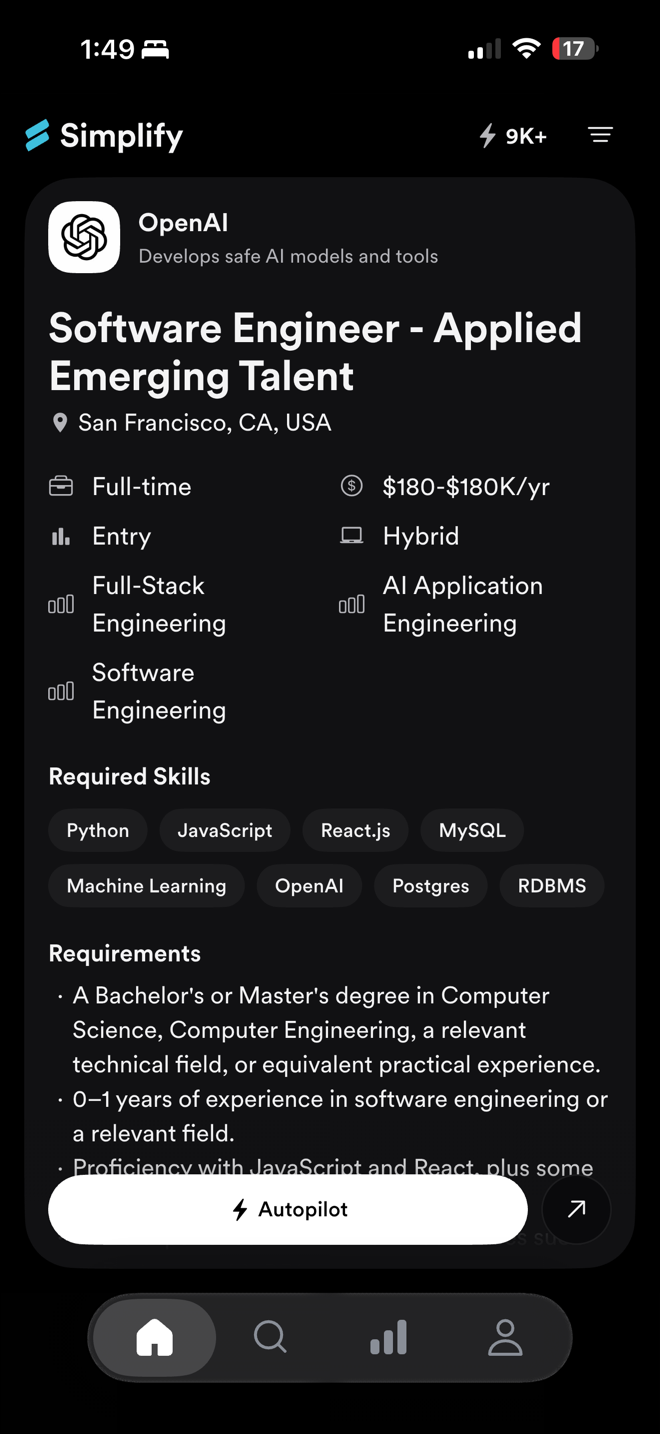
The Home tab shows one job at a time. Swipe up and the next one slides in. Each card gives you the company, the role, the location, pay, level, and the skills it asks for, so you can decide in a few seconds whether it deserves a closer look.
We built it this way because a feed you can move through with one thumb beats a list you scroll and squint at. You see more roles, faster, and the ones worth your attention are one tap from the full posting and one more from an application.
Applying is one tap. Apply opens the application in Safari with Copilot ready to autofill it. On jobs Autopilot supports, and if you're in the Autopilot beta, the button says Autopilot instead, and it submits the application for you.
How to move through jobs
Swipe up to see the next job.
Tap the card to expand it and read the full posting: every required skill, the requirements, and the description.
Swipe down or swipe right to go back to the feed.
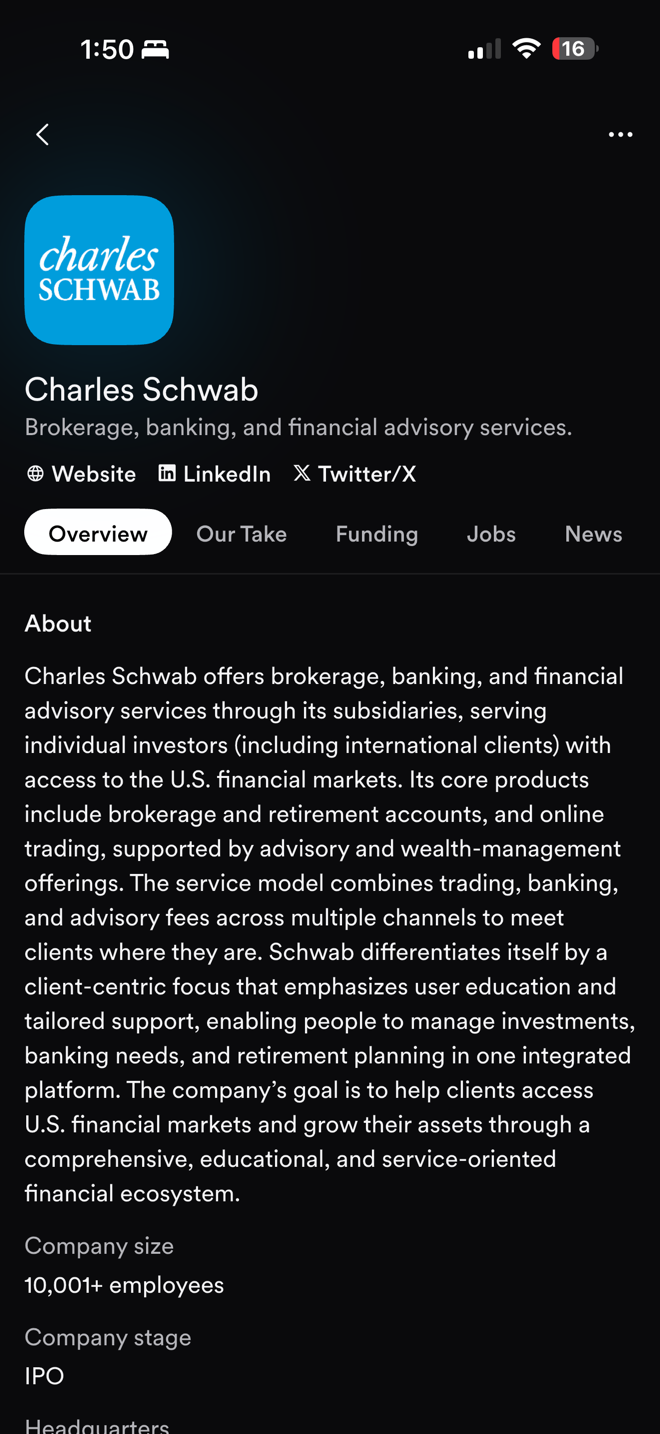
Tap the company to open its page, with an overview, funding, other open jobs, and news.
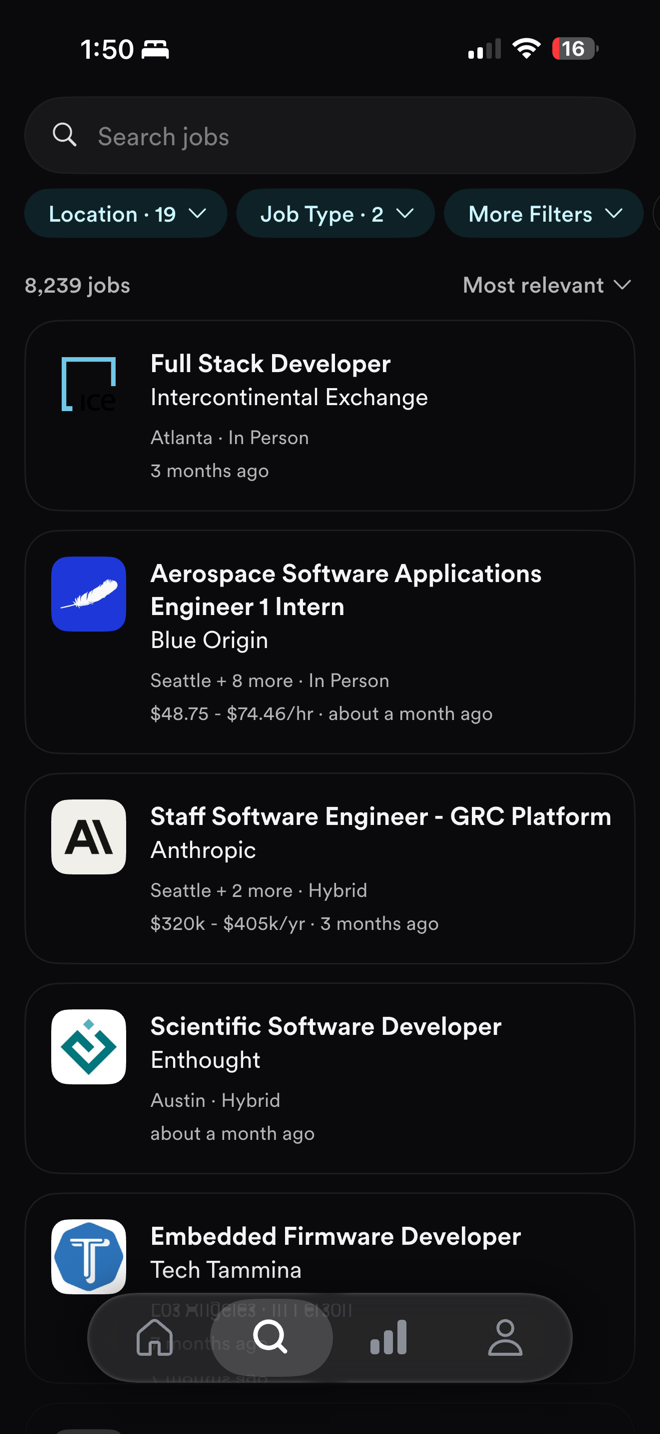
Looking for something specific? The Search tab has the full job board with filters for location, job type, and more.
How to save a job
Expand the job and tap the bookmark in the top-right corner. Saved jobs are collected under Saved in your Applications tab, so you can come back to them from the app or the web.
How to apply
Tap Apply. The application opens in Safari, and Copilot's sheet slides up from the bottom of the screen, ready to autofill it. If the sheet doesn't appear, Copilot probably isn't turned on yet.
If the job is one Autopilot supports and you're in the Autopilot beta, the Apply button is replaced by an Autopilot button. Tap it and Autopilot completes and submits the application for you. Each successful auto-apply uses one credit, and your balance is in the top-right corner of the Home tab.
Getting started with Autopilot
📌 Remember: With Autopilot there's no review step. Once you tap the button, the application is submitted. If you want to check it first, use Apply and let Copilot autofill it while you watch.
How to choose the resume Autopilot sends
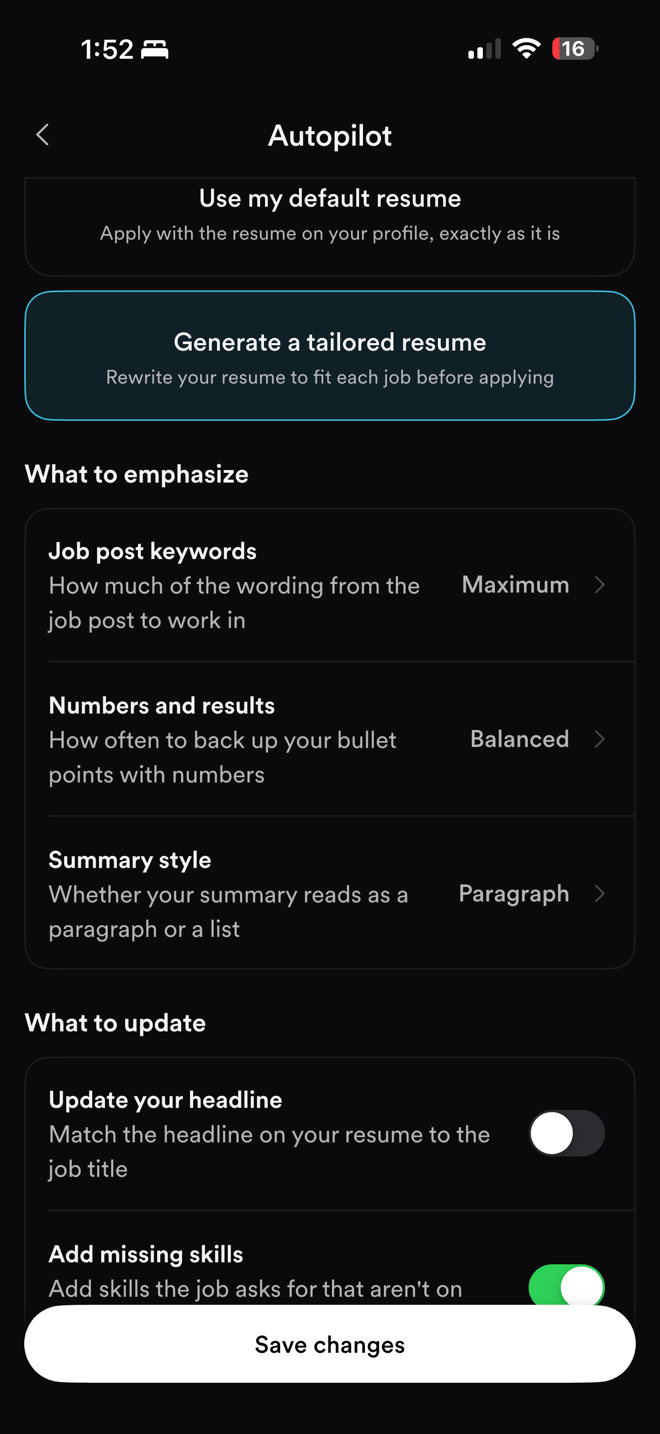
Open Profile → Settings → Autopilot. You have two choices:
Use my default resume sends the resume on your profile exactly as it is.
Generate a tailored resume rewrites your resume to fit each job before applying.
If you choose a tailored resume, the same screen lets you decide how it's written. Under What to emphasize, set how much of the job post's wording to work in, how often to back up bullet points with numbers, and whether your summary reads as a paragraph or a list. Under What to update, choose whether to match your headline to the job title and whether to add skills the job asks for that aren't on your resume yet.
Set it once and tap Save changes. From then on, Autopilot tailors your resume on its own for every application. There's nothing to review on your phone, and each tailored version is saved to your Documents.
On the web, Copilot shows you its edits before you use them. In the app, tailoring happens on its own.