Using the Job Tracker
Simplify's Job Tracker helps you manage your entire application pipeline, from saved jobs and submitted applications to interviews, offers, and follow-ups.
Last updated About 2 months ago
TL;DR
Applications submitted through Simplify are automatically added to your Job Tracker.
Jobs applied to with Copilot can also be added directly to your tracker.
Filter applications by company, role, date, type, or stage, and save filtered searches for quick access later.
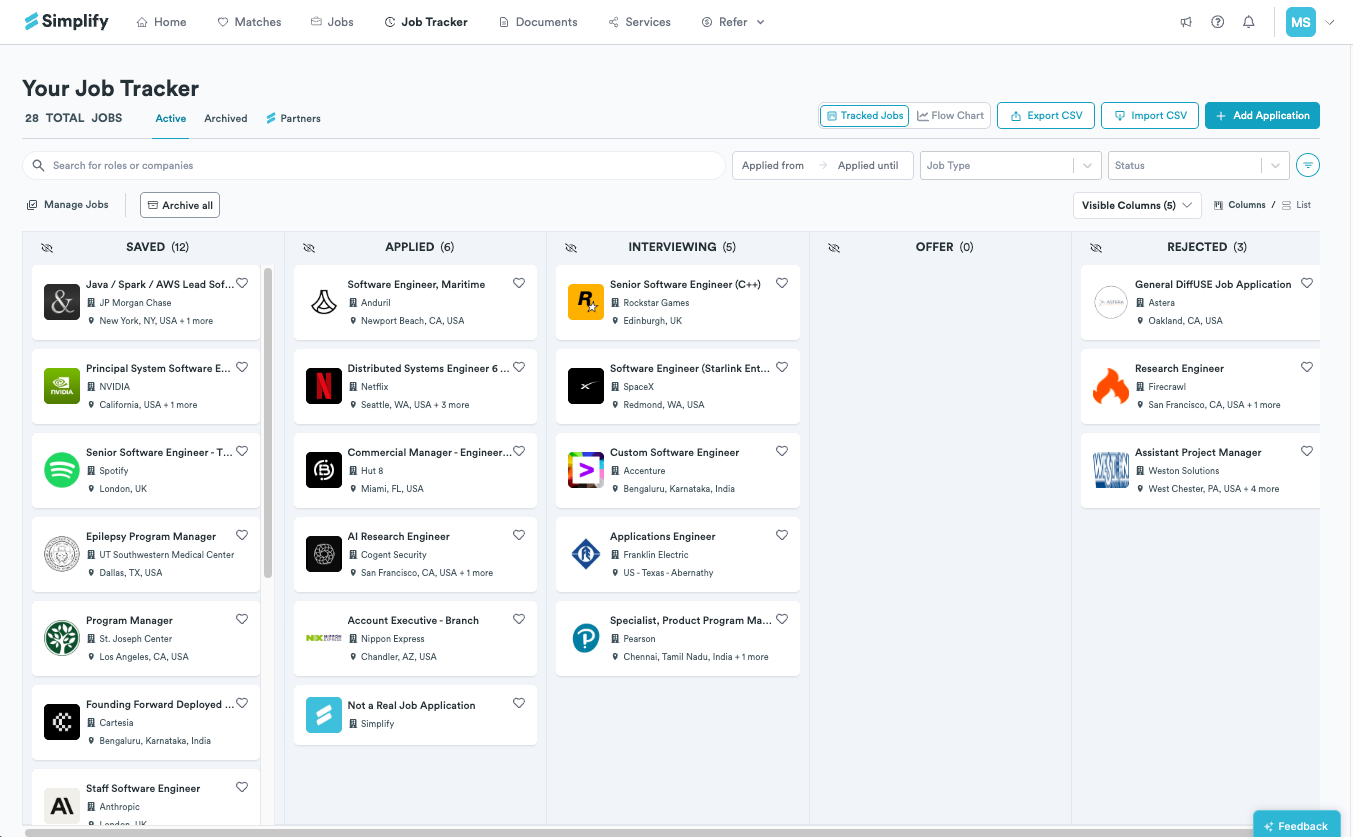
How do I add applications to the tracker?
Our Job Tracker keeps your applications, statuses, documents, and application history in one place so you can manage your search more easily. Jobs you save from the Job Board or Job Matches appear under the Saved section in your job tracker.
If you apply to a job through Simplify's job matches or job board, the application is automatically added to your tracker with the relevant job details and application status already filled in.
When applying to a job through Simplify Copilot, you'll be prompted to add the application to your Job Tracker after submitting your application.
How do I track a job I found outside Simplify?
You don’t need to apply to a job to keep it in your tracker, and the role doesn’t need to be one from our Job Board. There are three ways to add one.
1. Save it from the job posting with Copilot
This is the fastest option when you’re already looking at the posting.
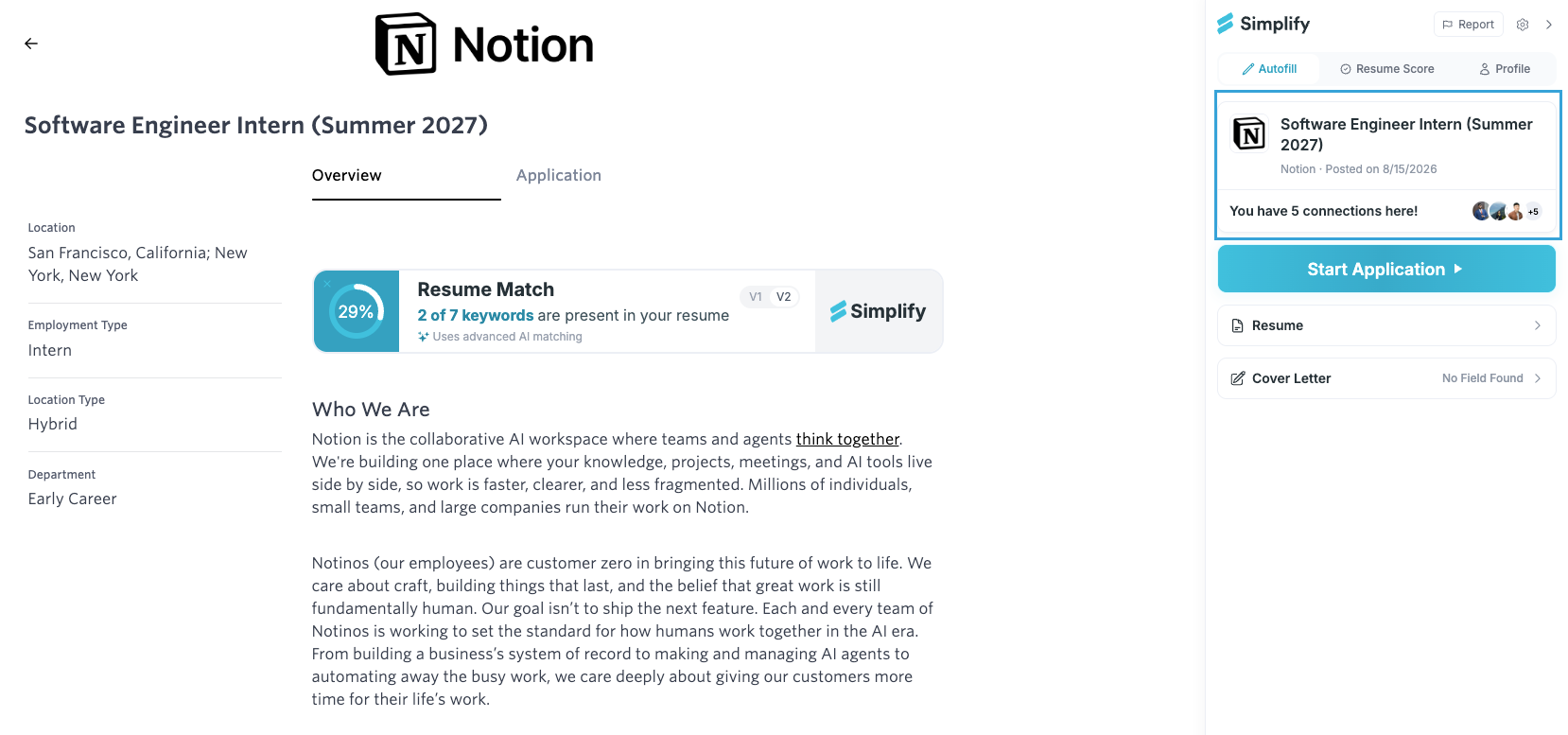
Open the job posting and open Simplify Copilot from your browser toolbar.
In the extension popup, click the job title at the top.
You can now save the job to your Job Tracker with any important job details already filled in.
Review the job details, edit anything that looks off, then save.
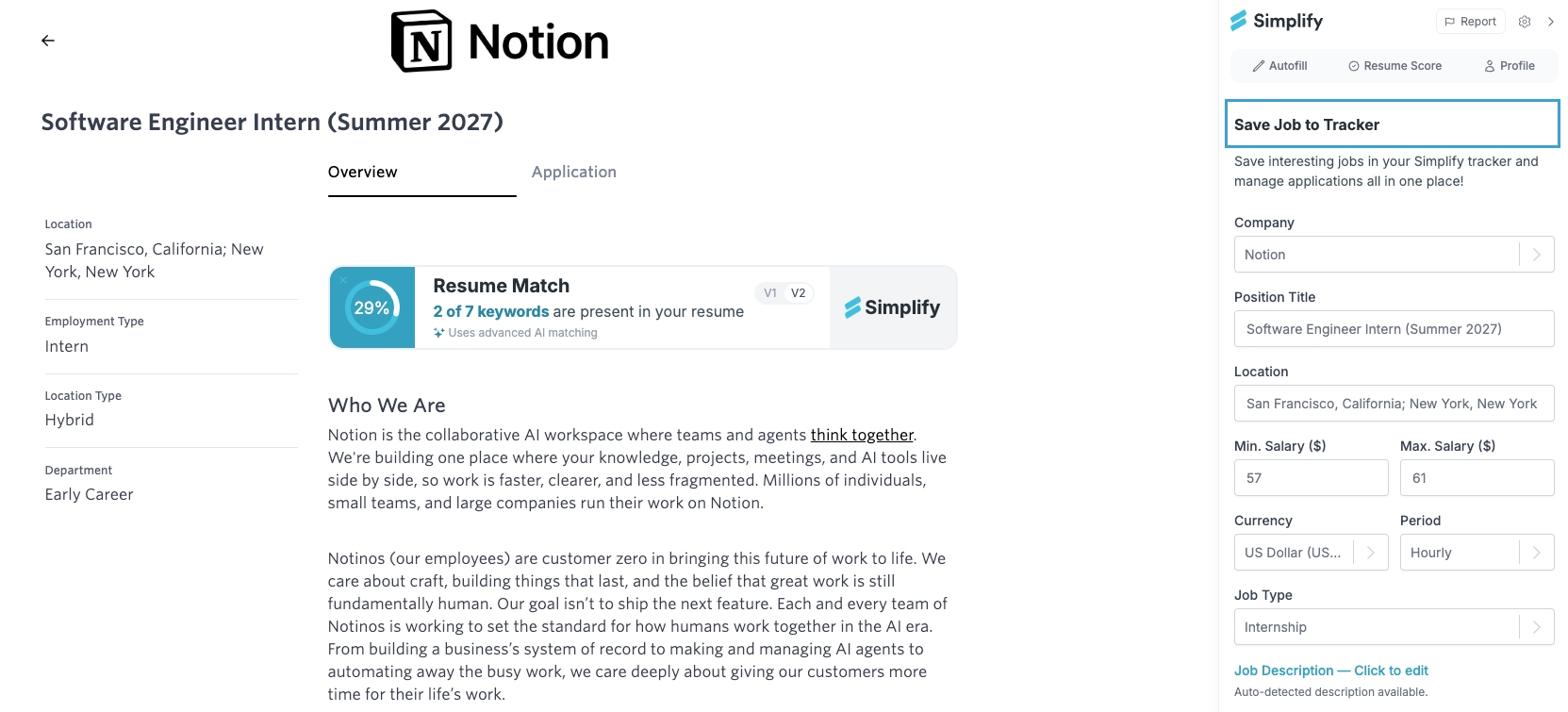
The job is added to your tracker, alongside the jobs you save from the Job Board or Job Matches. You can update its status later once you apply.
📝 Note: Applying to a job using Copilot will automatically save the job to your Job Tracker.
2. Add it manually from your tracker
For a role you heard about somewhere else, or a page Copilot can’t process, open your Job Tracker and click + Add Application in the top right, then enter the details manually.
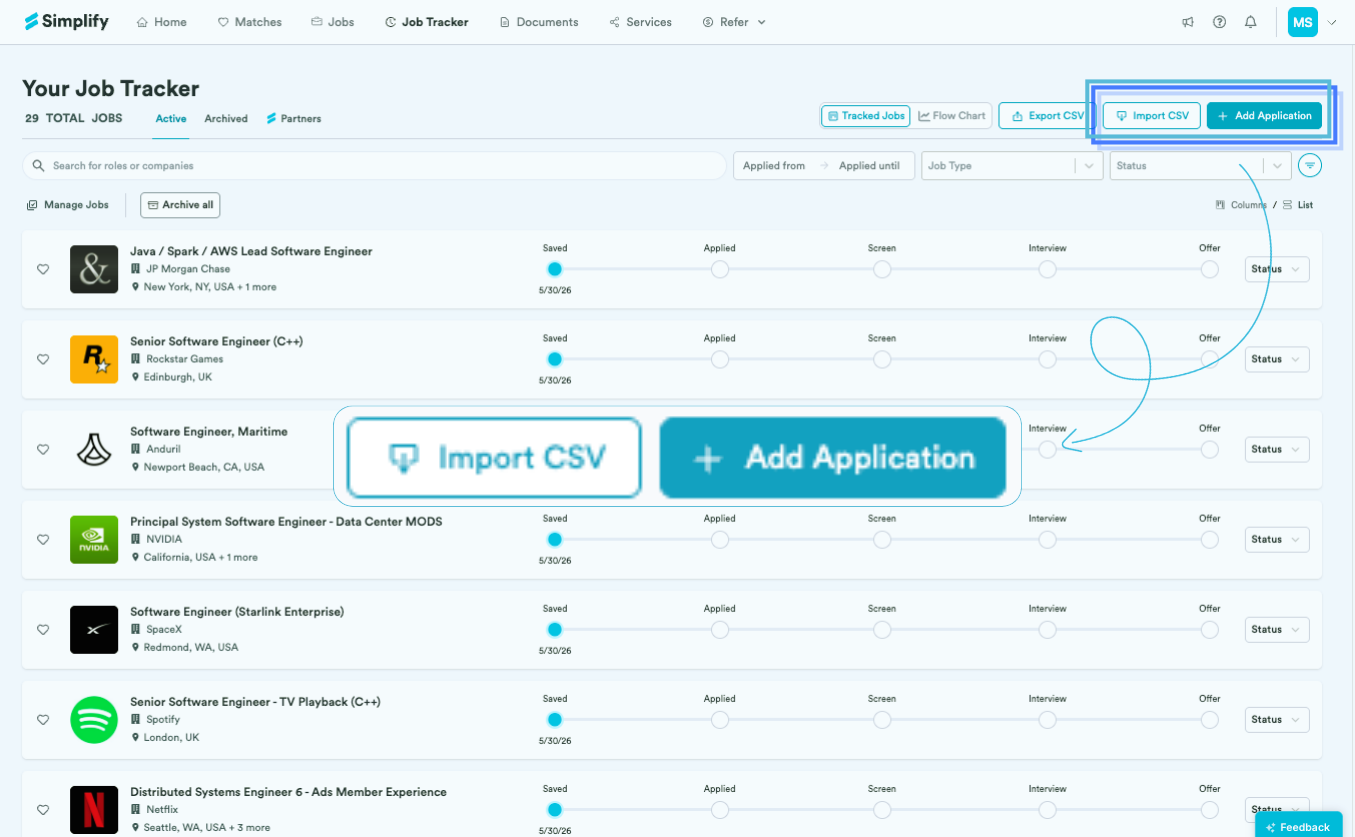
For the step-by-step walkthrough: Adding Custom Applications
3. Import several at once
If you maintain your own job-tracking spreadsheet, use Import CSV to bring applications into your Job Tracker in bulk.
On what else Copilot can do on an application page: Using Copilot to Autofill Applications
How do I import an existing spreadsheet tracker?
Open your Job Tracker and select Import CSV from the top action row next to + Add Application.
To import successfully, your CSV should include the following columns:
Company name (required)
Position Title (required)
Location (optional)
📝 Note: Once imported, these applications appear alongside the rest of your saved and applied jobs in the tracker.
How do I export my Job Tracker?
Open your Job Tracker and select Export CSV from the top action row.
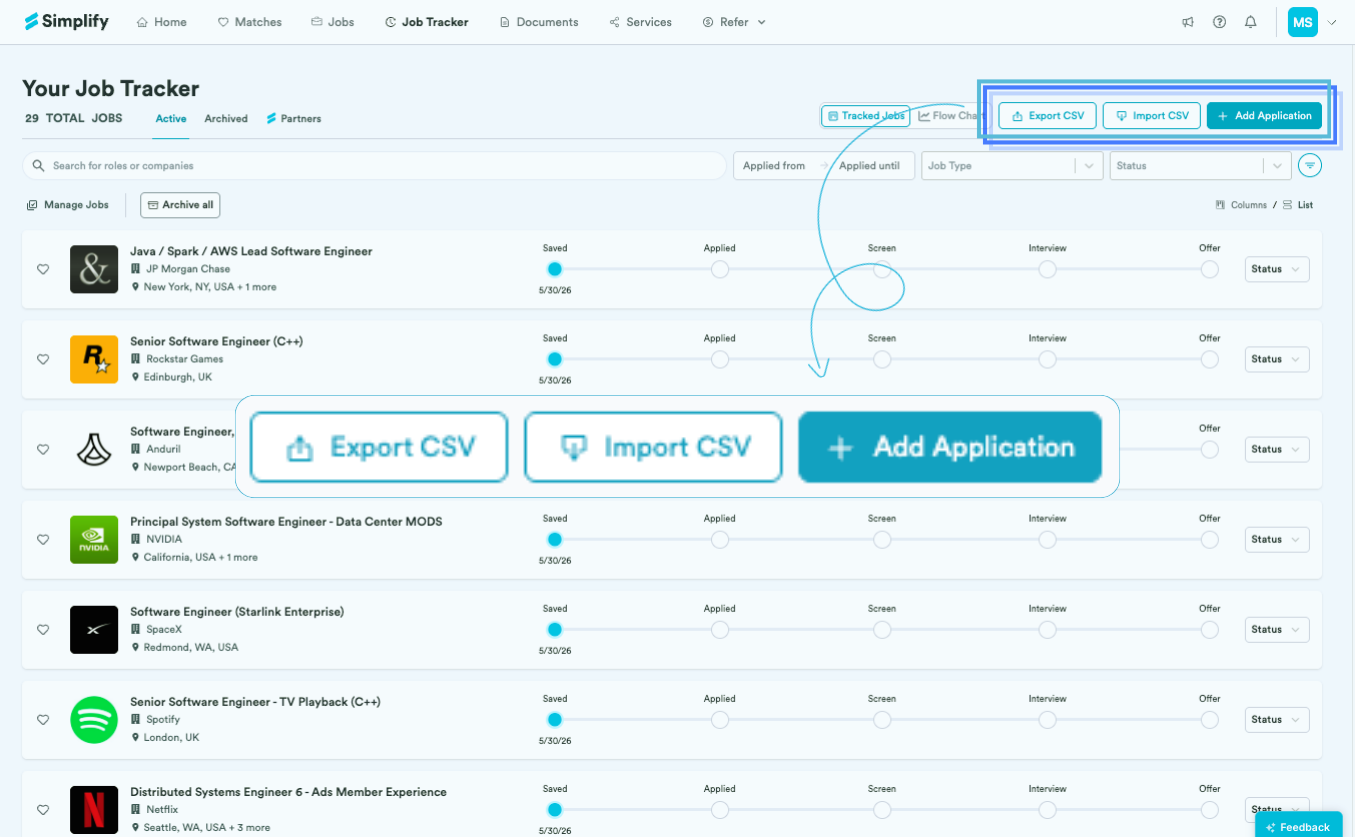
Your tracker downloads as a CSV file that can be opened in spreadsheet tools like Google Sheets or Excel.
The exported file includes the application data currently stored in your tracker.
How do I find a specific application?
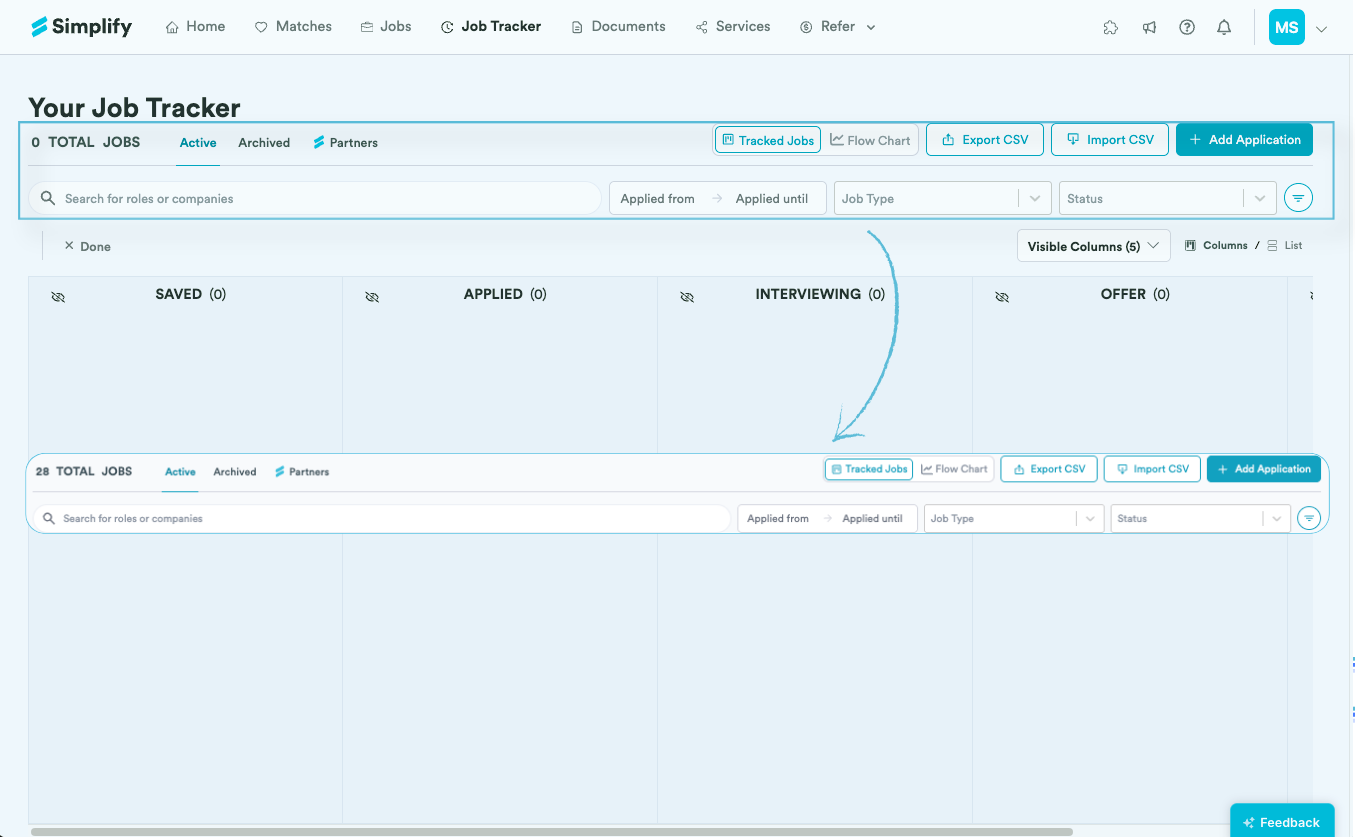
Use the filter row above your tracker to narrow applications by:
Company
Role
Applied from / Applied until
Status
Job type
You can also save filtered searches for easy access to the same groups of applications later.
Additional organization options include:
Favoriting applications with the heart icon
Archiving older applications
Switching between Columns and List views depending on how you prefer to manage your pipeline
How do I update the status of an application?
You can do so in a few ways:
Drag it between columns in Columns view
Change the Status dropdown in List view
Open the job and update Application Status from the Overview tab
How do I archive or delete applications?
Archiving moves an application out of your Active view without deleting it, which is useful for rejections, stale applications, or anything you don't want cluttering your pipeline. To archive:
Use the Archive option on a single row, or the Archive button in the per-job panel header
Click Archive all in the sub-action row to archive every job in your current view at once
For bulk actions across multiple jobs, open Manage Jobs in the sub-action row
Archived jobs move to the Archived sub-tab next to Active. From there, you can unarchive them back into your Active applications, or permanently delete them if you no longer want them in your tracker.
To delete a single job directly without archiving first, open it and select Delete from the per-job panel header.
📝 Note: Deleted jobs can't be recovered. If you're not sure, archive first — you can always permanently delete from the Archived sub-tab later.
Was this helpful?
Still need help? Share an idea